
What to Do if DVR or NVR can’t Connect to Internet Successfully?
Please plug DVR or NVR into the router with network cable if you wanna use a computer or phone to connect the recorder locally or remotely.
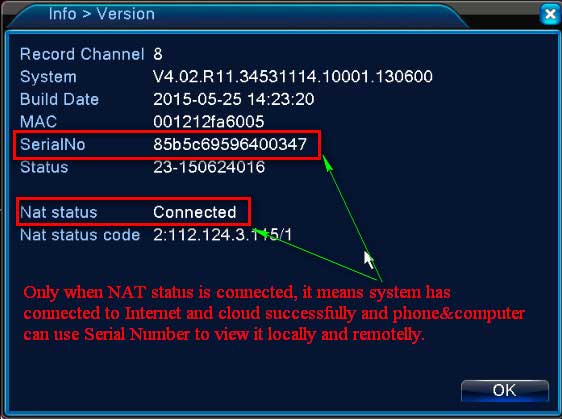
You can judge whether the recorder was connected to the internet by the status of a network like a picture below.
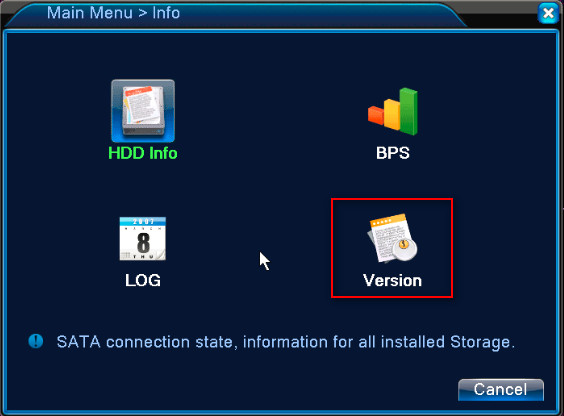
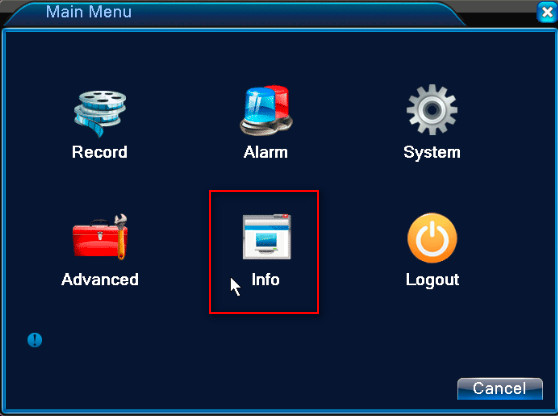
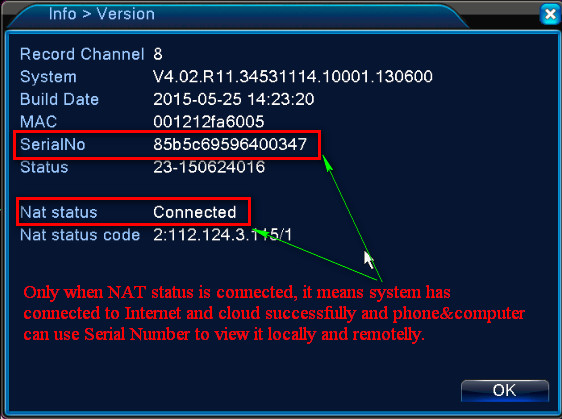
If the status is not connected, it means the recorder did not connect to the cloud successfully.
Here are the methods:
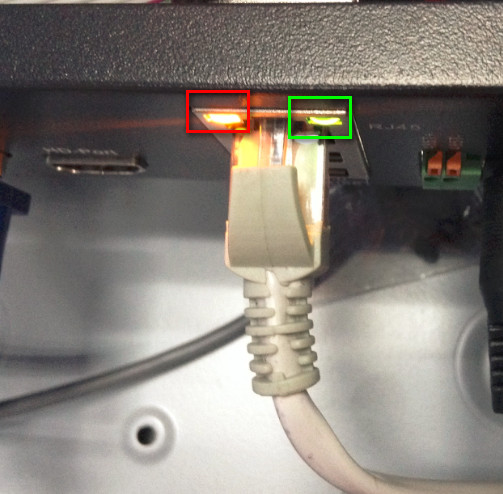
1. Please check the yellow and green light on the ethernet port of the recorder. One should be blinking which indicates the recorder has connected to the router successfully. If not, please change the ethernet port of the router or another reticle to have a try.
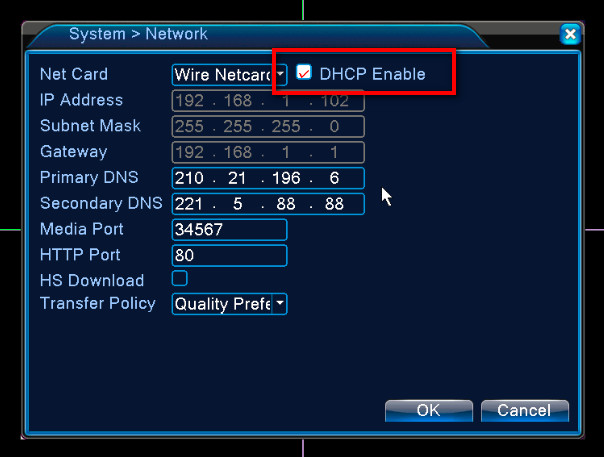
3. Go to the Main menu—-System—Network to confirm DHCP is ticked.
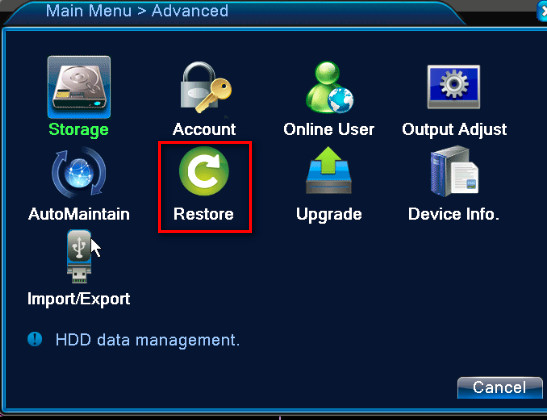
4. Please reset the recorder to the factory default setting.
5. If you can, please change the router to have a try.
Please sent an email to support@xvraid.com to ask new firmware to upgrade. But you need to inform us the model of your system. It is made up of numbers and letters such as DL81A. You can find it at the bottom of the recorder. Please refer to this link to find it.

problem not solved thanks
my recorder is not working