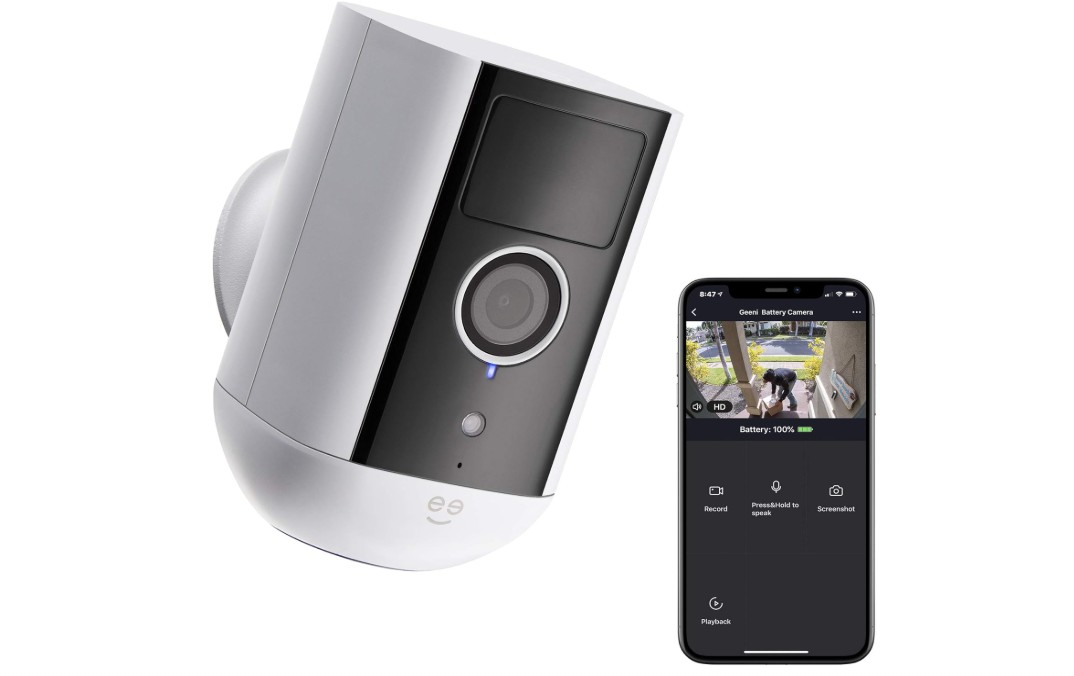
Geeni Freebird 2K Wireless Security Camera Guide, 2K HD video for crystal-clear security – Get sharp, high-definition 2K surveillance with night vision, ensuring every detail is visible day or night for front doors, garages, and backyards
Magnetic mount for quick installation – Stick the wireless security camera onto any metal surface in seconds, or use the included mounting kit for flexible placement on walls, doors, or fences. No drilling or hardwiring needed
Rechargeable, long-lasting battery – Enjoy up to 3 months of battery life per charge with the powerful 9,000mAh rechargeable battery. Easily remove the camera from the magnetic mount to recharge via USB-C.
VERIFICATION CODE
When registering, only using phone number will require a verification code, using email will not.
Geeni Freebird 2K Wireless Security Camera Guide
AR-125
.
Motion Detection
Motion Detection in the Geeni App follow the below instructions:
.
To Save a Certain Day of Footage From the SD Card
To Save a Certain Day of Footage From the SD Card
1. Go to your camera on your Geeni app
2. Tap on Playback (Choose the day to be saved)
3. Once the desired footage has been determined tap on “Record”
4. Recordings of the footage are located on the mobile device’s default storage.
Video Recording Process (with SD Card)
The camera recording depends on the video quality, the camera will use around 1gb of storage per day, so a 32GB card can provide weeks of continuous video. As the card fills up, the oldest footage will automatically be replaced by new video, so you don’t have to ever worry about running out of storage space.
How to Format 64 GB SD Card from exFAT to FAT32 on Win 7?
To Format 64 GB SD Card from exFAT to FAT32 on Win 7, follow below instructions:
1. Plug the 64GB SD card to a card reader and insert into your computer. Be sure that the SD card is detected. Next, install and run AOMEI Partition Assistant.
2. Right-click the SD card and select “Format Partition”.
3. In the pop-up window, specify partition label and select FAT32 from the given list. 4. Click “Apply” to execute the pending operations.
Tips:
*If the 64GB SD card is a new SD card, you can see an unallocated space there. Right click it and create a FAT32 based partition with “Create Partition”.
*Above steps apply to format 64 GB SD card to FAT32 in Windows 10 as well.
*You are able to format SD card from FAT32 to exFAT on the contrary as well.
Only four steps can you successfully format 64GB SD card to FAT32 under Windows environment. This professional format software is capable of solving Intenso USB write protected issue as well. Obviously, it is a WD quick format tool that used to format WD 1TB hard drive in Windows. The “NTFS to FAT32 Convertor” can assist you change file system without formatting and losing data if you have important files stored on the SD card. You may want to know how to format 128GB SD card to FAT32 as well. Download it to manage your storage devices to a better state.
Geeni Camera Cannot connect to Wi-Fi network
Make sure you entered the correct Wi-Fi password during the Wi-Fi setup. Check whether there are any Internet connection problems. If the Wi-Fi signal is too weak, reset your Wi-Fi router and try again.
How to access my Geeni smart camera settings?
To access my Geeni smart camera settings, follow the below instructions:
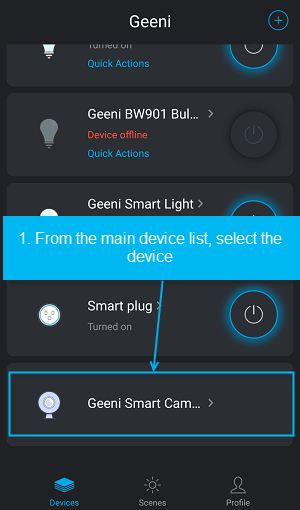
1. From your main device list, click on one of the Camera devices whose settings you want to check.
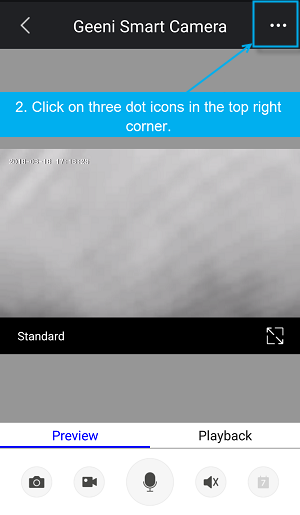
2. Press the “…” button on the top right for advanced settings.
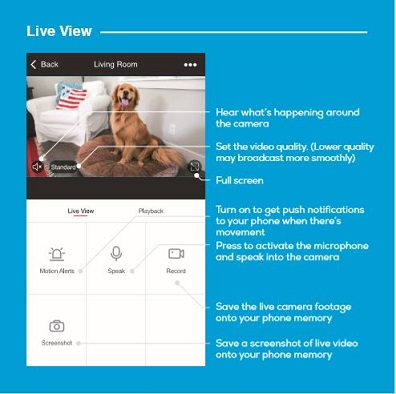
Geeni Camera live View & Play back view?
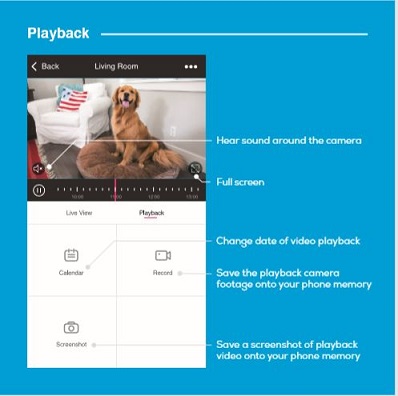
For live view and play back view of Geeni cameras first open the Geeni app then select Geeni smart Camera from main device list. For playback view you must insert a SD card in Geeni Camera.
Live view:
Playback view:
How to check for serial number and version of Geeni camera?
To see serial number and version of Geeni camera, follow the below instructions:
1. Open the Geeni app and from the main devices list select Geeni Camera.
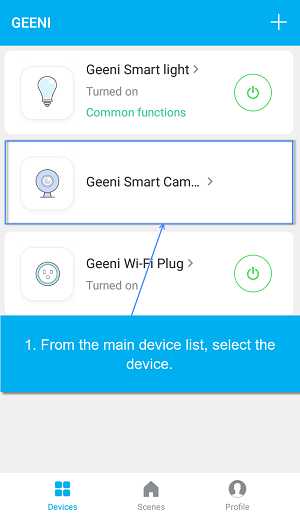
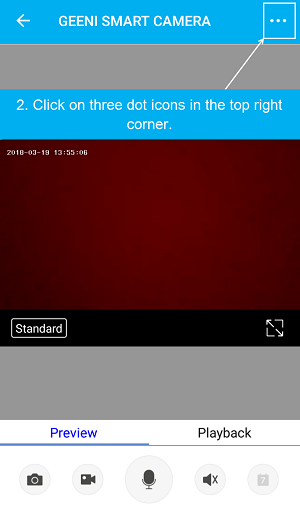
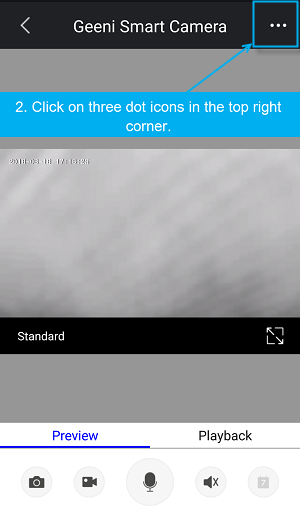
2. Click on the device setting “Three dot icons” (…) at top right corner.
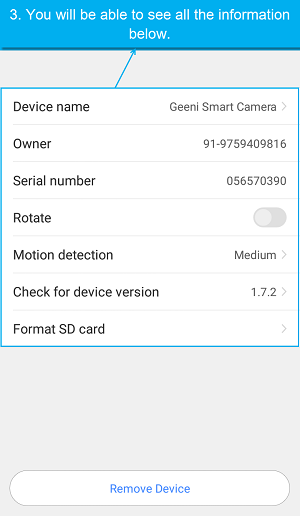
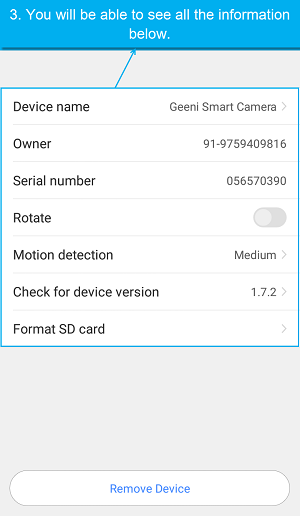
3. Select for what you want (serial number or version) to see them.
How to format the memory card of Geeni cameras?
To format the memory card of Geeni cameras, follow the below instructions:
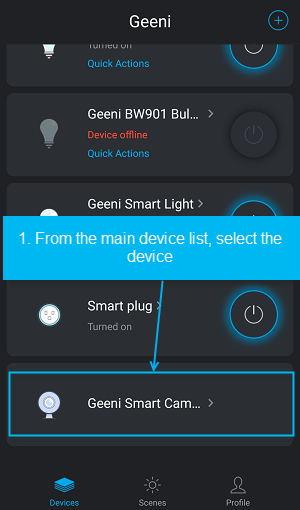
1. Select the Camera from main devices list.
2. Select (….) button then Go to settings
3. Now select Format SD card.

Once you’ve formatted the SD card, go back to recording & check alarm If the issue persists.
What is motion detection setting of Geeni camera?
Motion Detection will detect the motion of the object which is in the front of the camera. When you will turn on Motion Detection, then you’ll receive notifications to your phone whenever the camera senses motion. You can set how sensitive you want it to be.You can also press turn Motion Detection off to make the detection setting off .
What is the basic feature setting of Geeni camera?
The basic feature settings of Geeni camers are listed below:
Indicator Light: By default, the camera lights up to show it’s on. Switch “Indicator Light” off to hide the light.
Flip: If you mount your camera upside down, toggling the “Flip” function will rotate the image so that it’s right side up.
Time Watermark: Turn the time watermark on to always see a time stamp of when video is taking place.
There is not an English language city for sunrise or sunset Geeni camera?
We’re working on software updates, which will resolve this. Once updates are ready, you’ll get an in-app notification.
I am speaking to the Geeni but I am not able to hear any sound coming back from Camera. Is there any way to fix that?
You can fix that through Geeni camera walkie talkie:
1. Speaker icon allows you to hear what’s happening in the room
2. Click on the microphone button to speak.
Is Geeni smart camera have any default user name & password?
No, Geeni cameras aren’t preset with a username/ password.
If you have forgotten your username and password then you can factory reset the settings.
Do any third-party camera apps work with Geeni cameras ?
No, the Geeni cameras won’t work with third party apps. It’ll only work with the Geeni App & voice control by Amazon alexa & google Assistant.
What is the use of Micro SD Card?
Without a Micro SD card (optional, sold separately), the smart Wi-Fi camera can show live camera video, save screenshots or videos of the camera stream to your phone for later, and record still snapshots of motion alerts when notifications are turned on.
Installing a Micro SD card will further enable video recording and playback from your phone. When the card is installed, the camera will continuously record and play back video to your phone until the card is full (up to 128GB supported). Video is encrypted and only view-able through the Geeni app on your phone, so do not try removing the Micro SD card to view video.
Recommended SD Cards:
Class10 and UHS1 or above such as:
16G
.
32G
.
64G
.
128G
.
Note: “ No need to reformat the SD Card to FAT32”
How to reset the camera or how to do factory reset in Geeni camera setting?
To do factory reset in Geeni camera settings or to reset the camera, hold the reset button for 5 seconds. Once it’s reset, camera will provide a voice prompt.
.
What’s the Wireless Range for camera?
.
Wireless Range for camera depends on the range of your home Wi-Fi router and the conditions of the room. Check with your router specifications for exact range data.
.
The camera appears offline or unreachable, what should I do?
Make sure your Wi-Fi router is online and in range. Make sure you have the latest Geeni functionality by clicking “Check for firmware update (for IP IInd Gen Cam)” & “Check for device version (for Geeni wi-fi smart camera)” in your device settings.
How Much Video Can the Camera Record?
.
The camera recording depends on the video quality, the camera will use around 1gb of storage per day, so a 32GB card can provide weeks of continuous video. As the card fills up, the oldest footage will automatically be replaced by new video, so you don’t have to ever worry about running out of storage space.
How to check for serial number and version of Geeni camera?
To see serial number and version of Geeni camera, follow the below instructions:
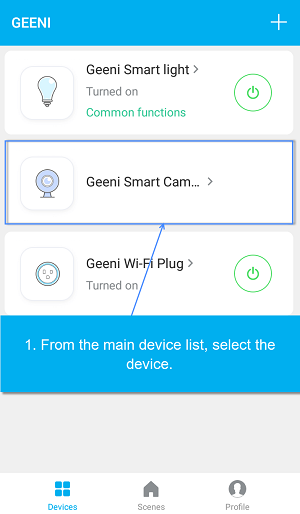
1. Open the Geeni app and from the main devices list select Geeni Camera.
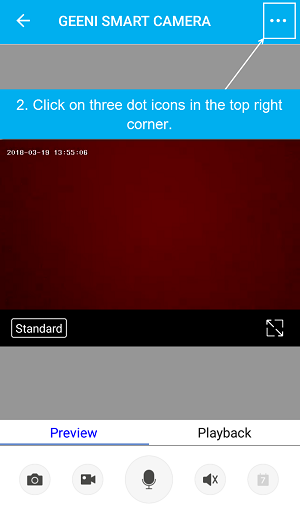
2. Click on the device setting “Three dot icons” (…) at top right corner.
3. Select for what you want (serial number or version) to see them.
How to check firmware update for Geeni devices in the Geeni App?
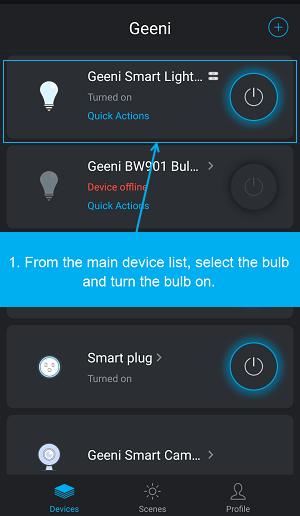
To check the firmware update for Geeni devices in the Geeni App, follow the below instructions:
1. From your main device list, click on one of the devices whose firmware you want to be updated.
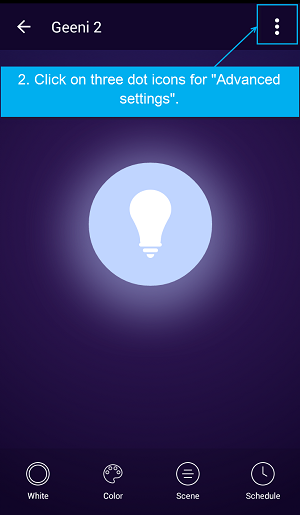
2. Press the “…” button on the top right corner for advanced settings.
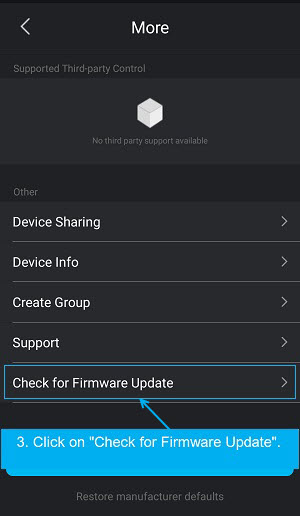
3. Now click on ‘check for firmware update’.
.