FLEETA BlackVue Dash Cameras Full Setup GuideFLEETA is a simple and affordable fleet tracking and monitoring service.
With just a dashcam and a FLEETA account, you can manage your vehicles in real time.
FLEETA App Features
– Live GPS (Real-Time Location Tracking)
: Check the real-time location of all vehicles on a live map.
– GPS Tracking (Trip History & Route Playback)
: Review trip history and route data to analyze past vehicle movements.
– 24/7 Protection & Real-Time Event Alerts
: Get instant alerts for motion detection, impacts, and critical events.
– Live View (Dashcam Streaming)
: Stream live video from dashcams for real-time monitoring.
– Driving Reports & Behavior Analytics
: Access detailed reports on driver behavior, including speeding and harsh braking.
– Geofencing
: Receive notifications and automatically record video when vehicles enter, exit, pass through, or speed in geofenced zones.
– Cloud Storage & Live Event Upload
: Automatically upload and securely store event videos in the Cloud.
– Firmware Updates (FOTA)
: Remotely update dashcam firmware over the air.
FLEETA BlackVue Dash Cameras Full Setup Guide
Troubleshooting Cloud connection status
If your BlackVue dashcam isn’t maintaining a stable Cloud connection, you may lose access to live viewing, push notifications, remote playback, and GPS tracking. Use this comprehensive troubleshooting guide to quickly restore your camera’s Cloud status and regain all features.
Note: Screenshots in this guide are based on the BlackVue app and may vary slightly depending on your camera model or app.
1. Common symptoms of Cloud connection issues
2. Essential system checks
A. Power and Internet connectivity
B. Camera and app readiness
3. Step-by-step recovery
1. Check in the app:
2. Restart devices and connections
3. Verify Wi-Fi or LTE network
4. Update camera firmware
5. Check subscription and plan status
6. Remove and re-register your camera
4. Quick reference troubleshooting table
| Symptom | Solution |
|---|---|
| “Cloud disconnected” status | Check internet, power, and restart both dashcam and network devices |
| Camera not showing in device list | Log out/in, refresh camera list, or re-register camera |
| Cannot connect over LTE | Check SIM card, network signal, and APN settings |
| Wi-Fi SSID not found | Reboot camera, check Wi-Fi band (set to 2.4GHz), restart smartphone |
| App features greyed out | Ensure Cloud plan is active, and camera occupies a cloud slot |
| Frequent disconnects/intermittent | Test with another Wi-Fi or SIM; reposition router/hotspot as needed |
5. Additional tips
If, after following all these steps, your dashcam still won’t connect to the Cloud, contact BlackVue Customer Support with your device and account details for advanced troubleshooting.
Registering via QR code: how to use it
Registering your BlackVue dashcam via QR code is an alternative way to add your camera to your account for access and video management. Use this step-by-step guide to complete your registration with confidence.
Supported Models: DR II Series, 590X Plus & ELITE 8
Note: Screenshots in this guide are based on the BlackVue app and may vary slightly depending on your camera model or app.
1. Preparation for QR code registration
NOTE: Adding a camera to your account is the prior step to activating the Cloud features for remote access and video management, except for the 590X Plus model.
2. How to register your camera using QR code
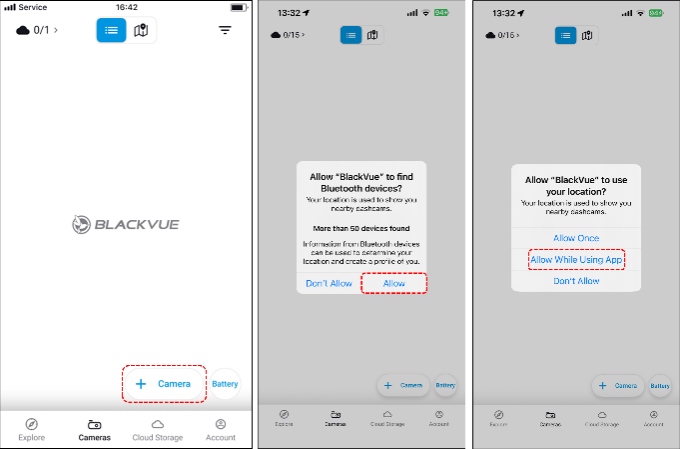
Launch the app and sign in.
In the “Cameras” tab, tap “+ Camera”.
Allow Bluetooth and location permissions.
Choose “QR code” as your preferred registration option.
Tap Allow to continue to the next step.
Use your phone’s camera to scan the QR code sticker on your dashcam. Make sure the code fits within the scan area and is well-lit. Press OK after the successful scan.
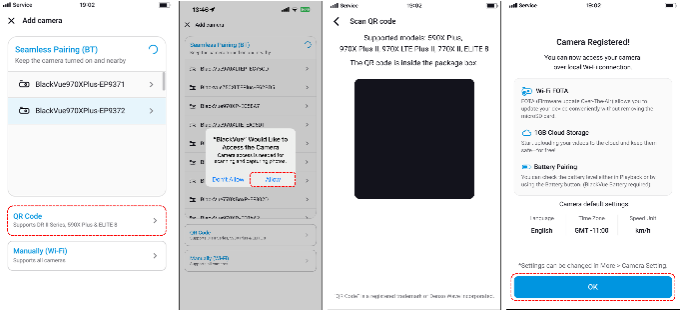
NOTE: You can now proceed to activating Cloud features of your Cloud-compatible dashcam after completing the steps above.
3. Troubleshooting QR code registration
| Problem | Solution |
|---|---|
| QR code won’t scan | Clean the code sticker, improve lighting, or enter serial manually |
| Camera not found during registration | Ensure dashcam is on, firmware is up to date, and app is updated |
| “Already registered” error | Remove camera from the old account or contact previous owner |
| Sticker missing or unreadable | Check the box/manual for a backup code or use manual entry |
| Cloud fails to activate | Double-check network settings for Wi-Fi/LTE and retry registration |
4. Additional tips
By following these steps, you’ll connect your BlackVue dashcam to your account quickly and later unlock all features—including Cloud storage, push alerts, and remote video access. If registration problems persist, contact BlackVue Customer Support for expert help.
Compatible camera models for Cloud service
Before registering for BlackVue Cloud, it’s important to confirm that your dashcam model supports Cloud connectivity and remote access features. Use this guide to identify eligible models and ensure your device is ready for Cloud activation.
Note: Screenshots in this guide are based on the BlackVue app and may vary slightly depending on your camera model or app.
Which BlackVue camera models support Cloud service?
Cloud capability is available on select BlackVue dashcams equipped with Wi-Fi, integrated LTE SIM, or dedicated Cloud firmware. Recent flagship and LTE models are the most Cloud-ready.
Main product families with Cloud support
Tip: If your model name contains “X,” “LTE,” “S,” or “Cloud,” there’s a high chance that Cloud features are supported. Models labeled Wi-Fi but not Cloud do not enable online services.
How to check if your dashcam is Cloud-ready
Sample compatibility table
| Model | Cloud Support | Main Connection | Firmware Requirement |
|---|---|---|---|
| DR970X (all variants) | Yes | Wi-Fi, LTE | Latest |
| DR900X/DR900S Series | Yes | Wi-Fi, LTE | Latest |
| DR770X/DR750X Series | Yes | Wi-Fi, LTE | Latest |
| DR750-2CH LTE | Yes | Built-in LTE | Latest |
| DR650S/DR650GW (Cloud) | Yes | Wi-Fi | Cloud firmware required |
| DR590, DR490, DR450 | No | Wi-Fi only | Local only, no Cloud |
Cloud setup and firmware tips
Selecting the appropriate dashcam model ensures you can enjoy all BlackVue Cloud features, including remote notifications, GPS tracking, video uploads, and real-time monitoring of your vehicle fleet or personal car.
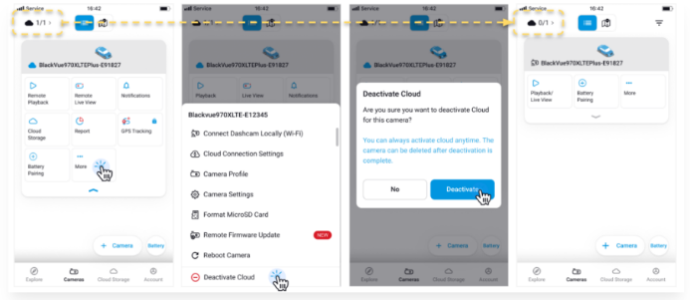
🚫How to deactivate a Cloud Camera
Deactivating a camera from the cloud will switch it to normal camera.
🔧 To deactivate a cloud camera
.
.
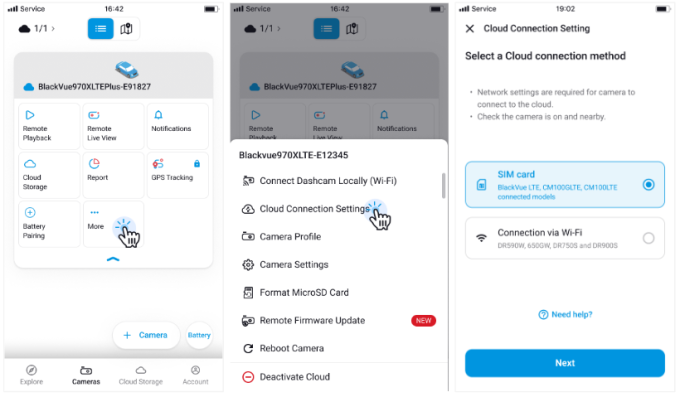
🔄 How to Change Cloud Connection Settings
To update the internet settings for your Cloud camera:
How to Activate Cloud Features
Add BlackVue Cloud Features
Tap the [Add BlackVue Cloud Features] button to upgrade your Wi-Fi camera to a Cloud camera.
Follow the steps below to activate your Wi-Fi camera as a Cloud camera.
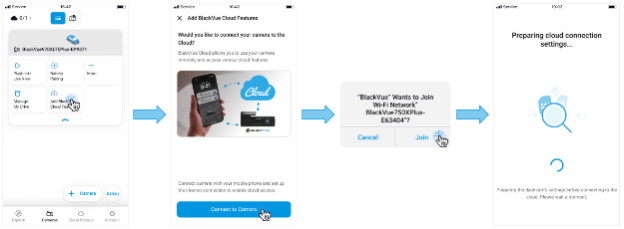
.
Once the environment analysis is complete, a confirmation screen will appear. Check if your BlackVue SIM is subscribed.
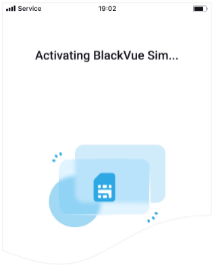
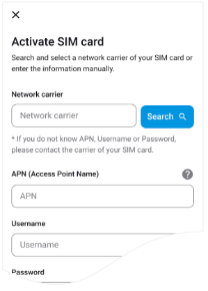
If you are using a third-party SIM, the APN input screen will appear. Enter the correct APN settings based on your carrier information.
If no SIM is detected, the hotspot setup screen will appear. Enter your Wi-Fi hotspot details to connect.
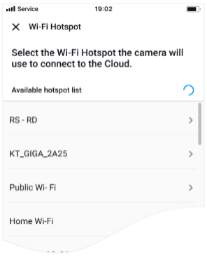
How to Change the Cloud Connection Settings
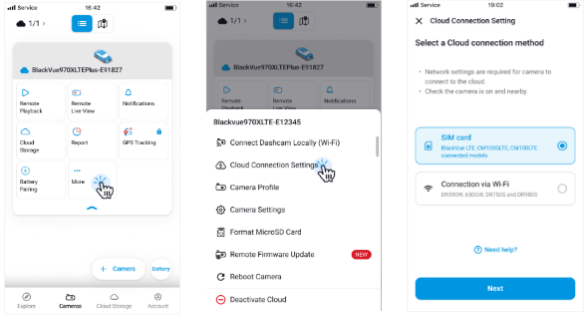
.
Setting Up: BlackVue X Series with CM100-LTE/CM100G-LTE Module for Cloud Connectivity
The DR970X, DR770X, DR900X/X Plus, and DR750X/X Plus, Series are designed with a dedicated external LTE module for Cloud connectivity. With the new CM100(G)-LTE module, Cloud-compatible dashcam users do not need to purchase extra independent hotspot which requires another power source. This module, however, requires an activated Nano SIM card to activate the free Cloud service.
CM100(G) LTE Installation Guide
Install the connectivity module at the top corner of the windshield. Remove any foreign matter and clean and dry the windshield before installation.
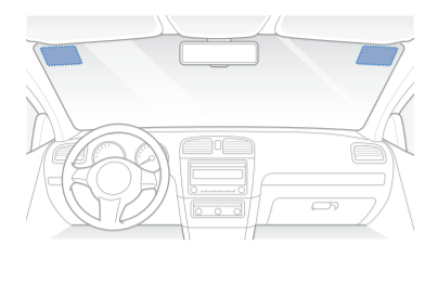
Warning
1. Turn off the engine.
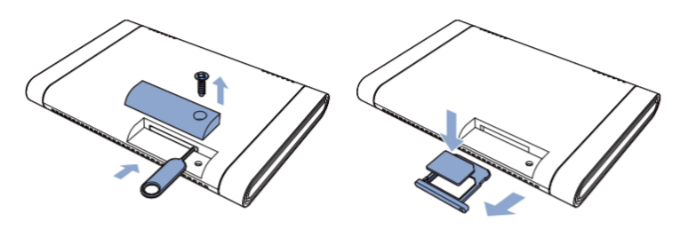
2. Unscrew the bolt that locks the SIM slot cover on the connectivity module. Remove the cover, and unmount the SIM slot using the SIM eject tool. Insert the SIM card into the slot.
3. Peel off the protective film from the double-sided tape and attach the connectivity module to the top corner of the windshield.
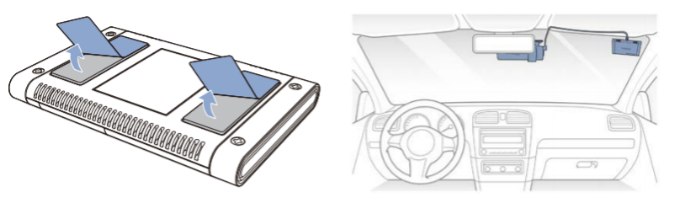
4. Connect the front camera (USB port) and the connectivity module cable (USB).
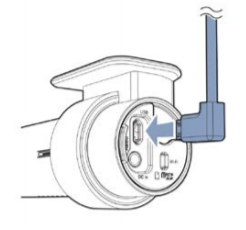
5. Use the pry tool to lift the edges of the windshield trim/molding and tuck in the connectivity module cable.
6. Turn on the engine. The BlackVue dashcam and connectivity module will power up.
NOTE:
Is my BlackVue Camera Cloud-compatible?
BlackVue Cloud service works only with the DR970X Plus/DR970X LTE Plus, DR970X/DR970X LTE, DR770X/DR770X LTE, DR750LTE/DR750X LTE Plus, DR900/DR750 (S, X, and X Plus Series), and DR650S Series dashcams. In addition, DR650GW dashcams that were manufactured after April 2015 are also Cloud-compatible.
To check if your DR650GW is compatible with the Cloud service and to receive your Cloud security code (QR code), please send us the photo/screenshot of the dashcam’s serial number and the SSID (MAC Address) to cs@pittasoft.com.
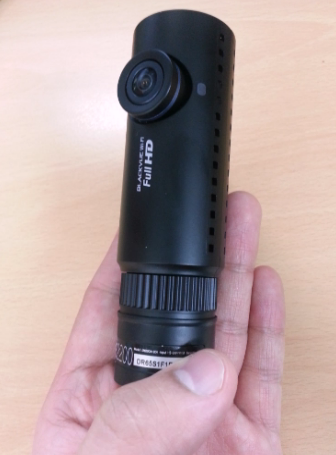
*The serial number is on the package box and also printed on the dashcam. To find it, unplug the cables and carefully take out the dashcam from the mount by pressing the lock button. You will see the serial number on the silver sticker.
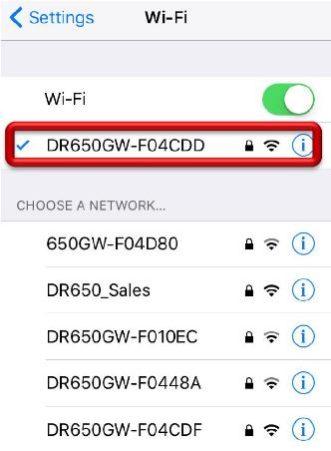
*To find the SSID (MAC Address), turn on the camera and turn on the Wi-Fi in your smartphone. You will see the camera’s SSID in the available Wi-Fi networks section of your smartphone. It should look as follows: DR650GW-XXXXXX (6 digits/letters).
Sample images:
Camera Models not Compatible with Cloud
Using driving reports, geofence alerts, and GPS tracking
Unlock the full power of your BlackVue dashcam and fleet management by leveraging driving reports, geofence alerts, and GPS tracking. These features give you visibility into vehicle usage, real-time movement, and event-based notifications—making safety and oversight effortless.
Note: Screenshots in this guide are based on the BlackVue app and may vary slightly depending on your camera model or app.
Driving reports: analyzing safety and behavior
Driving reports provide daily or monthly summaries to help monitor driver habits, safety, and critical events.
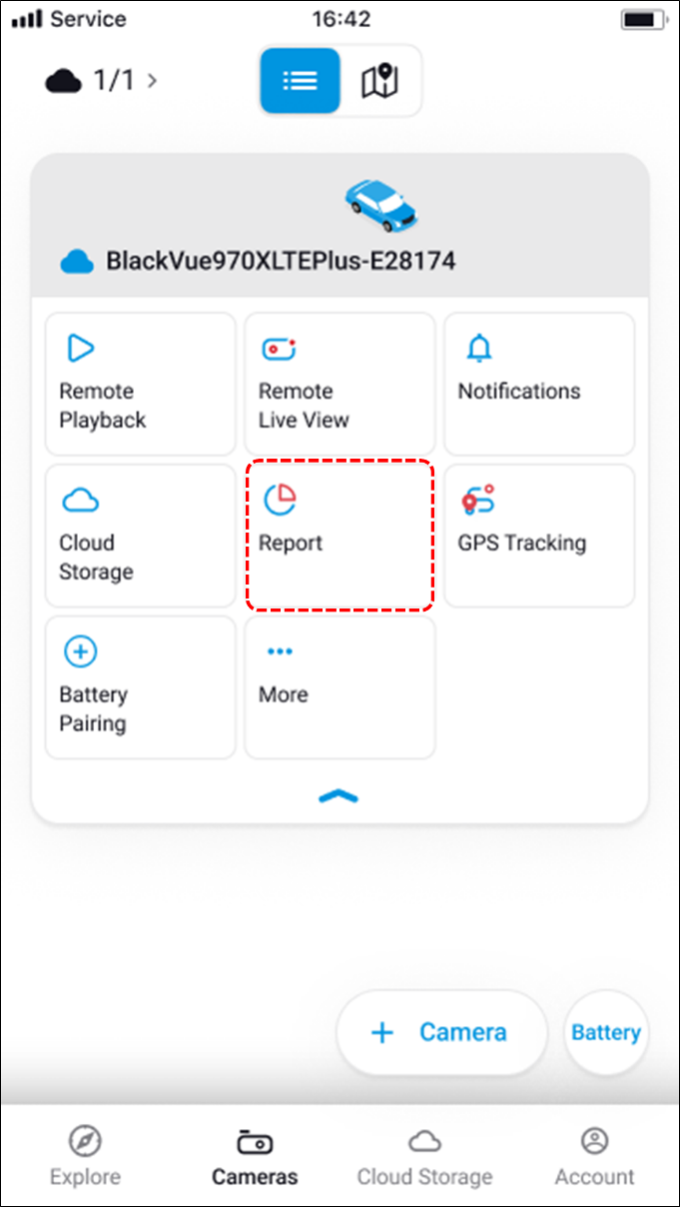
How to access and use driving reports
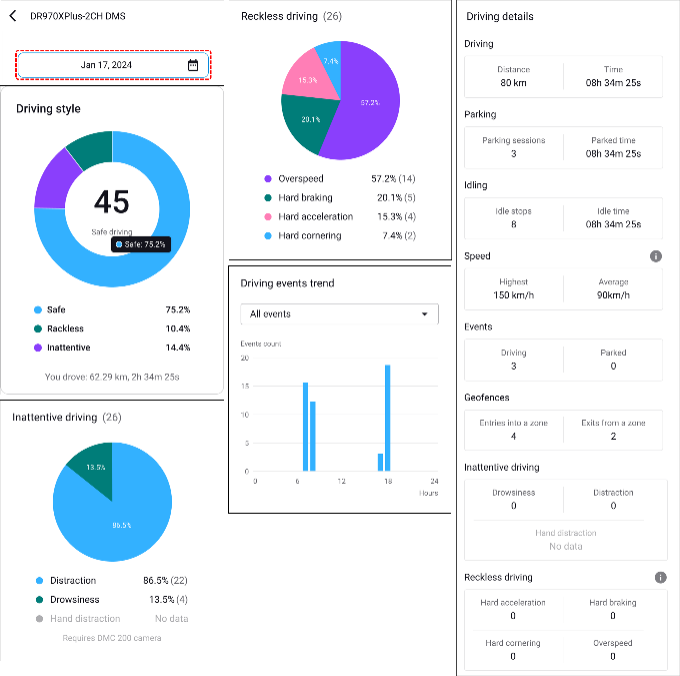
Information in driving reports
| Category | What you see |
|---|---|
| Driving Style Overview | Percentages of safe driving, inattentive driving (drowsiness, distraction), reckless driving. |
| Event Breakdown | Details for hard braking, rapid acceleration, sharp turns, overspeeding. |
| Trend Analysis | Visualizes number and timing of events per hour/day (clickable for detailed breakdowns). |
| Safe Driving Score | Auto-calculated score based on event data—100% if no negative events. |
| Detailed Log | Timestamps, event type, speed at the time, and event count. |
Geofence alerts: monitoring by area or route
Geofencing lets you define custom zones on a map; receive alerts when vehicles enter, exit, or pass through them.
Note: Geofence feature is only available for Fleet Plan users via Fleeta app or Fleeta Web Viewer.
How to set up geofence alerts (Fleeta Web Viewer Only)
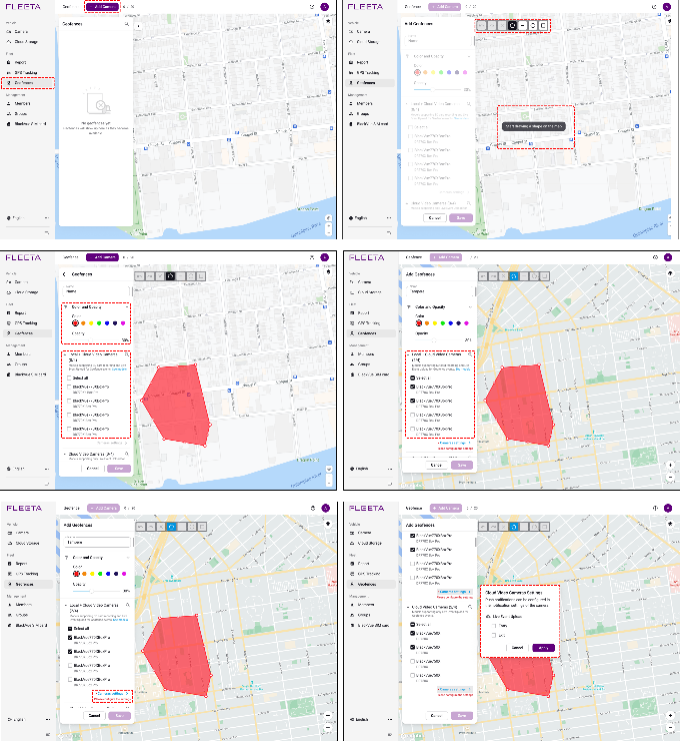
Managing and editing zones
GPS tracking: real-time location and route history
GPS tracking allows full visibility and historical playback of fleet vehicles on an interactive map.
How to use GPS tracking
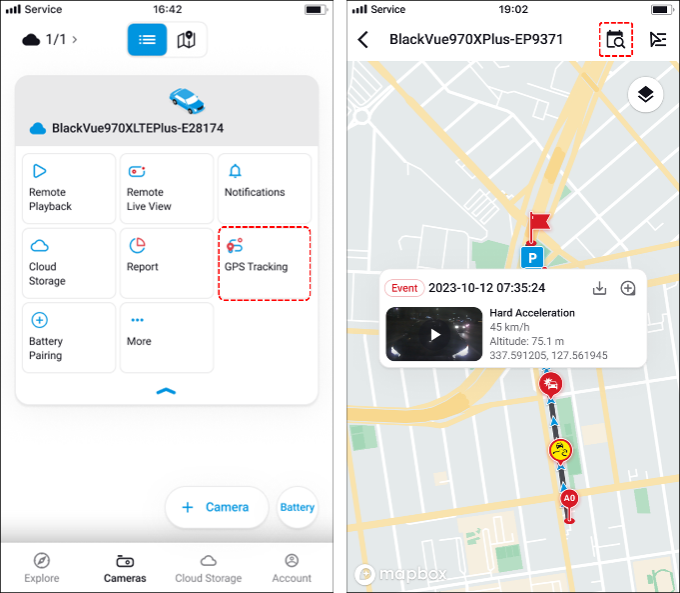
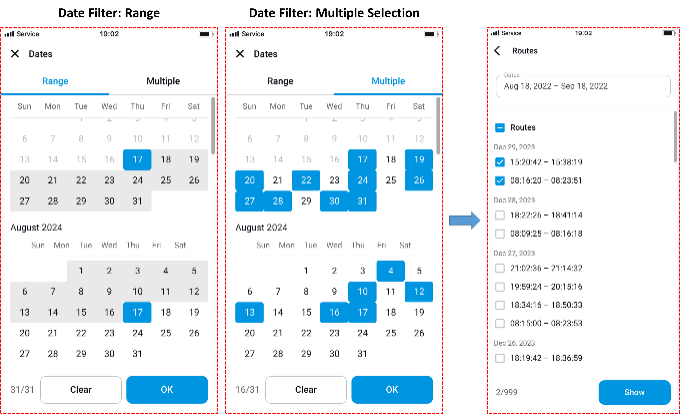
Route generation details
| Feature | Summary |
|---|---|
| Live Map Monitoring | Real-time vehicle position, route playback, and event location display on map. |
| Video on Map | Linked event videos play directly on the GPS path (Fleet Plan only). |
| Trip and Event Logs | All event, speed, and location data is searchable and downloadable for reporting needs. |
Practical tips
Smart use of driving analytics, location alerts, and GPS tracking with your BlackVue system brings full awareness, accountability, and control to personal or commercial vehicle management.
Managing Fleeta members and groups
Effectively organizing and controlling members and groups is essential for making the most of BlackVue Fleeta’s fleet management features. This guide outlines adding and removing members, assigning roles, creating groups, and managing permissions in Fleeta.
Understanding roles in Fleeta
Fleeta uses roles to determine what each user can do:
| Permission | Owner | Admin | Driver |
|---|---|---|---|
| Search/view all members & groups | ✔ | ✔ | ✘ |
| Invite members (Admin/Driver) | ✔ | ✘ | ✘ |
| Delete members | ✔ | ✘ | ✘ |
| Create/delete/rename groups | ✔ | ✘ | ✘ |
| Assign dashcams to groups or drivers | ✔ | ✔ | ✘ |
| Assign admins to groups | ✔ | ✘ | ✘ |
Adding members
In the Fleeta web or app interface, select “Members” from the sidebar menu.
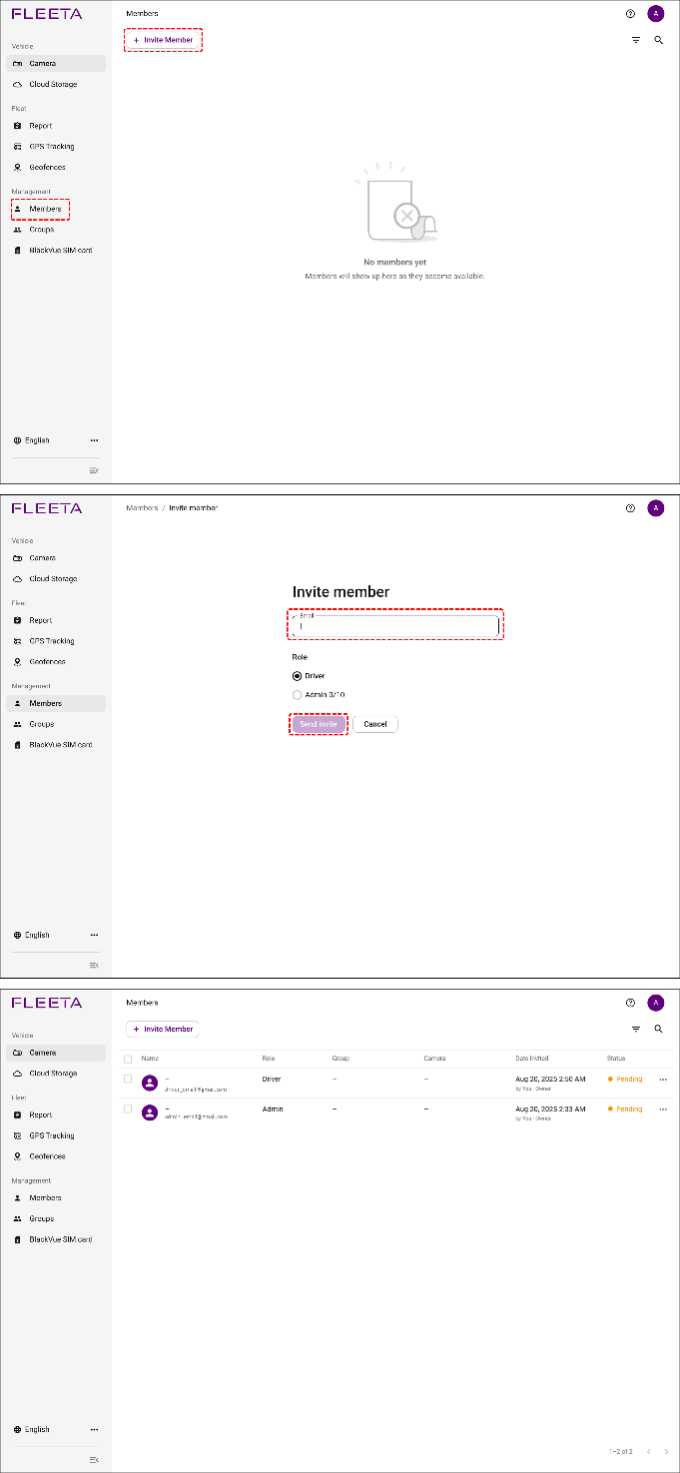
Note: The assigned role (Admin or Driver) cannot be changed later. To amend a role, delete and re-invite the member.
Removing members
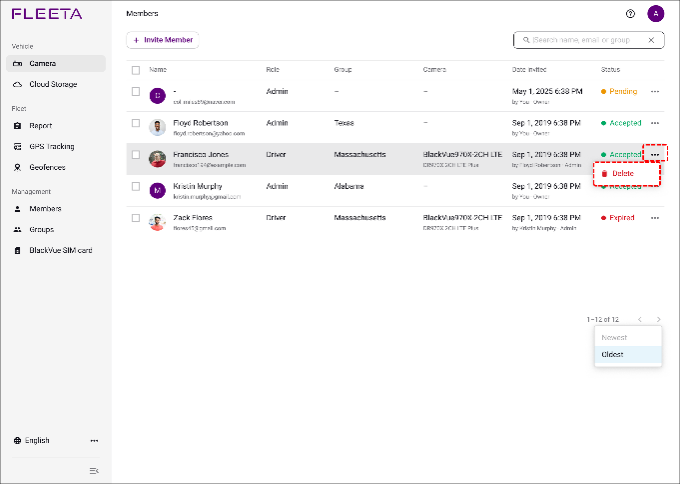
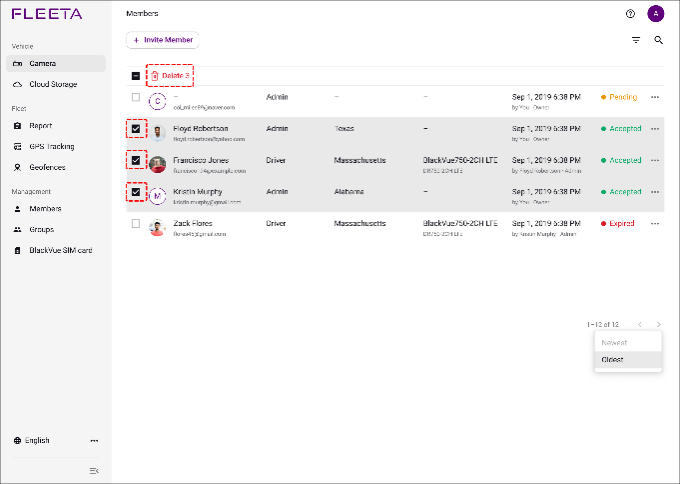
Creating and managing groups
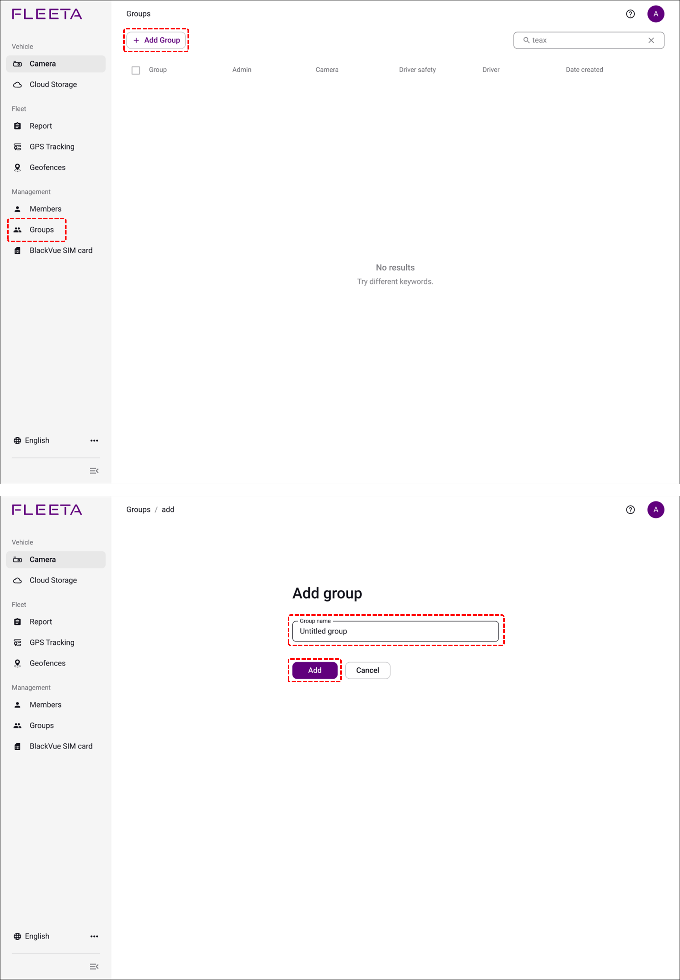
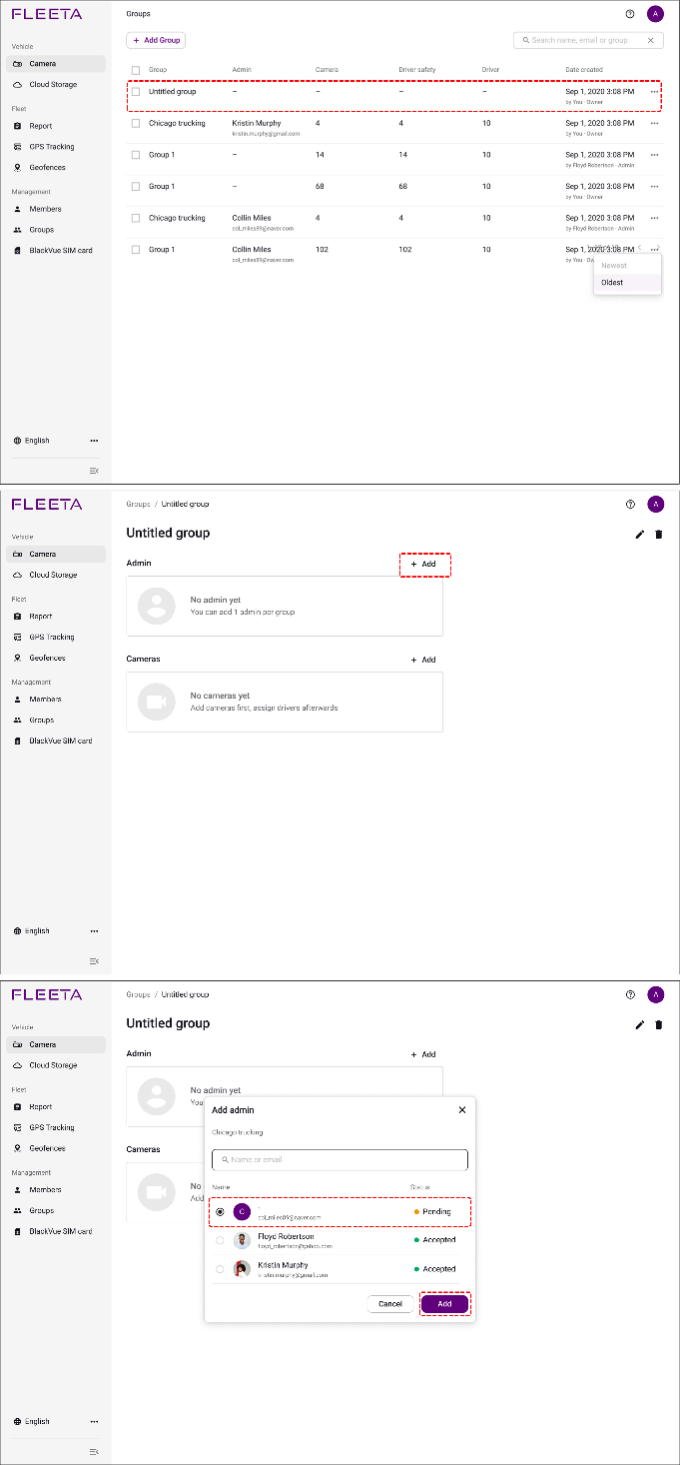
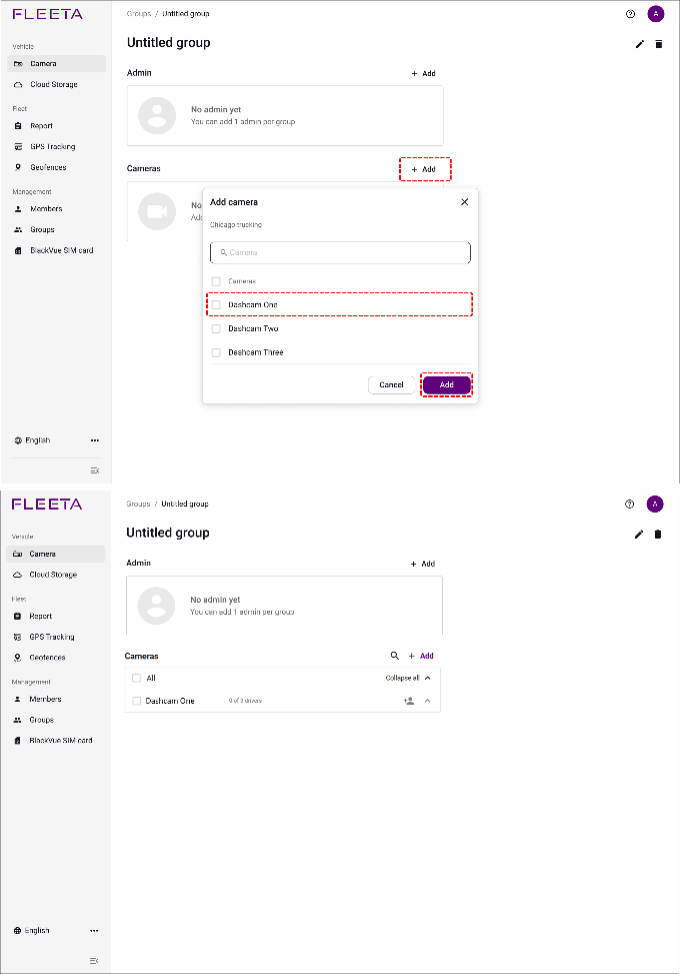
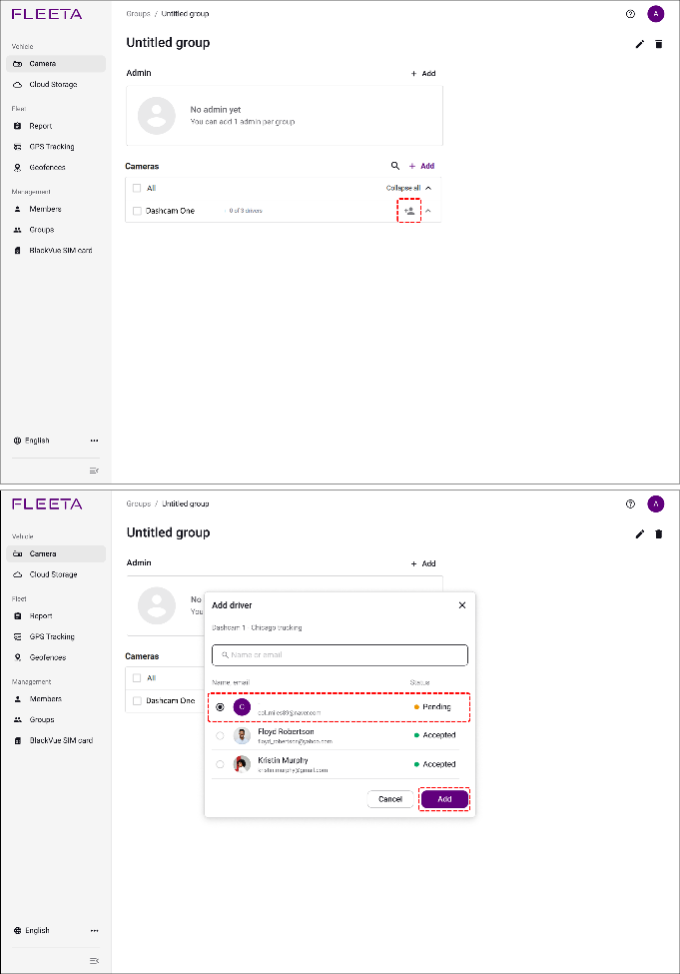
Deleting one group
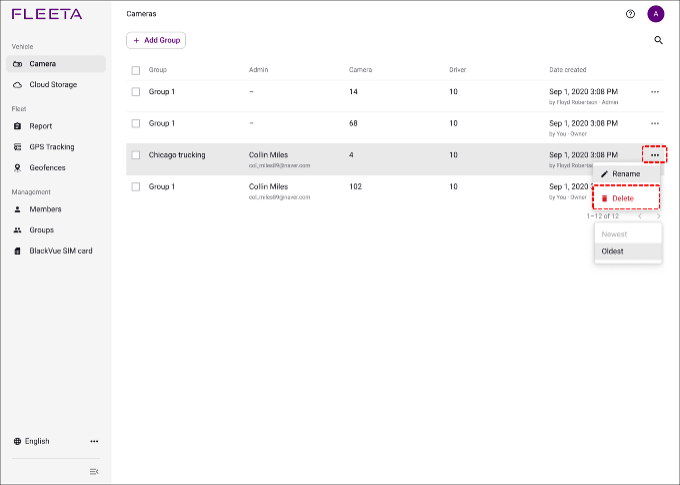
Deleting multiple groups
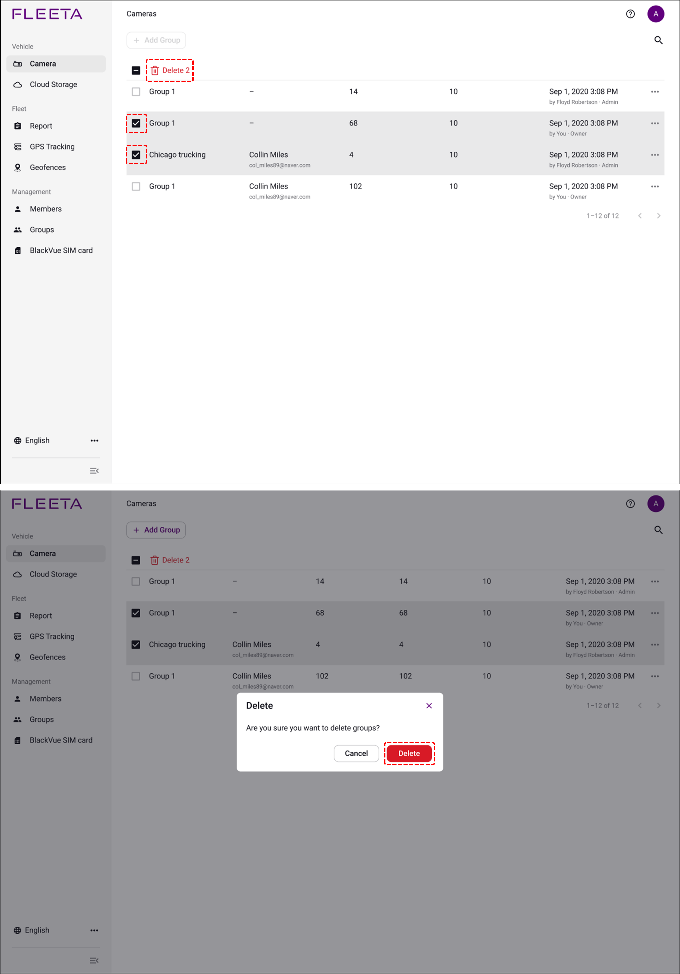
If a camera or driver is removed from a group, both remain available in the fleet and can be assigned elsewhere.
Handling pending or expired invitations
Best practices
Managing Fleeta members and groups properly ensures secure, organized, and effective oversight of your vehicles and team.
.
.