
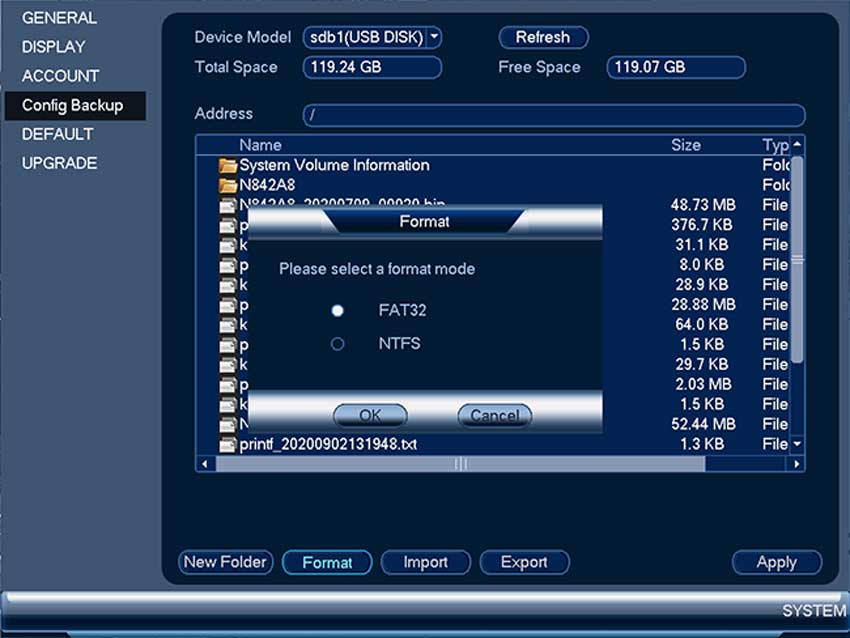
Step 1. Insert your USB flash drive into one of the USB ports on your recorder.
Step 2. On your recorder, go to Main Menu > Settings > System > Config Backup.
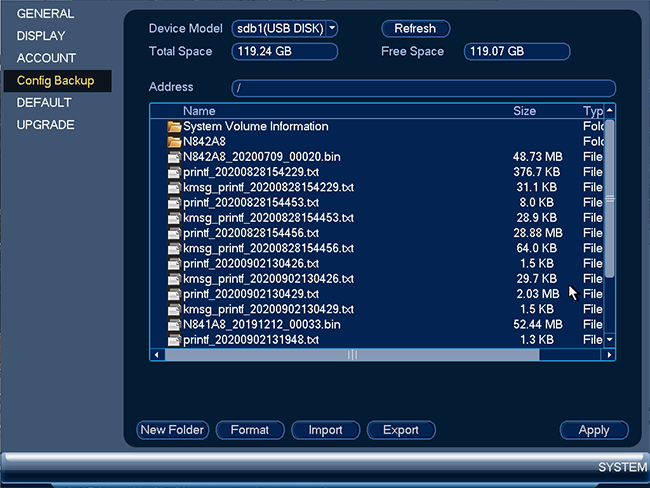
Step 3. At the top of the screen, select the USB flash drive (A) that you wish to format, then at the bottom of the screen, click Format (B) to open the popup window.
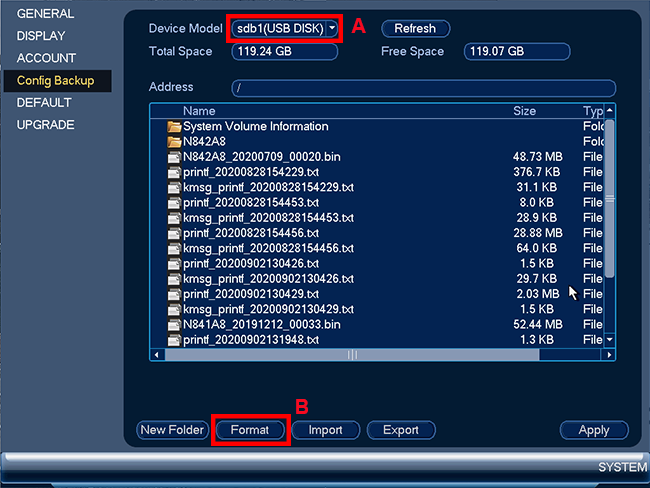
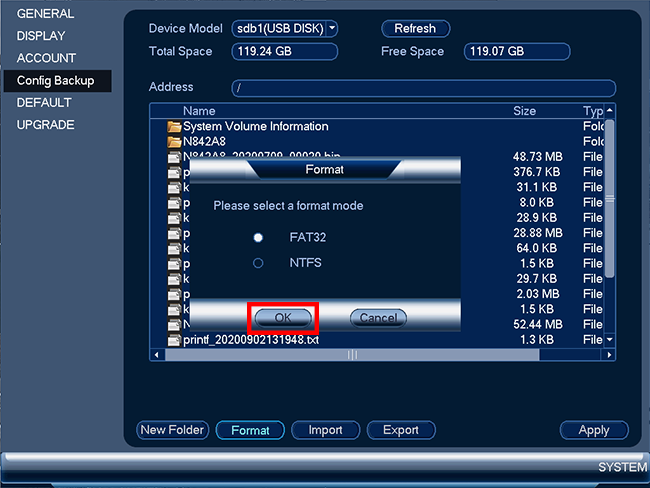
Step 4. In the popup window, select a format mode. In this procedure, I am selecting FAT32 as a format mode.
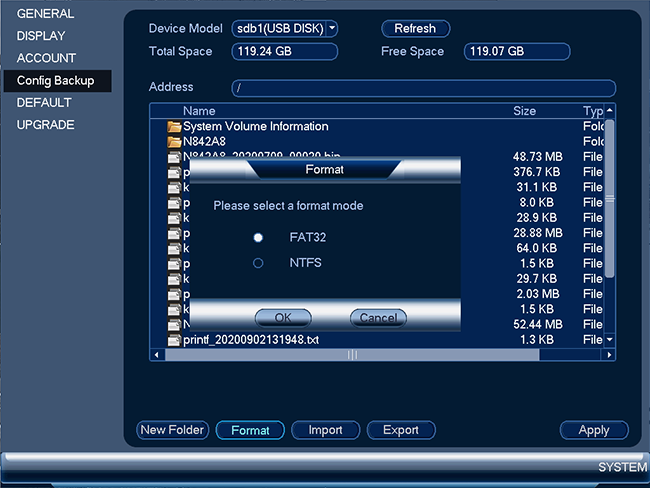
Step 5. Then, click OK to start the formatting.
Step 6. Once formatting is complete, click Yes to exit the popup window.
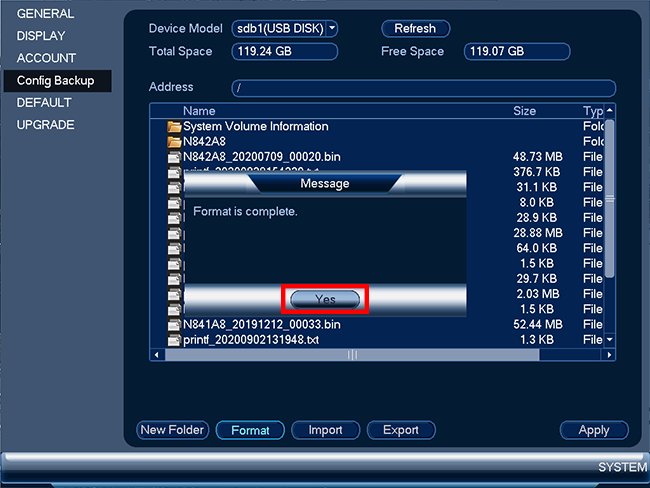
Congratulations! You have successfully formatted your USB flash drive. You are now ready to transfer files to or from your recorder.


please provide support for me i leave my email address
Can you write your contact number?
please provide support for me i leave my email address
I sent an e-mail from the communication channel. Can you help?
hello nice sharing thanks