

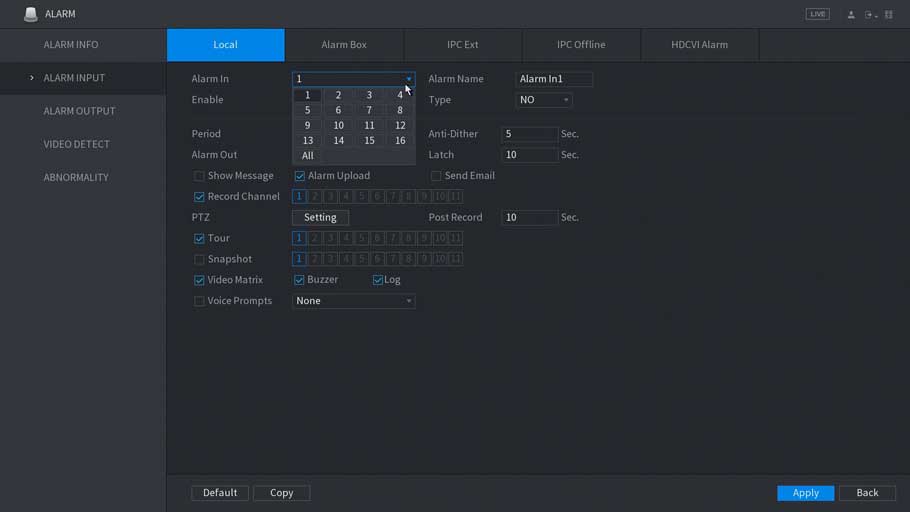
How to enable pop-up screen from Alarm or Motion detection triggered.
Description
Follow these step-by-step instructions to full screen pop-up when Alarm or Motion detection triggered.
Prerequisites
- HCVR, XVR, or NVR
- HDCVI, analog, or IP cameras (optional)
Video Instructions
Coming soon.
Step-by-Step Instructions for XVR – Alarm Input
1. From the main menu, select Alarm.

2. Select Alarm Input.

3. Click on Enable MD to enable motion detection

4. Click on Tour option and select the camera channel you like to see full-screen.
Note: You can select multiple channels which will dwelling throughout all channels in full-screen view.

To select a different alarm input port, you can click on Alarm In. Alarm input number is labeled on the back of the recorder.

Step-by-Step Instructions for XVR – Motion Detection
1. From the main menu, select Alarm.
2. Select Video Detect.

3. Click on Enable MD to enable motion detection

4. Click on Tour option and select the camera channel you like to see full-screen.
Note: You can select multiple channels which will dwelling throughout all channels in full-screen view.



hi how can i do
It really worked, I appreciate it!
please provide support for me i leave my email address
It really worked, I appreciate it!
Can you write your contact number?