Wednesday, 19 August 2026
Ana Sayfa Haberler Siyaset Ekonomi
🇹🇷 TR | 🇬🇧 EN
xvraid.com logo
Rastgele Yazı
  • Home
  • General
    Son EklenenlerTümünü Gör →
    Best XVR Devices 2026: Future-Proofing Your Security with Top Hybrid Recorders
    Feb 02

    Best XVR Devices 2026: Future-Proofing Your Security with Top Hybrid Recorders

    Installing DW Spectrum for Windows
    Jun 19

    Installing DW Spectrum for Windows

    IPC360 Home Camera User Manual
    Dec 21

    IPC360 Home Camera User Manual

    • DVR General
    • NVR General
    • IP Camera
  • Download
    • Firmware
    • Software
  • FAQ
    • Guide
    • How To
    • Password Tools
  • General
  • Contact
  • Forum
REKLAM
Guide How To Mobile

FAQ on Tuya SmartLife App

By XVR AiD December 13, 2025 25 min read
FAQ on Tuya SmartLife App
The Tuya SmartLife app and Tuya app provided by Tuya are known as the all-in-one app and are available to users from all walks of...
REKLAM

The Tuya SmartLife app and Tuya app provided by Tuya are known as the all-in-one app and are available to users from all walks of life. This app boasts features of being free, ready-to-use, easy control, diversified scenarios, useful functions, and world readiness.

Table of Contents

Toggle
  • My device needs to be configured for the network. How do I reset the device?
  • If the device indicator light keeps flashing, how to troubleshoot potential issues?
  • The Indicator light changed from flashing to regular,but it still fails to connect?
  • For most of Routers)How to configure separate Wi-Fi SSIDs for 2.4 GHz and 5 GHz bands?
  • What should I do when my device fails to connect to the network?
  • What should I do if the device is offline after a power outage or network disconnection, but cannot automatically reconnect to the network after network recovery or restore power?
  • What are the limits (maximum) on the features and usage of the app?
    • Tuya developer platform features the following requirements(If the upper limit is exceeded, it cannot guarantee the user experience.)
      • Tuya & SmartLife Apps
      • Other:
  • I have a device whose old schedule (ghost schedule) is active?
  • How do I restore a faulty device to factory settings?
  • Why can’t my phone receive App push, incoming call, device alarm and door bell ring?
  • What should I do when a smart task (Tap-To-Run or automation) runs incorrectly?
  • What should I do when a timed task is not performed correctly?
  • What should I do when a firmware upgrade fails?
  • Unable to share devices to my Home/others user?
  • How to configure Tap-to-Run and Automation?
    • Tap-to-Run
    • Automation
  • App can control the device, but it failed to use the Third-party voice control?
  • What kind of voice commands does Alexa Echo support?
  • What commands does Google Assistant support?
  • Does Zigbee device support voice control?
  • Does the group created in this App support Alexa voice control?
  • After I add a tap-to-run scene to Siri and delete it, I add another tap-to-run scene with the same name to Siri. Why does the system inform me that the name is in use?
  • Can I directly connect my devices to a third-party smart speaker?
  • Why doesn’t a smart speaker respond when I use it to control devices or scenes?
  • Why does “Incorrect username or password” display when I register an account and bind a skill/action?

My device needs to be configured for the network. How do I reset the device?

The reset operations for different devices may vary, but common methods include:

REKLAM
1.Repeated Power Cycling: For lighting products such as bulbs and light strips, it usually requires toggling the power on and off three times, with a 2-3 second interval between each toggle.
2.Long Pressing the Reset Button/Port: This operation is applicable to various types of products and is quite common.
3.Power Cycling: It is recommended to cut off power for more than 10 seconds before restoring it.
4.Combination Key Operation: Some devices may require pressing specific combination keys to enter the network configuration mode, typically for appliances and locks. It is advisable to refer to the product manual for detailed information.

Methods to determine if the device has successfully entered network configuration mode:

• The indicator light blinks rapidly or slowly.
• The device emits a prompt sound, which is common for IPC (Internet Protocol Camera) products.
• The device screen displays relevant information, common in control panels, locks, and other screen-equipped products.
• Special device indicators: For wireless gateways, the red light blinks while the blue light remains on; for wired gateways, both indicator lights remain on.

Note:During the first use, devices typically enter network configuration mode automatically, except for locks, control panels, and speaker products.

1.How to put Bluetooth lighting devices into pairing mode?
2.How to put Zigbee sensor devices into pairing mode?
3.How can Wi-Fi lighting devices enter the pairing mode?
4.How can Wi-Fi electrical devices enter pairing mode?

.

If the device indicator light keeps flashing, how to troubleshoot potential issues?

Operation Confirmation:Confirm if the device has been removed or frequently turned on/off, or if the device’s switch button has been accidentally triggered. When the indicator light keeps flashing, it usually indicates that the device is in pairing mode.

Reconfiguration:Attempt to reconfigure the device network. If the indicator light continues to flash even after successful reconfiguration, it may be due to a hardware malfunction. It is recommended to contact the seller immediately for after-sales support.

The Indicator light changed from flashing to regular,but it still fails to connect?

  If the device’s indicator light changes from flashing to solid during the network configuration process but ultimately fails to connect successfully, please troubleshoot using the following steps:

1.Before starting the network configuration, carefully read the product manual and verify if the app you are using is recommended by the manufacturer.
2.For Wi-Fi devices, a solid indicator light indicates that the device has received Wi-Fi information but has not successfully connected to the cloud for activation. Ensure that the device is using the 2.4GHz network frequency band and that the Wi-Fi password is correct. If these settings are correct and to eliminate the router as a factor, try using another smartphone to set up a mobile hotspot (iPhone should enable maximum compatibility) for a new network configuration attempt. If the configuration is successful, check the router settings. If the issue persists, it may involve hardware faults or operational issues, and it is advisable to consult the seller.
3.For Bluetooth devices, ensure that the distance between the phone and the Bluetooth device is moderate (generally less than 3 meters) and ideally closer. During the network configuration process, ensure that the required permissions (such as location and Bluetooth permissions) are enabled.
4.For Zigbee devices, ensure that the Wi-Fi signal quality in the environment where the gateway is located is good.

For most of Routers)How to configure separate Wi-Fi SSIDs for 2.4 GHz and 5 GHz bands?

If your router supports both the 2.4 GHz and 5 GHz bands, but only one Wi-Fi name is displayed on the Wi-Fi search page of your mobile phone, perform these steps:

1.Go to the Wireless page of the router. (The entry address is usually provided on the label attached to the back of the router).
2.Go to the 2.4 GHz setting page, and set the Wi-Fi name (SSID) to (XXX)-2.4G, where xxx indicates the Wi-Fi name. Save setting.
3.Go to the 5 GHz setting page, and set the Wi-Fi name (SSID) to (XXX)-5G, where xxx indicates the Wi-Fi name. Save setting.

When the preceding settings are complete, the new Wi-Fi names will Appear on the Wi-Fi settings page of your mobile phone.

Note:After the Wi-Fi names are changed, you need to reconnect the devices that use this wireless router. The password remains the same if it has not been changed.

The following files describe how to configure the routers of some popular brands.

1.Configure a Netgear router
2.Configure an ASUS router
3.Configure a D-Link router
4.Configure a TP-Link router

What should I do when my device fails to connect to the network?

Please read the product manual carefully before setting up the network, and confirm that the app is the one recommended in the manual.

Check if the device is powered on and functioning properly, and ensure that the router is connected to the external network, so that the device is in the correct state for network setup.

If all the above conditions are met, please follow the communication protocol below for troubleshooting:

1.Bluetooth device pairing failed
2.Zigbee device pairing failed
3.“Auto Scan” pairing failed
4.Wi-Fi device pairing failed

What should I do if the device is offline after a power outage or network disconnection, but cannot automatically reconnect to the network after network recovery or restore power?

Please check in the following ways:

Whether there are too many devices in your home that need to be connected to the Internet, beyond the range that the router can load (ordinary home routers can only load less than 10 devices), so your devices cannot connect to the network;

Whether the network quality is unstable, so the device fails to connect to the network in time after the incoming call;

If the device cannot automatically reconnect to the network after being offline, you can try to restart the device;

If it still fails, you need to reset the device configuration network;

If your problem still exists, you can submit your problem in App-My-FAQ and Feedback-My Feedback-+New Feedback (selecting the corresponding device when submitting feedback will locate your problem faster), thank you support.

What are the limits (maximum) on the features and usage of the app?

Tuya developer platform features the following requirements(If the upper limit is exceeded, it cannot guarantee the user experience.)

Tuya & SmartLife Apps

Item Description Upper limit
Number of schedules Maximum number of schedules that can be created for a device Local timer: 30, cloud timer: 200
Number of home devices Maximum number of devices that can be added for a home 200 (Version 6.9.0 and later: 1000)
Number of tap-to-runs Maximum number of scenes that can be created for a home 200 (Version 6.9.0 and later: 200)
Number of automations Maximum number of automations that can be created for a home 200
Number of tap-to-run actions Maximum number of actions that can be created in a scene 200
Number of automation actions Maximum number of actions that can be created in an automation scene 200
Number of automation conditions Maximum number of conditions that can be created in an automation scene 10
Number of simultaneous logins Maximum number of mobile devices supported by a single account for simultaneous login 200
Number of homes Maximum number of homes that an account can create 20
Number of home members Maximum number of members that can be added to a home 20
Number of rooms Maximum number of rooms that can be created for a home 20
Number of room devices Maximum number of devices that can be added for a room 50
Number of devices in device group Maximum number of devices that can be added to a device group 100
Number of home device groups Maximum number of device groups that can be created for a home 20
Number of users in device group sharing Maximum number of users that a single device group can be shared with 20
Number of users in device sharing Maximum number of users that a single device can be shared with 20
Number of joined homes Maximum number of homes that an account can join in 20

Other:

Item Description Upper limit
Number of products Maximum number of products that can be created on Tuya Developer Platform 500
MQTT message length Maximum length of an MQTT message. MQTT messages exceeding this length will be directly discarded. 64 KB

Trigger mechanism:

The quantity limits of the mentioned items are interrelated. It is possible that the upper limit of item B is triggered before the upper limit of item A is reached. Therefore, the principle of the first trigger will be applied to all limits.

Scope of Quantity Limitations:

The quantity restrictions apply to the Tuya App, SmartLife App, OEM App, and App SDK.

Note: Items such as number of homes, number of home members, number of rooms, number of room devices, number of device group devices, number of home device groups, number of users in device group sharing, number of users in device sharing, number of joined homes, and MQTT message length are still in the gray release phase and may be subject to elastic adjustment. Tuya reserves the right to interpret these requirements.

I have a device whose old schedule (ghost schedule) is active?

Dear user, you can try to reset a new timing to refresh the cloud settings. Or you can try to “Restore factory defaults” your device (note: this will make the device disAppear from the list) and add it again. If your problem persists, please contact us again and let us know the specific time and device ID for further investigation.Thank you for your support and understanding.

How do I restore a faulty device to factory settings?

Dear user, we are sorry for your inconvenience. If you do so:

1.Tap the faulty device in the device list to enter the device’s control panel.
2.Tap the button in the upper right corner to enter the device setting page.
3.Tap “Remove Device—Disconnect and wipe data” to remove the device from the device list and clear all data related to the device.
4.If your device is offline, your device will unable to restore factory settings, because the device cannot communicate with the App and the cloud after it is offline.

Note: If you just click Disconnect, the App will only remove the device from the App, and will not delete any data on the device, nor will the device enter the pairing mode (some devices have their own logic to automatically enter pairing mode after disconnection).

Why can’t my phone receive App push, incoming call, device alarm and door bell ring?

Dear user, we are sorry for your inconvenience. If you do so:

1.Verify that your mobile phone allows the App to push messages.
2.Please confirm to open the message push settings in the App, open the App, click Me-Message Center, click the button in the upper right,enable notifications.
3.Check Notifications Settings, whether Do-Not-Disturb Schedule was on.
4.If your mobile phone and device allow the App to push messages but do not receive any messages, check whether the App message center has new message notifications.
5.Some Android mobile phone systems will compulsorily judge our App push as marketing information, thereby forcibly turning off push and sound/vibration reminders.
6.Due to limitations of some Android systems, some Android phones can only receive up to 24 App push messages. If these push messages are not cleared, the phone will not be able to receive new App push messages.

Note: If your device is a smart doorbell or smart camera, and you cannot receive the incoming call. This is caused by the restrictions imposed by the mobile phone on our App. You only need to open the App, and you will receive the incoming call normally.

The power saving function of some Android phones will close the background process of the App, which is also the reason why you cannot receive the App push:

1.Please turn off the power saving function in the settings, or add the App to the white list of the power saving function (if there is no white list function, you need to turn off the power saving function).
2.Please lock the background process of the App on the background management page of the Android phone, so that the Android system will not automatically close the background process of the App (Android systems with this function can see the “lock” mark on the background process of the App ).
3.Please allow the App to start automatically in the system settings of the Android phone, otherwise the Android system will periodically shut down the background process of the unused App, which will also affect the push of App.

What if my phone doesn’t receive a doorbell notification or call notification after the app is closed?

In Android 14 and later, full-screen notification permissions have been restricted. For apps like doorbells, full-screen notification permission is required to display a call notification.

If message pushing is enabled for the message center and your mobile phone but you still do not receive any messages, provide us with your device ID and the messages that you are supposed to have received. We will arrange for technical support engineers to troubleshoot this issue.

The following is the specific setting process of some common mobile phone brands.

1.Samsung phone
2.XiaoMi phone
3.HUAWEI phone
4.OPPO phone
5.VIVO phone

What should I do when a smart task (Tap-To-Run or automation) runs incorrectly?

Dear user, we are sorry for your inconvenience.

1.You can view the logs on the automation or one-click execution scene page to determine whether the automation or one-click execution scene was executed successfully and the reasons for any unsuccessful execution.
2.You can troubleshoot based on the logs.Ensure that your device is powered on and turned on.
3.Ensure that your device is online in a stable and smooth network environment during task execution.
4.If your device is online and started but the task runs incorrectly, delete that task and add a new one.
5.If the issue persists, remove your device, add it again, and set a new smart task.
6.If you are using a Zigbee device, check whether your device is connected to the gateway. If it is connected to the gateway, check whether too many devices are configured in the scenario. We recommend that you configure a scenario as a group.
7.If you are using a Wi-Fi device, check whether your device is offline,please remove your device, add it again.
8.For Bluetooth devices, only devices added via Bluetooth mesh or within effective range support scene control.

If the issue persists, provide us with your device ID and the specific time when the task failed (the configured validity period, time when the task failed to run, or time when the task ran but at an unexpected time). We will arrange for technical support engineers to troubleshoot this issue.

1.Why doesn’t the Leave or Arrive (beta) feature take effect?
2.Why does my device turn on/off by itself?
3.The device don’t turn on after real sunset,but turn on one hour before sunset?
4.Automation programming does not allow me to change the color/brightness/color temperature of the light?
5.When creating a smart scene linkage (Automation/Tap-to-Run), can’t find the existing device in App in the device list?

What should I do when a timed task is not performed correctly?

Dear user, we are sorry for your inconvenience. Please check in the following ways:

1.Ensure that your device is powered on and turned on.
2.Ensure that your device has strong and stable Wi-Fi signals and is in the online state in the App.
3.After the device is scheduled, the device has not been shut down or reset, because shutting down or resetting the device will interrupt the timing process of the device;
4.Ensure that the validity period of the scheduled task is correct. Tap Timing and check whether Repeat covers the required validity period (Monday to Sunday available) of the task.
5.If it is a Wi-Fi device, the device may be disconnected from the network, so time-related functions are invalid.
6.If it is a Bluetooth device, it cannot always be connected to the phone, so it must be equipped with a Bluetooth gateway to ensure that the time-related functions of the device remain normal.
7.If it is a Zigbee device, it must be connected to a Zigbee gateway in order to obtain time and keep time-related functions normal.
8.If the timing does not take effect at the time you set, it may be that the time zone of your device is inconsistent with the time zone of your location;
9.If the problem is not improved, pleaserestore the device to factory defaults through the App, set the timer task again after adding the device again.

If the issue persists, provide us with your device ID and the specific time when the task failed (the configured validity period, time when the task failed to run, or time when the task ran but at an unexpected time). We will arrange for technical support engineers to troubleshoot this issue.

What should I do when a firmware upgrade fails?

If the firmware upgrade fails, you can follow the troubleshooting steps below to resolve the issue:

Network stability assurance: Firmware upgrades can sometimes fail due to unstable internet connections. We recommend trying to change to a more stable network environment or using a mobile hotspot to attempt the upgrade again. This will provide a more reliable network connection to ensure a smooth firmware upgrade process.

Bluetooth device firmware upgrade considerations: For firmware upgrades involving Bluetooth devices, it is important to keep the relevant app in the foreground throughout the upgrade process. Exiting the app during the upgrade can potentially lead to firmware upgrade failures. Therefore, please ensure that you do not exit the app while the firmware upgrade is in progress to ensure a successful completion.

If the above troubleshooting methods still cannot resolve the issue, we suggest contacting our customer support for further assistance. We are here to provide you with additional help and support. Thank you for your understanding and support.

Unable to share devices to my Home/others user?

Dear user. If you do so:

1.Please confirm whether you are the owner of the device, not the shared device, and whether you are the owner or administrator of the Home (the shared device and normal home members cannot share the device and add home members).
2.Please confirm whether the user has the account of the App (Share devices and add home member must be processed in our App, not in the Alexa or Google Home App).
3.Please confirm whether you and the invitee are registered in the same country/region. You can only add users registered in the same country/region to your home.
4.If you use the invitation code to invite others to join your home, but the invitee’s App displays that the invitation code has expired, and the invitation code does not exceed the validity period of 3 days, it means that the account of the invitee and you are not the same country / region.
5.If you are using a shared invitation code to invite others to join the home and you see the message “Invalid invitation code. Please contact the inviter to regenerate,” it is because an invitation code can only be used to invite one user. Please ensure that the code has not been sent to multiple invitees. Once it has been used by another person, it cannot be used again to join the home. We recommend contacting the inviter to generate a new invitation code or adding members directly using the app account.

Mesh devices/Zigbee devices/Infrared devices/Bluetooth devices/Gateway devices are currently not supported for sharing. For a regular home member, it is recommended that you share all the devices with him/her by adding home members. If you want all family members to use the shared Bluetooth device normally, we recommend that you purchase a Bluetooth gateway and use it together, otherwise the Bluetooth device can only be connected to one mobile phone for one person to use at the same time. Once someone connects successfully, the Bluetooth device in other people’s App will be displayed as offline. Only after the user disconnects the Bluetooth device, other people can use it normally. There is no such restriction when using the Bluetooth gateway.

How to configure Tap-to-Run and Automation?

Tap-to-Run

There are three types of Tap-to-Run in the App. You can quickly start smart devices in your home by setting up Tap-to-Run, eliminating the setting step one by one.

Operating device: Add the smart device you want to execute the Tap-to-Run.

For example: you can enable all devices in your home without going to enable the device one by one.

f728b9de5c2c4ba592c23c4fe9a3617a 1201w

Select smart: Add the automation you want to perform with Tap-to-Run(The existing automation is required in advance).

For example: you can use Tap-to-Run to open your setting automation without triggering any conditions of automation.
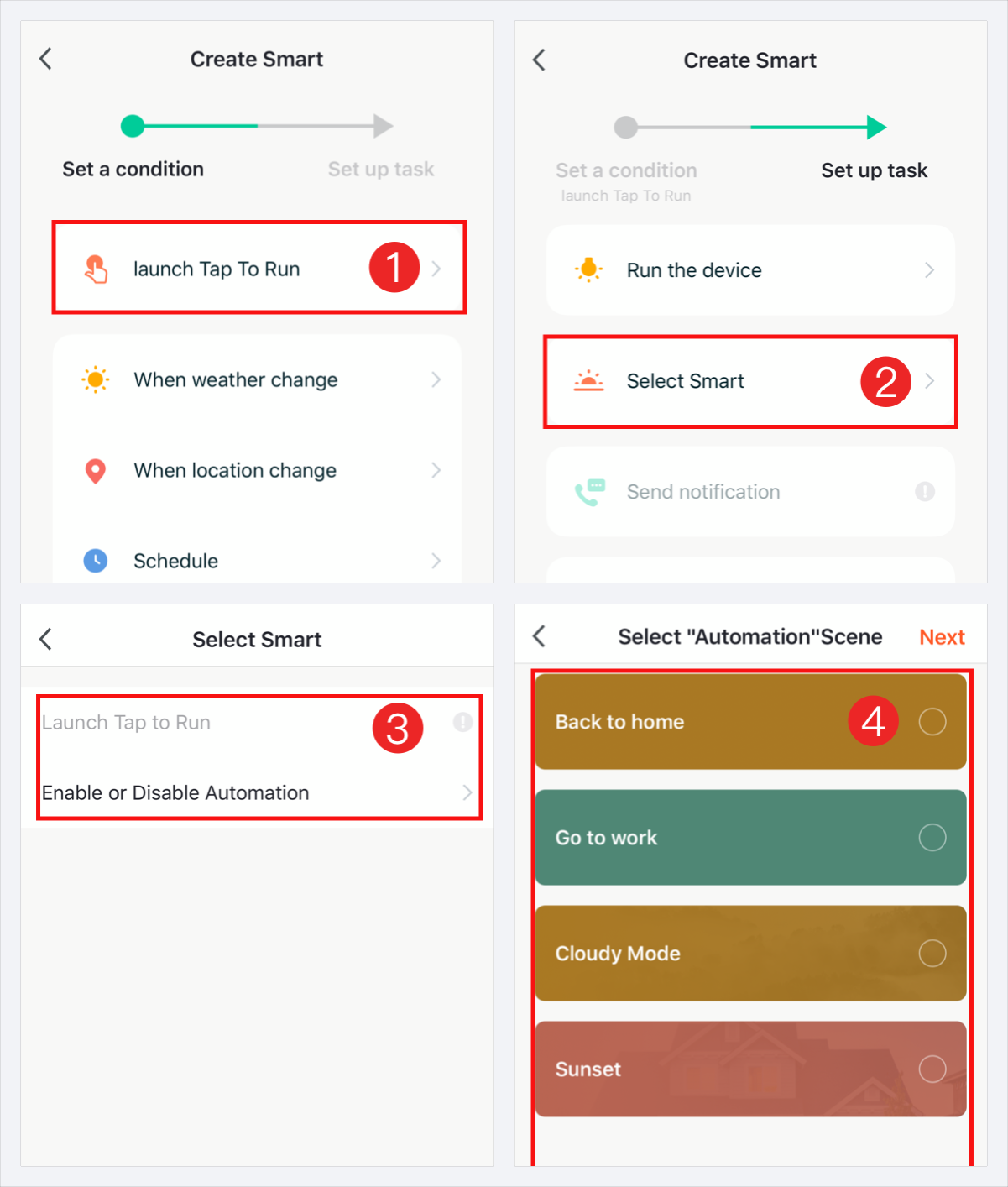
c53544c56208474fa186b6140c2600bd 1201w

Delay: add a delayed task.

For example: you can add a delay task in Tap-to-Run between two devices actions.

44d5243c822a4a01ac981afd824cd411 1201w

Automation

There are four main types of automation are supported in the App. You can set up automation to fully use the home devices and start your SmartLife.

When the weather changes: The linkage between external environment conditions and the smart devices, the following external environment conditions can be selected.

For example, you can set ‘when the temperature is higher than 29℃, turn on the air conditioner.’
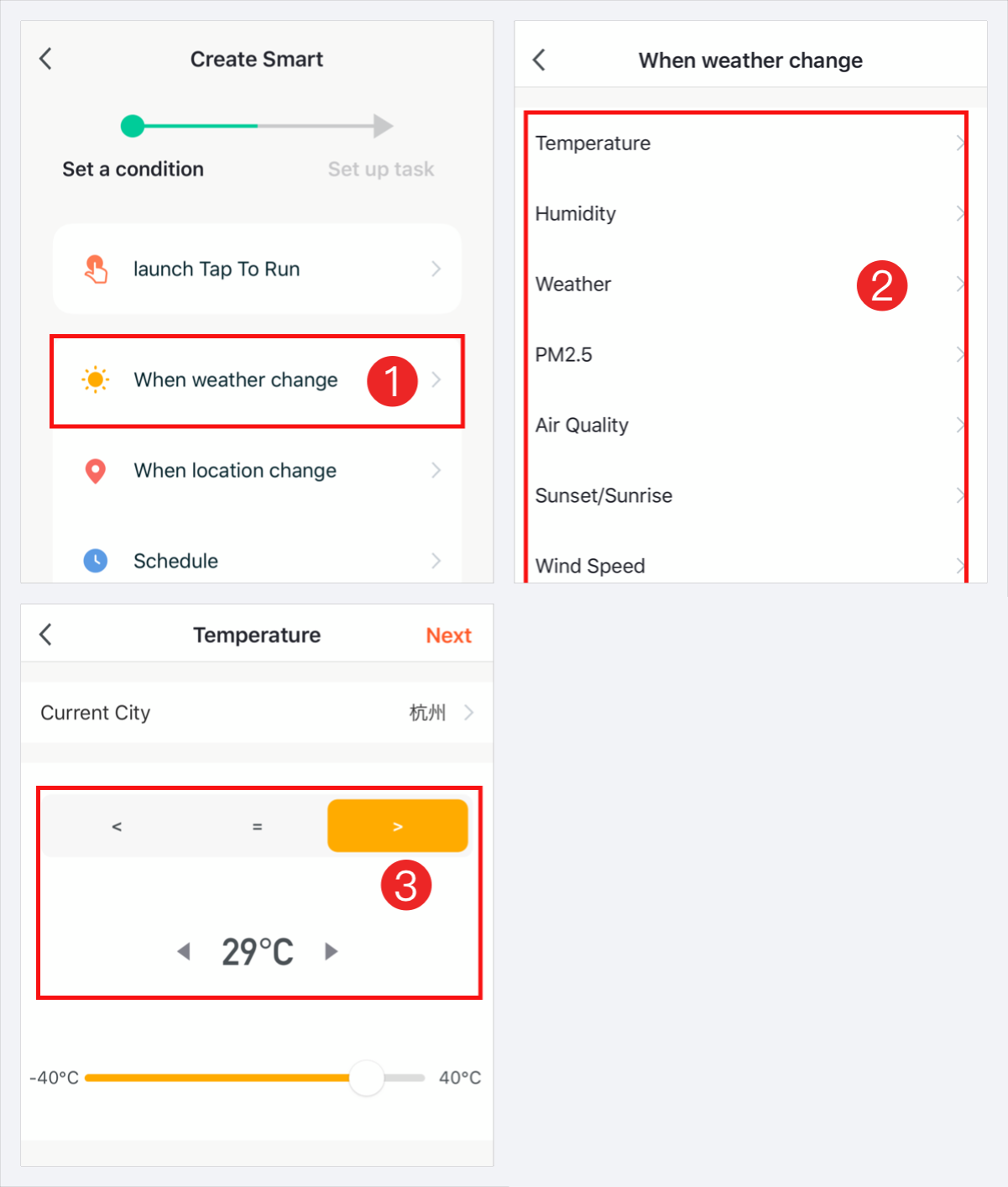
0b3026a22b544c24ba736f0eed658478 1201w

When the location changes: The linkage between the geographic location and the device.

For example, you can set ‘turn on the air conditioner and water heater automatically when you are near the house, or turn off all home Appliances and turn on motion detection function of the camera when you leave the house.’
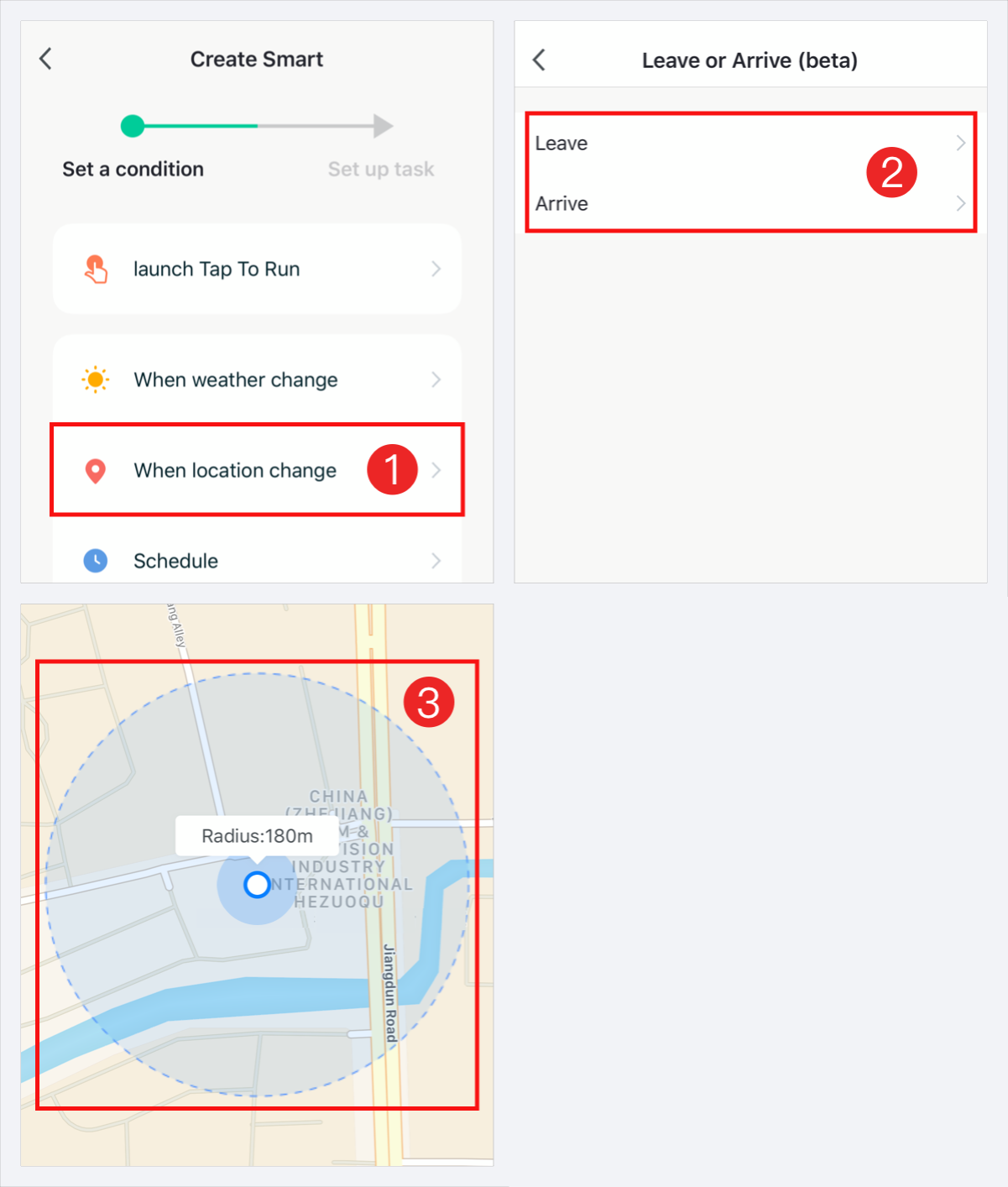
5ed84fb48c3d4c06ac3d8755ed56d21f 1201w

Schedule: The linkage between schedule function and the devices.

For example, you can set ‘open the curtain at 8am on working days.’
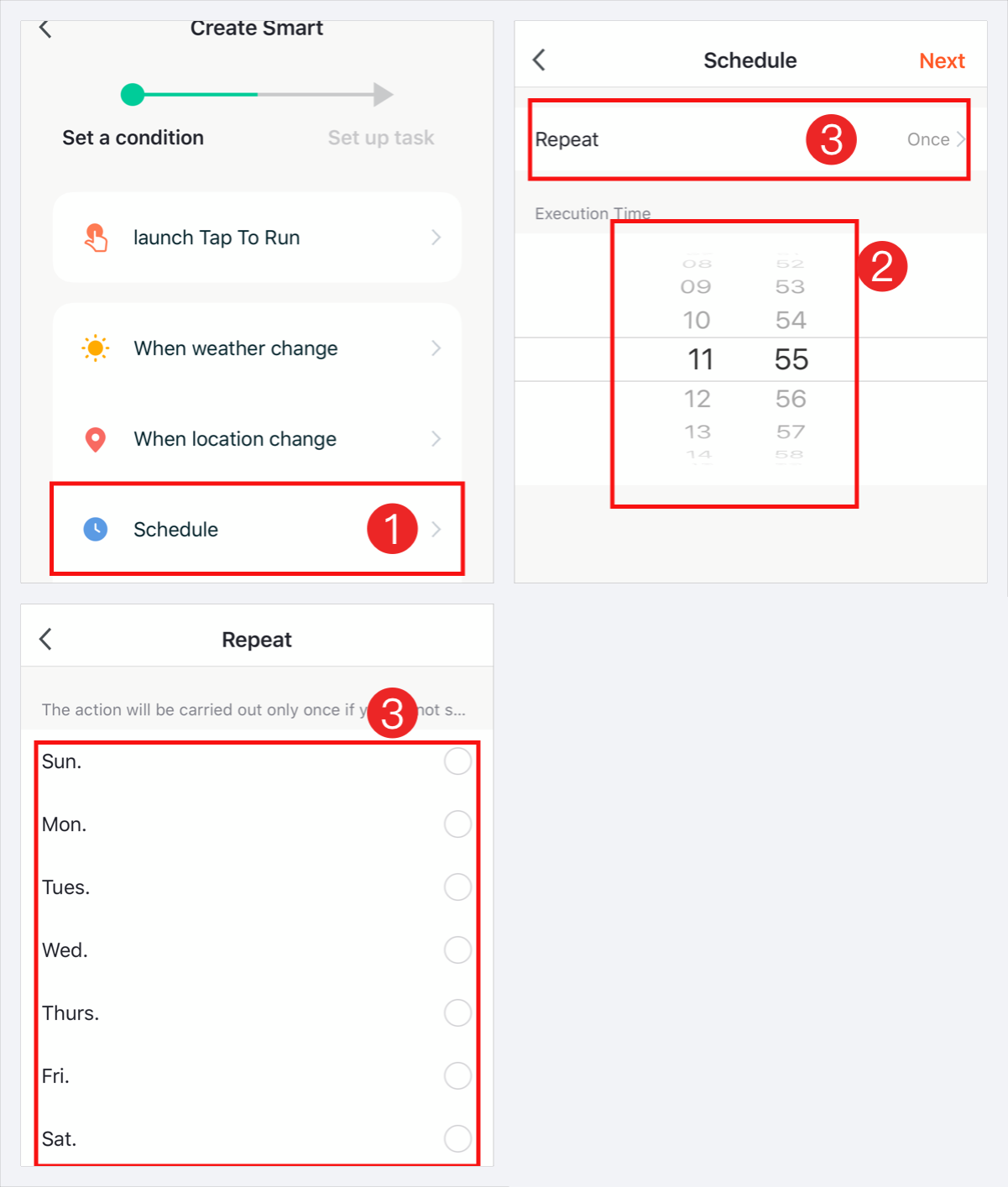
52acceb20ea8483c84d5d3bbff0ea5ce 1201w

When the device status changes: The linkage between the device status change and the devices.

For example, you can set ’when the air conditioner is on, the aroma diffuser and air purifier will be automatically turned on, or when the door sensor is on, the alarm will be triggered.’
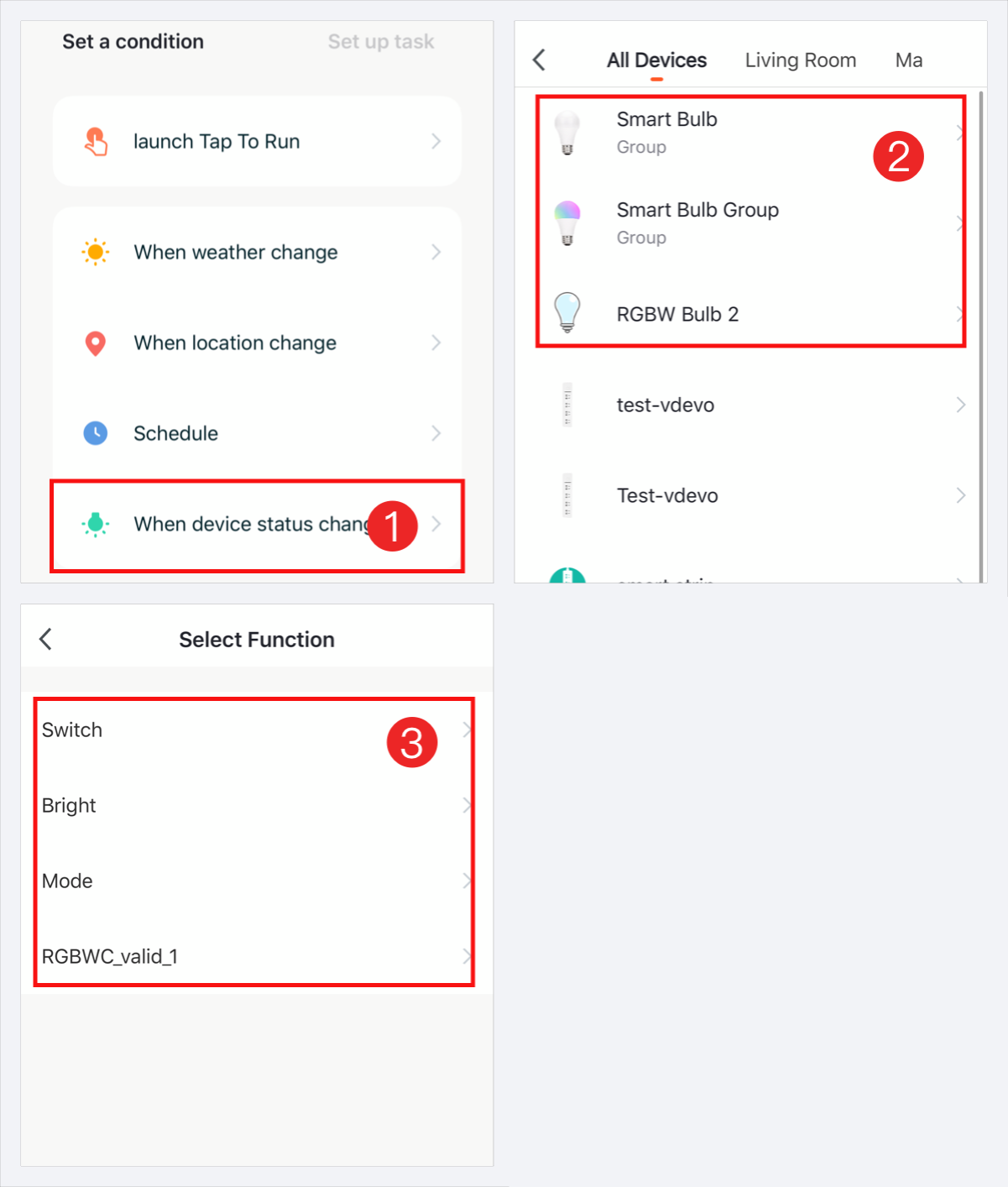
e7b0db14c9a34fd38358c4bf2d943afd 1201w

App can control the device, but it failed to use the Third-party voice control?

Dear user, we are sorry for your inconvenience. First, you need to make sure that the device supports the third-party control:

1.Please confirm whether the device supports voice control and whether it has been successfully bound to the voice speaker. For details, refer to the Third-party control instructions.
2.Please confirm whether the device is online normally. You can see if it is normal through the App operation.
3.Different types of devices can operate different voice commands. Please confirm with the device manufacturer whether the device supports this voice command (the device may not have all functions connected to the voice control module). If the device does not support the voice command, you can add the function as Tap-to-Run/Automation in our App, so that you can control the Tap-to-Run/Automation by voice to meet your needs (currently only Amazon Alexa, Google Assisitant and Baidu Xiaodu supports scene control).
4.Please confirm the device name is easy to identify, it is recommended to take 2 simple and common words, such as “living room light”.
5.Please confirm whether the smart device App account bound in Alexa Echo/Google Home has changed. For example, reset the device and add another account (one Third-party control account can only be bound to one App account, an error will be reported if the binding is repeated).
6.If the speaker or Siri responds successfully, but your device does not respond to the operation, it means that the device you are operating should be a Bluetooth or Zigbee device, and you need to match the corresponding gateway to be able to use the speaker or Siri to operate.

Check that the device has been discovered and joined to the third-party control App:

1.It is possible that your App and device are under the LAN and can be controlled under the LAN, but the device is already offline under WAN.
2.Unbind the App and third-party smart speakers, and re-bind the skills.
3.Check that the voice instructions you are giving to the third-party control are correct and supported by the third-party controller.
4.Check that you have connected devices to the third-party controller using the same App account as you use to control the devices.

If the problem still exists after performing the checks above, use the Report Issue feature in the App Help Center to let us know about the problem. Be sure to include your App account user name and the ID of the affected device.

What kind of voice commands does Alexa Echo support?

【Trigger scene】

First set the scene in the App, then discover devices; the settings in the App will Appear in the Alexa App’s Scene list.

Alexa, turn on scene name ————————– trigger scene

Different types of devices can operate different voice commands. The common ones are as follows:

【switch SoCket】

1.Alexa, turn on the device name ————————– Open the device
2.Alexa, turn off device name ————————– Switch off device

(Slots, multi-switch products support sub-control, after each custom name on the App, each jack will be displayed on the Alexa App.

【Lighting】 (Control command and lamp type):

1.Alexa, turn on the device name ————————————— Turn on the light
2.Alexa, turn off device name ————————————— Turn off the light
3.Alexa, set device name to percentage —————————— Set the brightness of the lamp (calculated in percentage of brightness)
4.Alexa, brighten/increase Device Name ——— — — Brighten the lamp by 25% (this percentage is required by NAC certification)
5.Alexa, dim/decrease device name ——— — — Dimming the lamp by 25% (this percentage is required for NAC certification)
6.Alexa, set device name to color name ——— — — set the color of the light
7.Alexa, set device name to color temperature name — — set the color temperature of the lamp
8.Alexa, make / set device name warmer ——— — — Warm the lights
9.Alexa, make / set device name cooler —————— Cool the lights

【Air conditioners and heaters】 (temperature control equipment):

1.Alexa, turn on the device name ————————————— Open the device
2.Alexa, turn off device name ————————————— Shut down the device
3.Alexa, set device name temperature to value degrees —————————— set temperature (supported temperature range can be pressed according to customer’s standard definition)
4.Alexa, increase device name temperature ———————— temperature increase 1 degree
5.Alexa, decrease device name temperature ———————— temperature down 1 degree
6.Alexa, what’s the temperature of the device name; Alexa, what’s the device name set to?———————————— Asking the temperature of the current device settings

(The set temperature refers to the temperature scale with different degrees Celsius and degrees Celsius. When the voice is controlled, the temperature scale set by the current Alexa Audio shall prevail.)

【Fan】

1.Alexa, turn on the device name ————————————— Open the device
2.Alexa, turn off device name ————————————— Shut down the device

Note: Some fan’s wind speed adjustment methods are different. They are divided into the following two categories in voice control.

1.Percentage type:Alexa, Set Device Name to Percent —————— Adjust Fan Wind Speed
2.Stall type:Alexa,set device name to gear number —————— adjust fan position

【Door lock / magnetic door】

1.Alexa, lock the device name—————————————— lock door
2.Alexa, unlock the device name————————————Open door
3.Alexa, Is the device name locked? —————————— Query the status of the door lock switch (door magnetic products only support query door switch status)

【Electric curtain】

1.Alexa, turn on the device name ————————————— Open the curtain
2.Alexa, turn off device name ————————————— Closing the curtain

(Alexa itself does not support the category of curtains. We treat the curtains as a switch type device. Open the curtains to turn on and close the curtains.Should turn off; so curtains only support opening and closing, do not support pause; the expression of turn on/off curtain is also very different, but only this what to do)

【TV remote control】

1.Alexa, next channel on device name ————————— switch to the next channel
2.Alexa, channel up on device name ——————— tune to the previous channel
3.Alexa, channel down on device name —————— tune to the next channel
4.Alexa, lower/upper the volume on device name ——————— adjust the sound of the TV

【Camera】 (You need to use echo show or echo spot to control)

1.Alexa, show the device name—————————— Put the camera screen on the echo show or echo spot
2.Alexa, hide / stop device name —————————- Ending the delivery of the camera screen

【Other devices】

1.Alexa, turn on device name ———————————— Open device
2.Alexa, turn off device name ———————————— Switch off device

Different devices need different control commands, if you need more control commands, please refer to the device manual or ask the seller to obtain them.

What commands does Google Assistant support?

The supporting commands are as follows:

1.Hey Google, turn on [removed]
2.Hey Google, turn off [removed]
3.Hey Google, is [removed] on / off ?
4.Hey Google, set [removed] to percent
5.Hey Google, brighten/increase [removed]
6.Hey Google, dim/decrease [removed]
7.Hey Google, Dim/Brighten [removed] by 50%
8.Hey Google, set [removed] to ( color )
9.Hey Google, set [removed] to (color temperature)
10.Hey Google, turn on / off lights in [removed]
11.Hey Google, Turn on/off all of the lights
12.Hey Google, Start [removed]
13.Hey Google, Activate [removed]

.

Does Zigbee device support voice control?

Dear user, we are sorry for your inconvenience. Zigbee devices need to be equipped with a Zigbee gateway to achieve voice control.

Does the group created in this App support Alexa voice control?

Dear user, we are sorry for your inconvenience. Alexa does not support the voice control of Wi-Fi groups created in this App (Bluetooth groups are supported, but it needs to be used with a Bluetooth gateway). It only supports the voice control of groups created by itself in the Alexa App. After synchronizing all Wi-Fi devices to Alexa App, you can create a group of Wi-Fi devices in Alexa App, so that you can use Alexa to control the voice. Thank you for your understanding and support.

After I add a tap-to-run scene to Siri and delete it, I add another tap-to-run scene with the same name to Siri. Why does the system inform me that the name is in use?

Dear user, we are sorry for your inconvenience. Siri shortcuts are managed on an iPhone, and you cannot delete Siri shortcuts in the App. To delete Siri shortcuts that are no longer needed, use either of the following methods:

1.In iOS 12, go to Settings > Siri & Search and tap My Shortcuts. Swipe left over a shortcut and tap Delete.
2.In iOS 13, tap the Shortcuts icon on the home screen, tap the edit icon in the upper left corner, select Siri shortcuts that are no longer needed, and then tap the delete icon in the upper right corner to delete them.

Thank you for your support and understanding.

1.Why I can’t add Tap-to-Run / Automation to Siri?
2.Can I use Siri and Apple HomePod to control smart products?
3.The devices cannot be controlled with the iPhone via Siri and Apple HomePod?

Can I directly connect my devices to a third-party smart speaker?

Dear user, we are sorry for your inconvenience. Since each third-party smart speaker is a closed platform, and therefore can not be directly connected, and the need to achieve connection by way of binding skills.

Why doesn’t a smart speaker respond when I use it to control devices or scenes?

.

Dear user, we are sorry for your inconvenience. The smart speaker may fail to accurately identify or understand your command. You can change the device or scene name to a simple one such as bedroom light or living room light and use the new name to control the device or scene. If the problem persists, contact our customer service personnel.

Why does “Incorrect username or password” display when I register an account and bind a skill/action?

Dear user, you can use our latest binding method. If the login still fails,It may be that your account is in an incorrect region. Please check whether the account region you selected when binding skills is correct.

Note:

1. One Alexa Echo/Google Home skill/action can only be bound to one app account, an error will be reported if the binding is repeated.

2. Users who login to the App through a third-party login method need to E-mail first, and then modify the login password (there is no initial password for third-party login) and use this E-mail to login to the App account when binding a third-party smart speaker.


REKLAM
Yazar

XVR AiD

Tüm yazıları
Paylaş X Facebook WhatsApp Link Kopyala
Öneriler

Benzer yazılar

Ultimate Comprehensive Guide to Genius Vision NVR & VMS
June 30, 2026

Ultimate Comprehensive Guide to Genius Vision NVR & VMS

Devamını Oku
Geeni Freebird 2K Wireless Security Camera Guide
March 30, 2026

Geeni Freebird 2K Wireless Security Camera Guide

Devamını Oku
FLEETA BlackVue Dash Cameras Full Setup Guide
February 18, 2026

FLEETA BlackVue Dash Cameras Full Setup Guide

Devamını Oku
Önceki VicoHome Camera Setup Guide Sonraki XMeye POE NVR AI Manuals
frequently asked questions about Tuya SmartLife apphow to add multiple devices in Tuya SmartLife apphow to connect Tuya SmartLife app to Alexahow to connect Tuya SmartLife app to Google Homehow to delete a device from Tuya SmartLife apphow to enable remote control in Tuya SmartLife apphow to fix Tuya SmartLife app not connectinghow to reset device in Tuya SmartLife apphow to share devices in Tuya SmartLife apphow to use automation in Tuya SmartLife appTuya SmartLife app camera setup FAQTuya SmartLife app compatibility questionsTuya SmartLife app data privacy and security FAQTuya SmartLife app device offline issueTuya SmartLife app FAQTuya SmartLife app firmware update questionsTuya SmartLife app login and account issuesTuya SmartLife app push notification problemsTuya SmartLife app setup questions and answersTuya SmartLife app troubleshooting FAQTuya SmartLife app WiFi connection problemwhy is my Tuya SmartLife app not pairing with device
0 comments

Leave a Reply Cancel reply

Your email address will not be published. Required fields are marked *

About Me

The DVR Support site is a private entrepreneur that is not for advertising purposes, which is purely public benefit. The contents are taken from the support departments of the relevant companies. Our website does not require membership, our editors are at your service to help you. Please express your problems in the comments or contact section and we will get back to you as soon as possible.

Our Network: dvrcms.com – cctvfirmware.com – dvrdestek.com – nvripc.com – dvraid.com

Recent Comments

  • MSA on New Firmware for Chinese DVR, NVR (H.264, H.265)
  • Baďura on Latest Firmware for V5.00.R02.V4.02.R12.
  • Abdullah Salah on Longse XVR Firmware Software Download
  • AYOUB on Longse XVR Firmware Software Download
  • Williamisose on Best FREE IP Camera Software for Windows

Makale Kontrolleri

Featured Story

Ultimate Comprehensive Guide to Genius Vision NVR & VMS
June 30, 2026

Ultimate Comprehensive Guide to Genius Vision NVR & VMS

Geeni Freebird 2K Wireless Security Camera Guide
March 30, 2026

Geeni Freebird 2K Wireless Security Camera Guide

REKLAM
XVRAID XVR-DVR-NVR CCTV DESK

security and surveillance blog

Get the briefing in your inbox.

Sections

  • World
  • Politics
  • Business
  • Culture

Company

  • About
  • Team
  • Jobs
  • Contact

Follow

  • X / Twitter
  • Instagram
  • YouTube
  • LinkedIn
© XVRAID XVR-DVR-NVR CCTV DESK. All rights reserved.
  • About
  • Best Deals
  • Contact
  • Contact
  • Home Page
  • Privacy Policy
  • Sample Page
  • Test
  • Tools