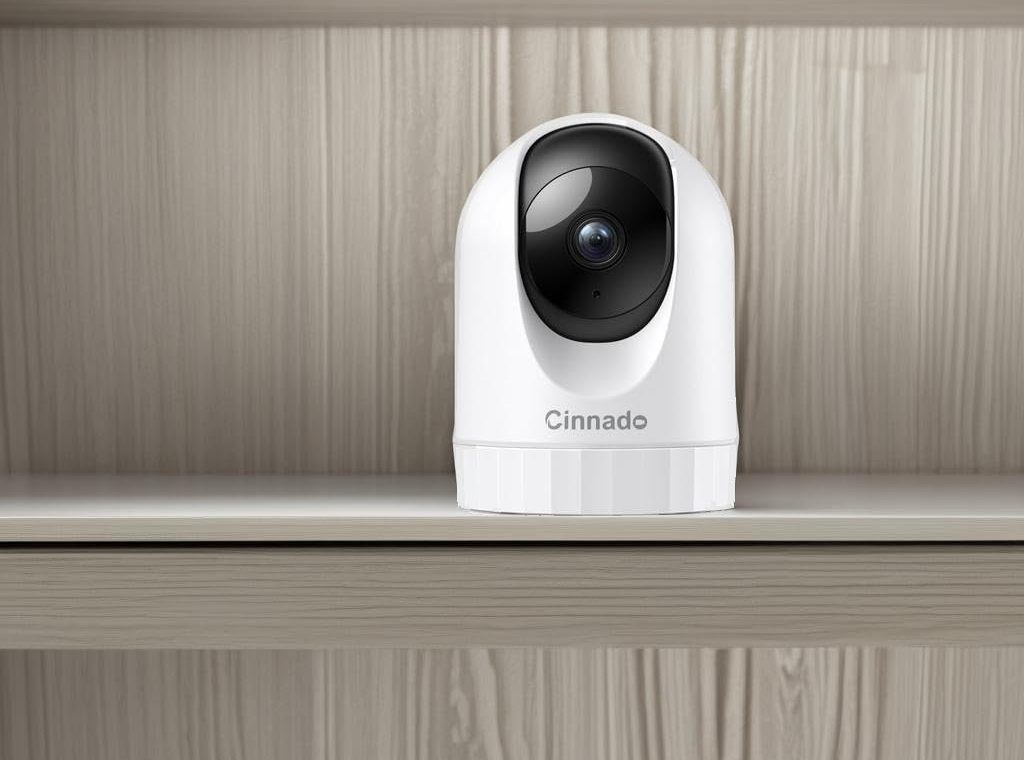
Hello, in this article you will find a frequently asked questions, troubleshooting and installation guide for Cinnado security cameras and smart devices, which are very popular online, especially on Amazon. Please feel free to leave a comment if you have any questions.
How to connect the camera?
Please carefully read the following precautions before connecting the camera:
1. Ensure your phone and the camera are connected to the same appropriate WiFi network. (Some cameras support dual band WiFi, while others only support 2.4GHz WiFi. You can enter the product details through the order to search for relevant instructions.)
2. Enable phone GPS/location services for the Wansview Cloud app.
3. Place the camera within 3 feet of the router during connection for better WiFi signal.
Detailed connection steps:
Step 1: Open the Wansview Cloud APP and tap “Add device” to select your camera model from menu;
Step 2: Please choose the “Wi-Fi connection by QR code”;
Step 3: Power on your camera.
● Battery camera: Ensure sufficient power (For first use, please charge 3-5 hours with the power cord). Remember to power on the camera by pressing the power button.
● Plug-in camera: Plug in power cord directly. If it fails to start, try replacing the power cord/adapter.
Step 4: Press and hold the reset button for 10 seconds until the light flashes as shown on the app, or hear “Di” or “Reset is successful”. Click the sentence “Make sure the indicator is flashing or if you hear a tone” and tab “Next.”
Step 5: If GPS/location is enabled, the app will automatically obtain the WiFi name of the phone connection. Please enter the correct Wi-Fi password and double check it (≤128 characters, no spaces).
Step 6: Scan QR code when prompted and wait for “QR code scan successful” message.
Step 7: Wait until the app shows “Connection successful”.
If the connection is unsuccessful, please prepare your camera model, SN number, and order number, and then seek assistance from the APP – > Support Center.
What should I do if my camera shows ‘offline’?
Step 1: Power Cycle the Camera:
–Unplug your camera’s power adapter for 30 seconds, then plug it back in.
–For Battery Cameras: Ensure the battery is sufficiently charged. Please connect it to power for 3-5 hours to rule out a low battery issue. Check if the camera will back online after power cycle the camera.
Step 2: Reset & Re-pair the Camera (If Still Offline):
–Press and hold the reset button for 10 seconds until you hear a beep or “Reset is successful” (The indicator light should be flashing red and blue alternately/blue (white) light blinks twice and then pauses.)
–Open the app, tap “+” or “Add Device”, select your camera model, and choose “Wi-Fi connection by QR code” to set it up again.
Step 3: Notes on Connection:
–Ensure your phone and the camera are connected to the same appropriate WiFi network. (Some cameras support dual band WiFi, while others only support 2.4GHz WiFi. You can enter the product details through the order to search for relevant instructions.)
–During setup, place the camera within 3 feet (1 meter) from your router.
–Double-check your WiFi password (≤128 characters, no spaces).
If the connection is unsuccessful, please prepare your camera model, SN number, and order number, and then seek assistance from the APP – > Support Center.
.
What should I do if my camera frequently disconnects?
Step 1: Optimize Camera Position & Power
–Check Installation Position:
Indoor Cameras: It is recommended to place the camera within 5 meters (16 feet) of the router, avoiding obstacles like thick walls or metal cabinets.
Outdoor Cameras: It is recommended to place the camera within 8 meters (26 feet) of the router, and ensure the antenna (if any) is oriented towards the router.
–Verify Power Source:
Battery Cameras: Check if the battery level is sufficient. Try using a different charging cable or solar panel for testing. Please note that low temperatures can significantly reduce battery life.
Plug-in Cameras: Confirm the power cord and adapter are working. Try using a different power cord and adapter set to rule out poor contact.
Step 2: Restart Your Network Equipment
–Restart Router & Modem: Unplug the power of your router, wait for 30 seconds, then plug them back in. This clears temporary caches and resets the network connection.
–Wait for Full Reboot: After restarting, allow 2-3 minutes for your network to fully restore before checking if the camera connection stabilizes.
Step 3: Improve Wi-Fi Environment
–Test with a Different Network: Try connecting the camera to another network, such as a 2.4GHz mobile hotspot from your phone. If the connection remains stable, the issue likely lies with your main home network.
–Check Router Settings: Access your router’s admin panel. Ensure features like IP Address Reservation/MAC Filtering are not blocking the camera.
Step 4: Reset & Reconfigure the Camera If the above steps don’t help, refresh the camera’s network configuration:
–Perform a Factory Reset: Hold the camera’s Reset button for about 10-15 seconds until you hear a prompt or the indicator light flashes.
–Re-setup the Device: Set up the camera as a new device by scanning the QR code again and completing the network configuration.
Step 5: Update Firmware Outdated firmware can cause compatibility issues: –
-In the app, go to Camera Settings > Device Information. Check the Firmware Version line. If there is a red dot notification, tap it and update the camera firmware.
–Restart the camera after updating and test the connection stability.
If the issue persists, please prepare your camera model, SN numbe, and order number, and seek assistance from the APP – > Support Center.
.
What should I do if my plug-in camera cannot start after being plugged in?
1.Test the camera with a different power outlet. If possible, try using a different power cable or plug (if compatible).
2.Check if the outlet itself is functioning by plugging in another device. This will help determine whether the issue is related to the power source, cable, or the camera itself.
3.After confirming the cable and outlet are functional, plug in the camera again. Then press and hold the reset button for more than 15s to check if the lights are on.
If the issue persists, please prepare your camera model, SN numbe, and order number, and seek assistance from the APP – > Support Center.
.
What should I do if my battery camera doesn’t charge?
Please fully charge the camera using the provided cable for 6–8 hours before using. If the camera cannot be charged with a power cord, please try the following in order:
1.Check the Power Source • Try using a different power cable, outlet, or plug to rule out any issues with the original power supply.
2. Allow Sufficient Charging Time
• Once connected to a working power source, let the camera charge continuously for 6–8 hours.
• After charging, press and hold the POW button to turn the camera on and check whether it has retained charge.
.
What should I do if the solar panel of my camera doesn’t seem to charge?
To diagnose the issue accurately, please try the following methods:
1. Try adjusting the installation position of the solar panel and wipe the panel surface clean. Also, check if the power cable is damaged (if any). After confirming that the condition of the solar panel, please open the app on a sunny day to check if the camera is charging.
2. Try charging the camera using a power cord.
Next Steps Based on Your Test Results:
1. If it charges normally with power cord: the issue is with the original solar panel.
2. If it does not charge with power cord: the problem may originate from the camera’s internal charging circuit or battery.
What should I do if the battery life of my camera is too short?
Here are some steps to help reduce battery consumption:
1. Enable Power-saving mode in Motion Detection to reduce unnecessary recordings and alerts.
2. In Settings → Light & Night Vision, turn on [Automatic Infrared mode] so that infrared lighting activates only when needed.
3. If the camera is placed in a high-activity area (e.g., an entrance), set a custom schedule in [Motion Alert] to limit notifications during quieter periods.
If you have a solar camera, here are some tips to help enhance charging efficiency:
1. Seasonal Charging Tip During autumn and winter when sunlight is less intense, we recommend periodically charging the camera directly via the power cable to supplement solar power and maintain optimal battery levels.
2. Optimize Solar Panel Setup
A. Ensure the solar panel is positioned to face direct sunlight without shading, and adjust its angle seasonally for maximum exposure.
B. Regularly clean the panel surface from dust, leaves, or snow to maintain charging efficiency.
3. Check Physical Connections If the camera is connected to the solar panel through a power cable, please confirm that the cable is securely plugged in at both ends. A loose connection can interrupt charging.
.
How to set up motion detection push notifications?
1. In the app’s [Me] section → [General Settings] → Turn on [App Notification] — including Alert, System, and Marketing Notifications;
2. In the app’s [Devices] section →camera [Settings] → [Motion Alerts] → [Notify all alerts without recognition];
3. Enable “Record Alerts and Notify” using the bell icon next to the camera settings.
Why can’t my alert play?
1. Please confirm if your Alert is a video or an image.
You can modify the attachment type in camera [Settings] > [Motion alerts] > [Attachment for alerts].
2. Please confirm that your phone’s network is working properly.
Playing videos requires good network conditions.
.
Why is the alert video so short?
Alerts are designed to notify users of potential risks and to optimize server storage usage. Therefore, alert clips are kept short and are only stored for the most recent 7 days. We recommend saving any important content promptly.
If you would like to record longer videos, you may consider using a TF card for local storage or subscribing to a cloud storage plan.
.
What is the difference between TF card storage and cloud storage?
TF Card Storage (Local)
1. Videos are saved on a memory card inside the camera.
2. One‑time cost – no monthly fee.
3. If the camera is stolen or damaged, the footage is lost.
4. Remote playback may not work well.
Cloud Storage
1. Videos are uploaded to a secure server online.
2. Requires a monthly or yearly fee.
3. Safe even if the camera is stolen – footage stays in the cloud.
4. Watch recordings anywhere, anytime, using the app.
.
How to set up TF card recording?
1. Prepare a TF Card:
When the camera is online, insert your TF card into the camera’s slot. We recommend a TF card (micro SD card) in exFAT or FAT32 format, with a maximum capacity of 128GB for smooth recording and storage. After insertion, the [Memory card storage] option will appear in the camera’s settings interface. Tap on it to enter and enable recording.
2. Playing Back from TF Card:
On the camera’s live view page, tap the Playback option at the bottom, then tap the card icon to watch your recordings.
.
How to use cloud storage?
1. Subscribe a cloud plan you need:
To subscribe, tap [Cloud] in the App, where you will see Storage plan and AI plan.
In the Storage plan, we offer three tiers: Basic, Continuous, and Pro. In the AI plan, we have: General AI Plan, Bird Plan and Pet Plan. You can see the specific pricing and related features of the plan on the app.
Please note: All new accounts come with a free trial period. If you cancel during the trial period, your subscription will not auto-renew.
2. Enable Recording:
Add your camera to the the active plan and enable cloud storage.
3. Playing Back from TF Card:
On the camera’s live view page, tap the Playback option at the bottom, then tap the cloud icon to watch your recordings.
.
How to set-up view your 24/7 recording(s)? I have the card installed, can view what storage is available, but how do I view whats been recorded thus far? Where does this reside?(Cinnado D1)
1. Prepare an SD card that supports FAT32 or exFAT format.
2. Power off the camera and insert the SD card.
3. Please click “Camera Setting” — “Memory card storage”– “Activate”–“Schedule”–24/7
4. After resetting, please refresh the page and try to trigger the motion detection in front of the camera lens to check if it is available.
5. Please click “Replay”–“Memory Card” and you will see the recording.
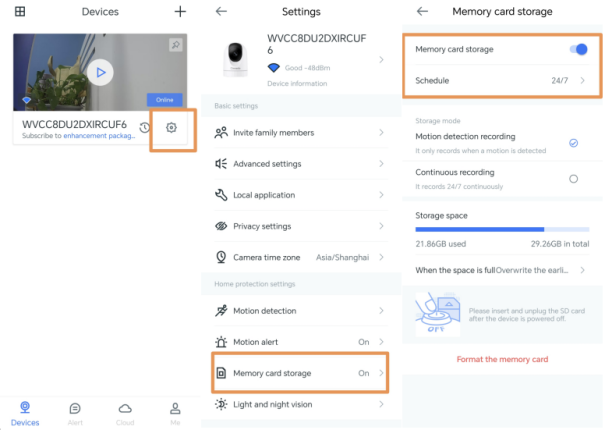
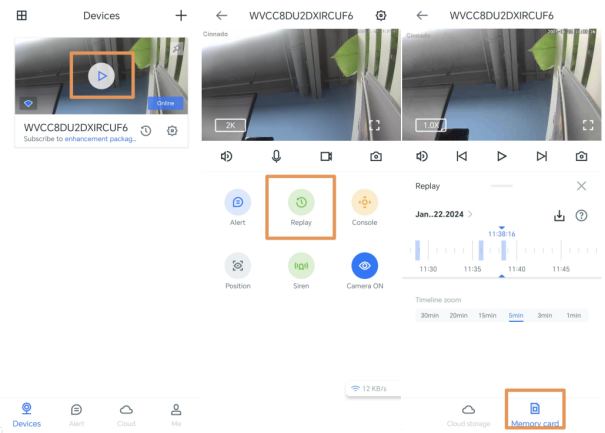
.
APP Can’t Recognize the SD Card?(Cinnado D1)
APP Can’t Recognize the SD Card? Cinnado D1
1. Make sure the SD card works properly by testing the write and read files function on a computer via an SD card reader, then insert the SD card in the camera.
2. Please power off the device before inserting the SD card.
3. The device only supports FAT32 format, 128GB Max; please format the SD card into FAT32 format on your computer via a card reader.
Read more:https://cinnado.com/manual_en
.
Cloud Storage?(Cinnado D1)
Cloud Storage?Cinnado D1
“Wansview Cloud” APP is FREE, Cloud Service is Optional. Even if you don’t want to activate the cloud storage, you can still use the camera normally. Read more:https://cinnado.com/manual_en
.
APP is showing “Offline”?(Cinnado D1)
APP is showing “Offline”? Cinnado D1
1. Ensure the router is working properly. Reboot the router and camera to see if the camera reconnects after that. 2. If not, reset the camera by holding the Reset button 5-10s and reconnect the camera. 3. The distance between the camera and router should be within 3 feet, so the camera can receive a good WiFi connection. Read more:https://cinnado.com/manual_en
.
Fail to Connect WiFi? Red Light isn’t flashing? Can’t Reset Successfully?(Cinnado D1)
Fail to Connect WiFi? Red Light isn’t flashing? Can’t Reset Successfully?Cinnado D1
If you can’t reset successfully, and the red light isn’t flashing, please try the following solutions: Hold the “Reset” button for about 15 seconds to see whether the red light flashes quickly. – If so, please wait about 1-2 minutes for the light to flash Red and Blue, and then you can reconnect WiFi. Read more:https://cinnado.com/manual_en
.
Fail to Connect WiFi ?(Cinnado D1)
Fail to Connect WiFi ?Cinnado D1
A1:If you fail to scan the QR code on the smartphone, please try the following solutions:
1. Make sure the indicator light flashes red and blue. If not, press the reset button until the red light flashes quickly.
2. Adjust the distance between the camera’s lens and the smartphone to 3-8 inches, adjust the brightness to medium, or double-click the QR code to enlarge it to scan.
3. If it still fails, tap “Didn’t hear it” and connect to WiFi via the Soft-AP method.
.
Does each 4g Ite cellular security camera need its own data plan and cloud storage plan? (Cinnado B6 4G)
Yes, each non wifi security camera needs to own a separate plan.
.
My outdoor security camera is offline suddenly, what can I do? (Cinnado B6 4G)
This is a prepaid SIM card that incudes 300MB tral cellular data for the first 30 days. After that you will need to purchase cellular data or it will not work. Please refer to the chart above for detailed charges for each cellular data plan.
.
What to do if the no wifi security camera outdoor cannot connect to the 4G network? (Cinnado B6 4G)
1) Please check the 300 MB trial data has expired. It is valid for 30 days once it is activated.
2) Please check your balance of the data.
3) Please note that this camera only can be used in the United States.
.
Which operators does this 4G security camera support? (Cinnado B6 4G)
The built in SIM card can support T-Mobile, AT&T and Verizon networks.It will automatically connect to the strongest signal when in use.
.
Can this 4G LTE camera be used with WiFi?(Cinnado B6 4G)
No, this solar camera outdoor wireless is not available for WiFi, it only supports 4g LTE connections.
.
What should I do if the camera won’t hold a charge or the battery drains quickly?(Cinnado S1)
You can customize the sensitivity level to reduce false alarms, and toggle the power saving mode to conserve battery power. We recommend placing the camera in direct sunlight with enough solar power to ensure the camera stays charged.
.
Why is my security camera recording slowly and occasionally not uploading footage?(Cinnado S1)
Unstable network may affect the video transmision. Better position the camera within 26 feet of your router. Avoid connecting too many devices to the same network. If you encounter issues, try refreshing the app by pulling down on the screen.
.
Does the outdoor security camera support SD card or cloud storage?(Cinnado S1)
Yes. But If no sd card or subscription,pls check the clips in ALERT, page, if you go REPLAY, it will show on subscription details for your reference, which can be safely ignored. You can obsolutely use the camera with no any subscription or sd card.
.
Does the outdoor camera wireless S1 support 24/7 continuous recording?(Cinnado S1)
No. It doesnt support 24/7 continuous recordng as it is a low power camera wth requiring power saving for a balance battery-powered working status But it can detect and record motion via PIR, generating motion alerts and save them in the app.
.
Does this wireless camera support 5G Wi-Fi?(Cinnado S1)
No, it doesn’t support 5G Wi-Fi, it can only connect to 2.4Ghz Wi-Fi.
fyou use EERO, you need to dsable ladvanced settingsland 5G for awhileto get tghe 24G devices connected. Once done, you can reenable the settings
.
Does the outdoor camera compatible with ONVIF or RTSP?(Cinnado S2)
No, the wifi camera doesn’t support ONVIF or RTSP. However, it is compatible with Alexa. Our camera uses the Wansview Cloud app and is not compatible with other third-party apps.
.
Battery won’t charge?(Cinnado B6 3Pack)
There is no charging indicator light on the camera, you may think it is not charging. Please charge the camera with the type-C power cord for several hours. Then power the camera on. After connection, you can see the charging status on the app.
.
How to share the cameras with families?(Cinnado B6 3Pack)
The security camera can be shared by sending the inviation on the app. The shared person should register an app account first. The cameras can be shared to 3 persons for free.
.
Does the cameras for home security outside support 24/7 continuous recording?(Cinnado B6 3Pack)
The Cinnado solar outdoor camera DOES NOT support continuous recording. The battery-type cameras do not support continuous recording to save the battery life.
.
Can the outdoor camera track motion?(Cinnado B6 3Pack)
The Cinnado home security camera DOES NOT support automatic motion tracking. However, you can rotate the camera on the app to view different angles.
.
Does this security camera support 5G wifi connection?(Cinnado B6 3Pack)
The CInnado solar camera security outdoor will only support 2.4G wifi connection, 5G wifi is not supported.
.
Do you have to subscribe to the cloud to use the app and wireless camera?(Cinnado S2)
No, cloud storage is an optional feature for those who prefer it. If you don’t want to pay extra, we recommend using an SD card for longer recording times. The cameras for home security supports up to a 128GB micro SD card.
.
Can I view the wifi camera when I’m not home?(Cinnado S2)
Yes, you can. Just make sure the app has network access permissions on your phone. As long as the security camera is connected, you can view the live feed from any network—no need to be on the same local network.
.
Does the security camera support 5G wifi?(Cinnado S2)
No, the solar camera outdoor wireless doesn’t support 5G WiFi at this time. It works with 2.4G WiFi, which has a wider coverage area. Most routers support both bands—just split them in your settings and connect the camera to the 2.4G network.
Do I need to subscribe to cloud storage to use the camera?(Cinnado B6)
Do I need to subscribe to cloud storage to use the camera? Cinnado B6
No, subscription is optional. You can take advantage of a 30-day free trial to try out the more advanced features, then you can renew your subscription or unsubscribe at the end of the trial period.
renew your subscription or unsubscribe at the end of the trial period.
I can’t charge the camera with the solar panel, what should I do?(Cinnado B6)
I can’t charge the camera with the solar panel, what should I do? Cinnado B6
Make sure the sun is shining, then charge 1) your smartphone with the solar panel:
2) your camera with the power cable. Check where the problem lies. If it fails, please let us know – we’ll help you solve it.
.
Alert notifications don’t arrive in real time, is this normal?(Cinnado B6)
Alert notifications don’t arrive in real time, is this normal? Cinnado B6
Signal strength is essential for instant notification.
Here’s how to improve your network: place the camera close to the router, reboot the router, adjust the antennas, connect the smartphone and the camera to the same network.
.

Detection is too sensitive, too many false alarms, what can I do?(Cinnado B6)
Detection is too sensitive, too many false alarms, what can I do? Cinnado B6
Cinnado Security Camera FAQ
Here are a few possible solutions: disable notifications, adjust sensitivity level, define a privacy zone, customize alert period
activate the PIR detection function, etc.
Can’t connect, is this camera down?(Cinnado B6)
Can’t connect, is this camera down? Cinnado B6
Press the reset button for 5s, the device indicates ‘Di’ in connection standby mode, you can follow the APP instructions to reconnect; otherwise, press for up to 20s with “DIDl”, the reset is successful.