How to Reset the Password of Swann Recorder, Forgot your Swann recorder password? No problem—resetting it starts by getting your recovery code (usually the MAC address). This guide helps you find the right reset instructions based on your recorder model.
Step 1: Find Your Model Number
Before anything else, you’ll need your recorder’s model number.
Not sure where to find it? → View our guide
Once you have your model number, enter it below: e.g DVR16-5580
Quick Guide: Where to Get the Model Number of a Swann Product
Looking for the model number on your Swann device? Whether you have a Swann recorder (DVR/NVR/NVW), an add-on camera, a standalone security camera, or sensors and alarms, finding the model number is key for firmware updates, compatibility checks, and technical support. Many users search “Swann model number location”, “Swann DVR model lookup”, or “where to find Swann camera model number”—and in this guide, we’ll show you exactly where to look on each type of device.
To get the model number, grab your Swann unit and select below what type of product do you have:
If you don’t have the unit with you, check out this extensive guide on where else you can get the model number of your unit.
You can also contact Swann Support if you need further assistance.
NOTE:
N3960 is not a model number
Choose the product that you have:
DID YOU KNOW? Some retailers are replacing Swann model numbers with their own codes. Once you have located the model number of your system, but is different to what Swann have, visit this article to check its
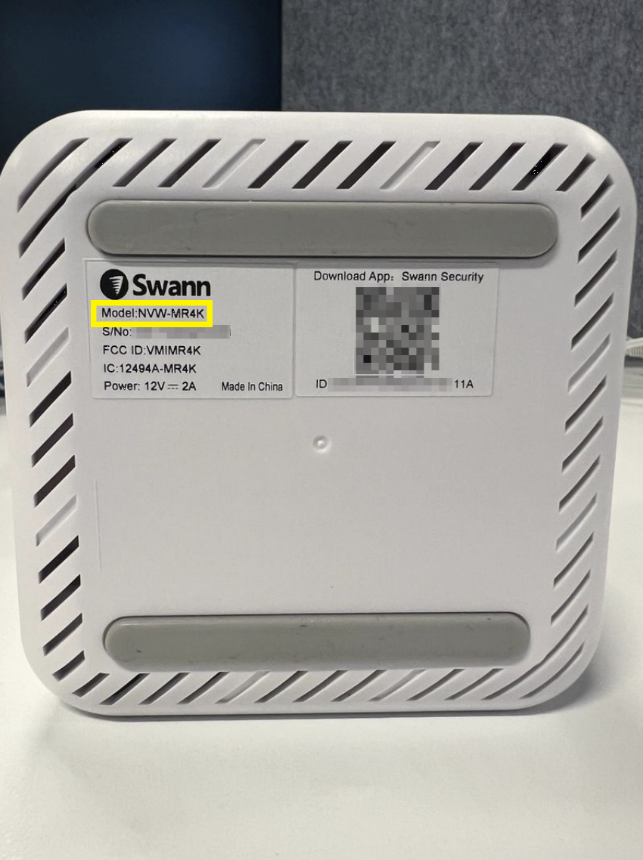
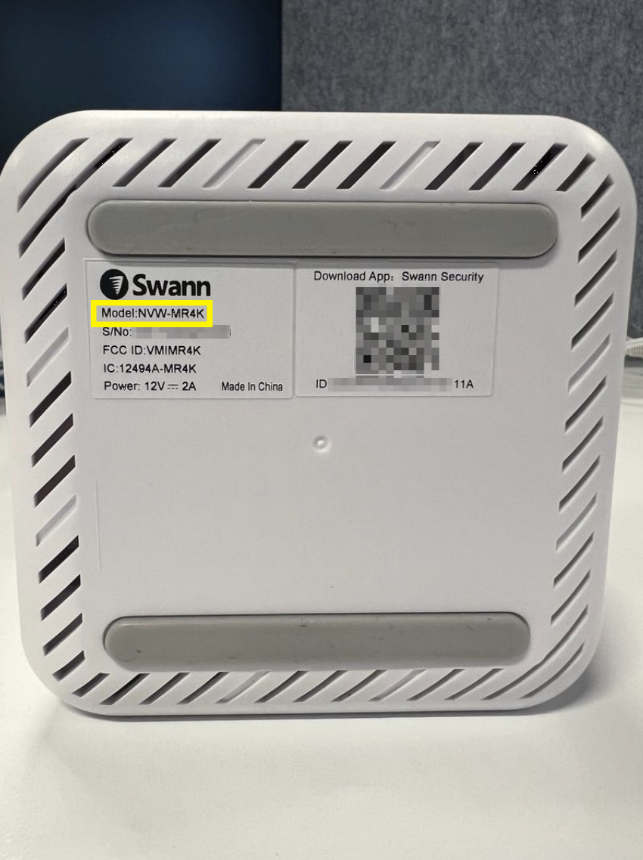
For recorders, the Product Model in indicated on the sticker underneath unit or on the back for NVW and AllSecure devices; usually above the serial number.
In this example, the model number is NVW-MR4K.
Look for your model number in this section to access detailed guides and support
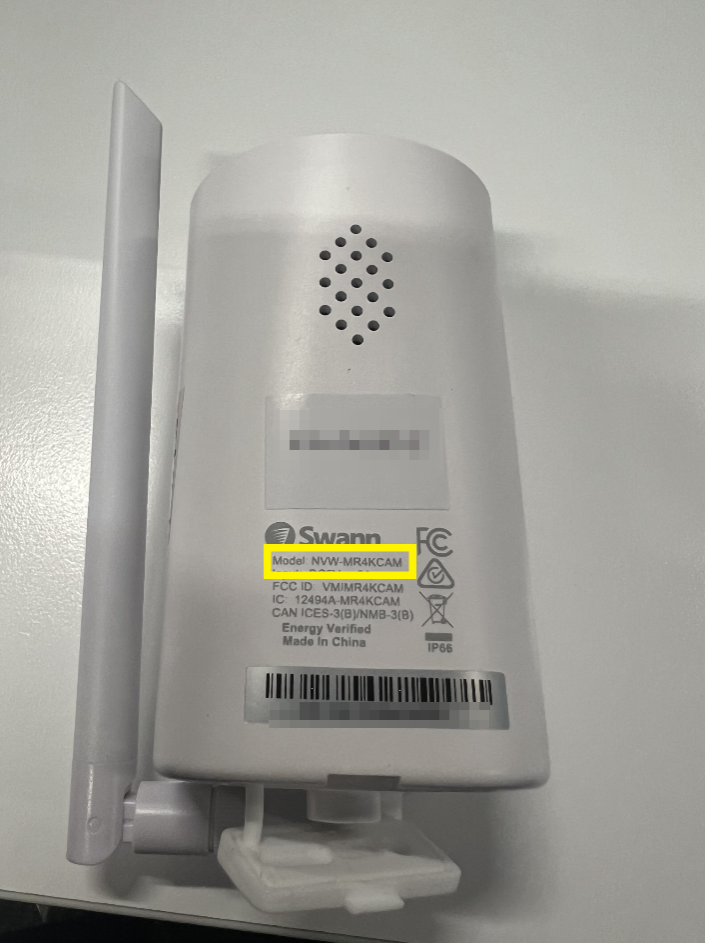
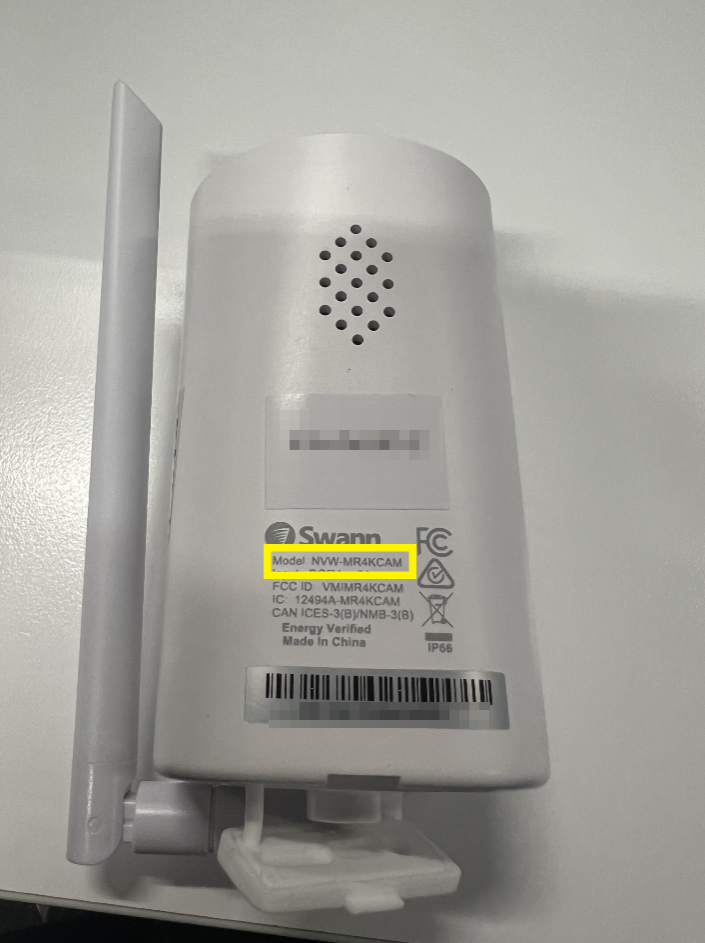
For security cameras, the Product Model is indicated on the sticker around the camera casing. The code usually starts with PRO, NHD, or NVW followed by a ‘dash’ or ‘hyphen’ and a series of numbers.
In this example, the model number is NVW-MR4KCAM.
Look for your model number in this section to access detailed guides and support
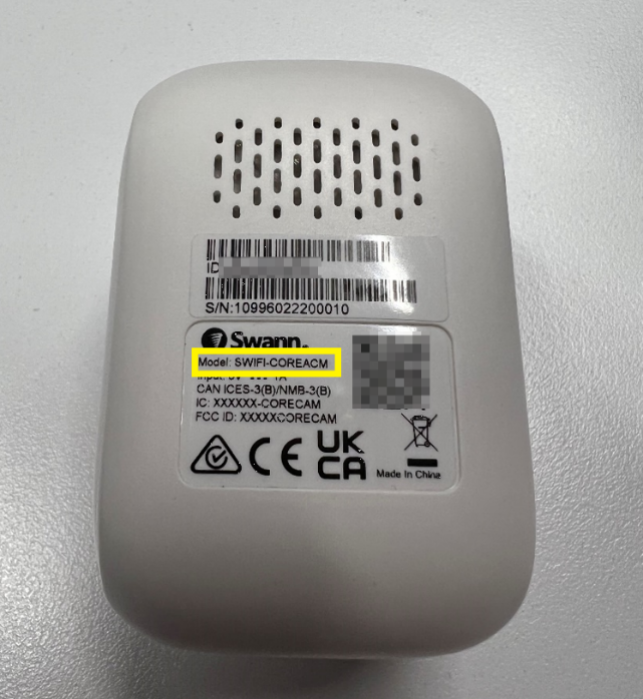
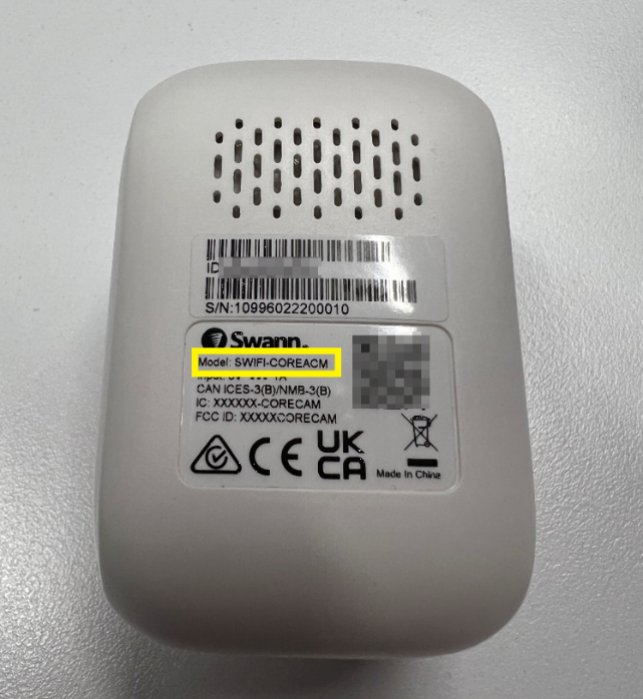
For Stand-alone cameras, the Product Model is indicated on the sticker or printed around the camera body or underneath the unit. The code usually starts with SWIFI, SWWHD, or SWAD.
In this example, the model number is SWIFI-CORECAM.
Look for your model number in this section to access detailed guides and support
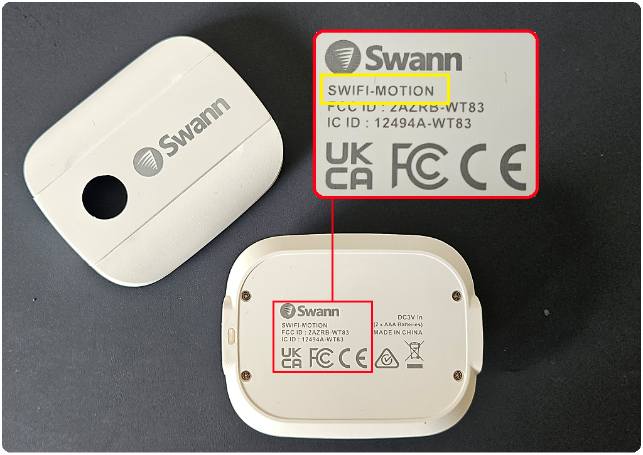
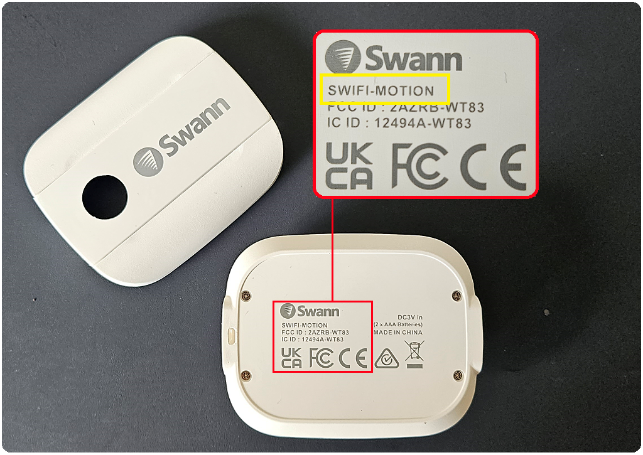
For sensors, the Product Model is indicated on the sticker or printed around the body or underneath the unit. The code usually starts with SWIFI.
In this example, the model number is SWIFI-MOTION.
Look for your model number in this section to access detailed guides and support
How to Find Your Swann Product Information: Model, P2P/UID, MAC, and Firmware
Swann Tech Support will always require the exact product model.
For troubleshooting, the following are required: P2P or UID, MAC address or commonly known as ID.
Different products listed below have different ways of finding this information. Click on the tab for your device type and follow the guide.
NOTE:
N3960 is not a model number
Choose the product that you have
Choose the information you want to find
Product Model on Sticker
For recorders, the Product Model is indicated on the sticker underneath unit or on the back for NVW and AllSecure devices. The code usually starts with DVR, NVR, NVW or sometimes SW / SR followed by a ‘dash’ or ‘hyphen’ and a series of numbers.
Choose the information you want to find
Product Model on Sticker
For security cameras, the Product Model is indicated on the sticker around the camera casing. The code usually starts with PRO or NHD followed by a ‘dash’ or ‘hyphen’ and a series of numbers.
Choose the information you want to find
Product Model, MAC address or ID on Sticker
For Battery/Wireless (IP) cameras, the Product Model is indicated on the sticker or printed around the camera body or underneath the unit. The code usually starts with SWIFI, SWWHD, or SWAD.
Choose the information you want to find
Product Model on Sticker
For sensors, the Product Model is indicated on the sticker or printed around the body or underneath the unit. The code usually starts with SWIFI.
Password Reset using SwannView Link app (MAC Address) or Generated code / Super Password
Using a Generated Code and Super Password
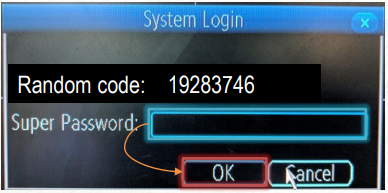
For this step, connect a monitor and mouse to your recorder.
Note: Do not close the prompt as it will generate a new code every time it’s opened.
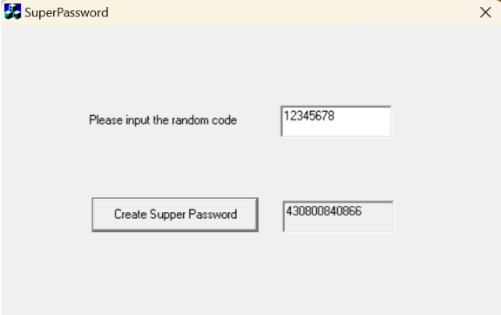
Using the MAC Address
Follow this guide on how to Password Reset using the SwannView Link app.
SwannView Link Password Reset
Acquiring the reset code “MAC Address”
The reset code on new recorders is acquired primarily by using the relevant client software on a Windows PC or MAC computer. Other methods exist, but they usually require a level of networking knowledge over what we expect customers need to operate their system.
The reset code itself is a unique 12-character string that is generated by the unique hardware identifier of the network interface of the device, known as the MAC address.
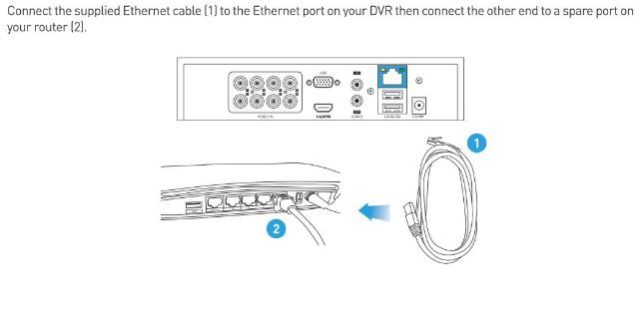
Excerpt from the Hardware Quick Set Up Guide
To find your recorder’s reset code, connect the recorder to your router (if you have not yet done so) and install and run the software on your computer.
Installing the software
Download the software
The first step is to download the necessary software to your PC. A link to the software is below.
(NOTE: If you are using Mac OS Catalina, go to this article instead: How to get the MAC address of a recorder using a Mac computer?)
Using the software
The first time you run SwannView Link, you will see this screen.
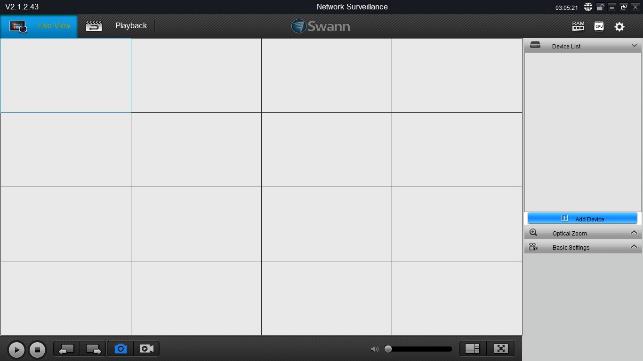
The software opens to the main page with various information displayed. Click on Add Device. You should see this below:
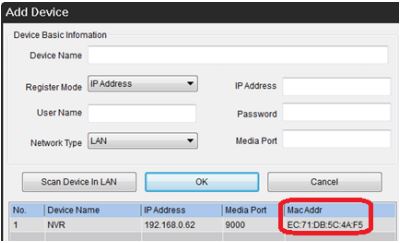
For Windows
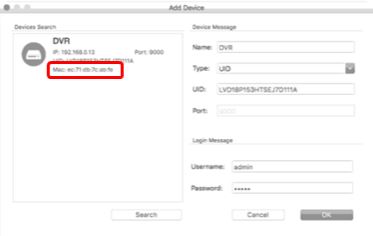
For Mac
Copy down any MAC address starting with the characters ‘EC71DB’ first, then any others. Ignore the colons as they are not necessary.
Entering the reset code
You now use what you wrote down in the previous step to initiate a password reset on the recorder. On the System Login, click Forgot Password.
Using the Code on the recorder:
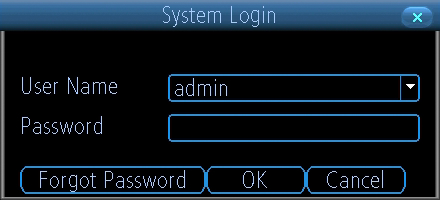
The reset code needs to be entered after clicking Forgot Password. Enter it in the Super Password field. Letters are in UPPERCASE without the colons (e.g EC71DB5C4AF5).
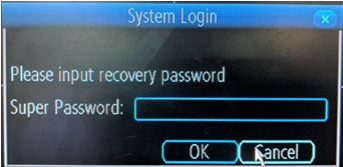
If the window you see looks similar to the image below, you are in the wizard. The reset code CANNOT be entered in this area. Make sure to setup your new password and click NEXT. You can cancel the rest of the Setup Wizard if you want.
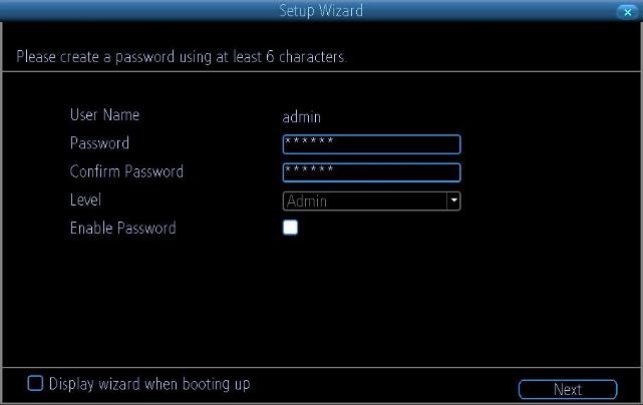
Cancel the wizard then open the right-click menu and select Main Menu (home button) to access the login window.
Once you enter in the “admin” username and reset code, the recorder will reboot. That indicates that the reset is successful and you will be presented with the window to enter a starting password after the recorder has finished rebooting.
Notes:
You will need to re-enter a new password every time you reset the password. The reset code CANNOT be used to login to the recorder nor can it be used for remote access.
SwannView Link Password Reset
Acquiring the reset code “MAC Address”
The reset code on new recorders is acquired primarily by using the relevant client software on a Windows PC or MAC computer. Other methods exist, but they usually require a level of networking knowledge over what we expect customers need to operate their system.
The reset code itself is a unique 12-character string that is generated by the unique hardware identifier of the network interface of the device, known as the MAC address.
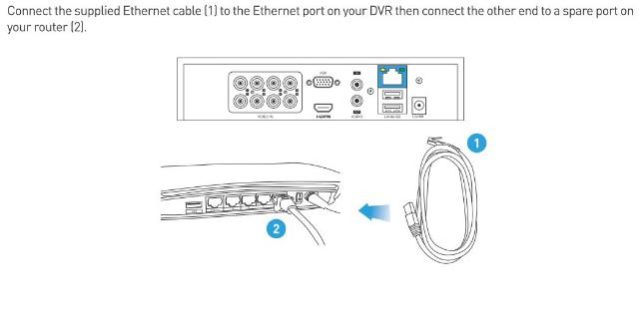
Excerpt from the Hardware Quick Set Up Guide
To find your recorder’s reset code, connect the recorder to your router (if you have not yet done so) and install and run the software on your computer.
Installing the software
Download the software
The first step is to download the necessary software to your PC. A link to the software is below.
(NOTE: If you are using Mac OS Catalina, go to this article instead: How to get the MAC address of a recorder using a Mac computer?)
Using the software
The first time you run SwannView Link, you will see this screen.
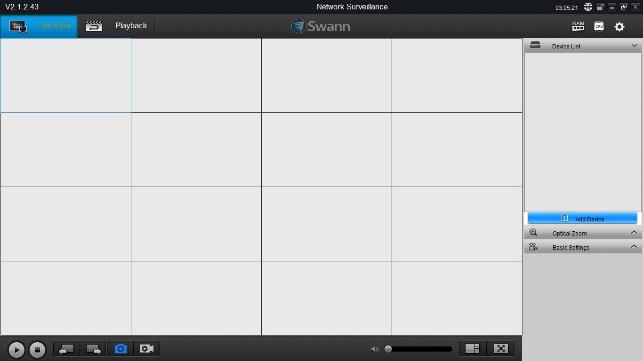
The software opens to the main page with various information displayed. Click on Add Device. You should see this below:
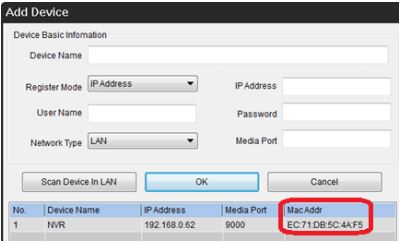
For Windows
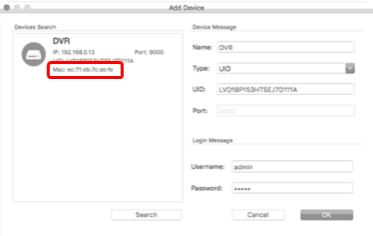
For Mac
Copy down any MAC address starting with the characters ‘EC71DB’ first, then any others. Ignore the colons as they are not necessary.
Entering the reset code
You now use what you wrote down in the previous step to initiate a password reset on the recorder. On the System Login, click Forgot Password.
Using the Code on the recorder:
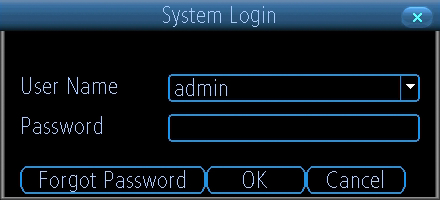
The reset code needs to be entered after clicking Forgot Password. Enter it in the Super Password field. Letters are in UPPERCASE without the colons (e.g EC71DB5C4AF5).
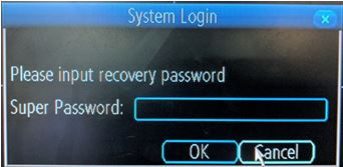
If the window you see looks similar to the image below, you are in the wizard. The reset code CANNOT be entered in this area. Make sure to setup your new password and click NEXT. You can cancel the rest of the Setup Wizard if you want.
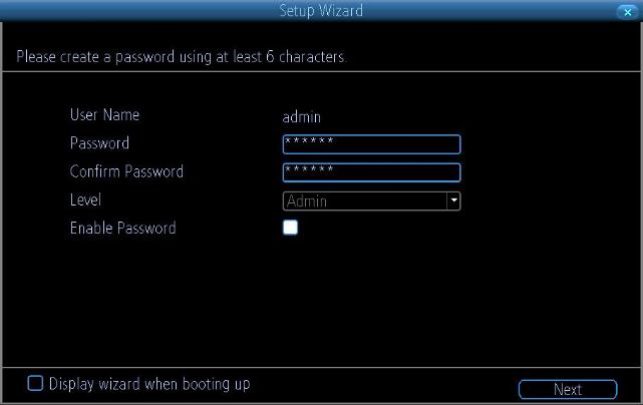
Cancel the wizard then open the right-click menu and select Main Menu (home button) to access the login window.
Once you enter in the “admin” username and reset code, the recorder will reboot. That indicates that the reset is successful and you will be presented with the window to enter a starting password after the recorder has finished rebooting.
Notes:
You will need to re-enter a new password every time you reset the password. The reset code CANNOT be used to login to the recorder nor can it be used for remote access.