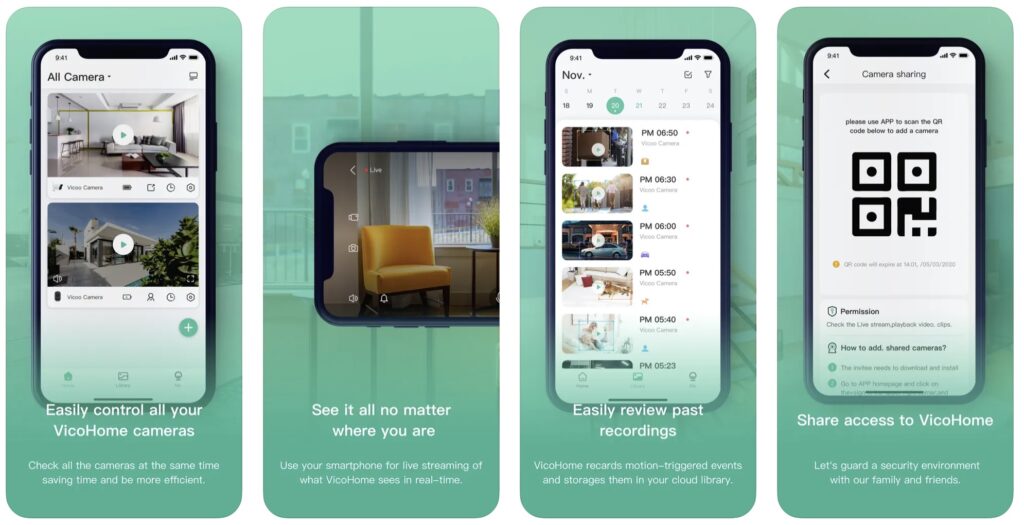
VicoHome with the use of smart camera products, you can always know the real-time video of the house, courtyard, balcony, etc., and also can quickly browse to the video during the automatic monitoring of the camera, and use the application to easily monitor multiple products at the same time or Family use together.
Download and install VicoHome APP
VicoHome camera supports Android and iOS devices using the mobile APP. For your best experience, please scan the QR code below with your mobile phone, install the APP, and follow the instruction to complete the user registration.
Connecting a VicoHome camera
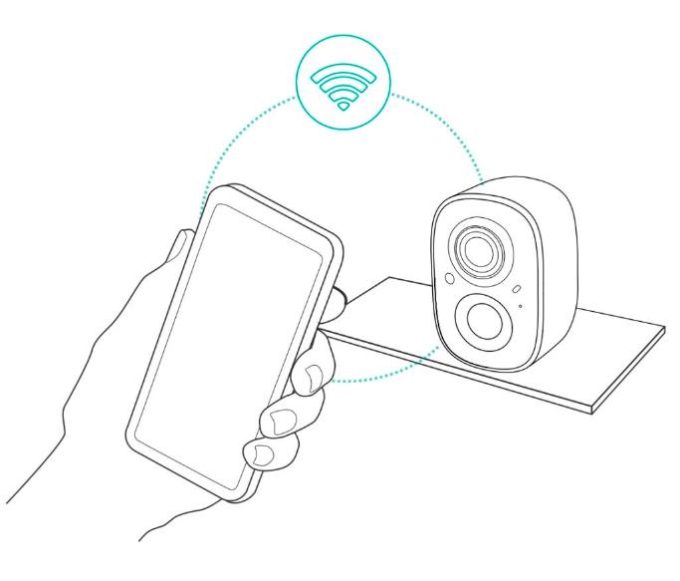
Log in to the VicoHome app, tap the green “+” icon in the top right corner, then tap “Add a new camera” and follow the on-screen instructions (please bring the camera and device close to the router during initial configuration).
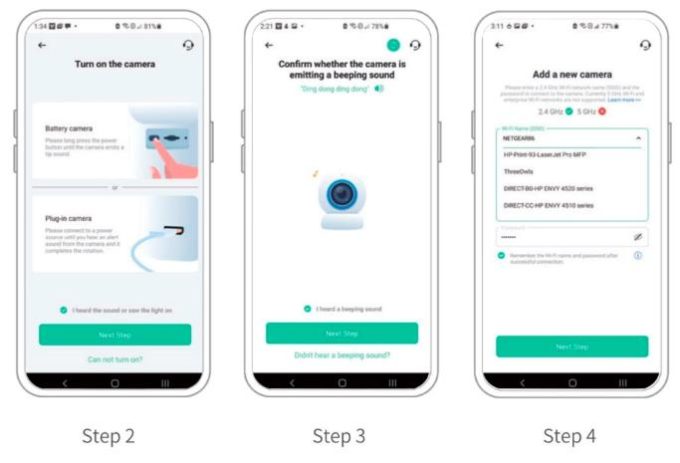
1. After pressing the camera switch for 3 seconds, the camera will turn on. The camera will emit the scanning sound “Ding Dong Ding Dong” after it is turned on (if you do not hear it, please quickly press the power button twice).
2. Tap on the “Add Camera Now” button on the App and follow the on screen instructions for the Battery Camera by long pressing the power button on the bottom of the camera. Once you hear the camera chime please tap on the circle next to “I heard the sound or saw the light on”, then tap on “Next Step”.
3. On the following page please confirm that you hear the camera emitting a beeping sound and tap on the circle next to “I heard a beeping sound” then tap on “Next Step”.
4. On the next page select your desired 2.4GHz WiFi network from the drop down menu under “WiFi Name (SSID)” then enter the password. To ensure a longer connection range, the camera only supports 2.4GHz WiFi with stronger wall penetration capability and does not currently support enterprise level authentication.
Once complete please tap on “Next Step”.
5. Point the lens of the camera at the QR code generated by the App about 7 inches away until you hear a “Ding” sound.
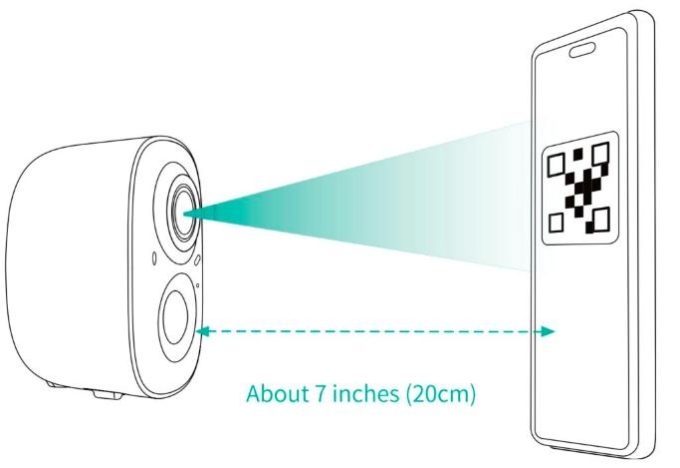
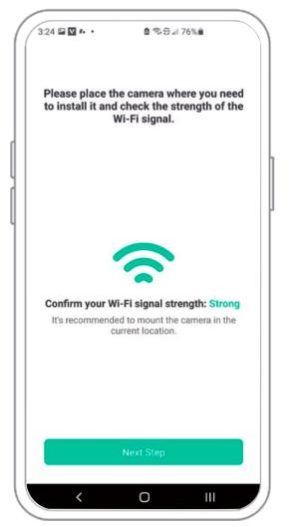
6. After a few moments the camera will provide a prompt sound indicating that the connection was successful. At this point the App will request that you place the camera at the location you wish to set it up at (you do not need to mount it at this point).
Please check the signal strength to ensure that it is adequate for this location then tap on “Next Step”.
Bluetooth Connected Camera
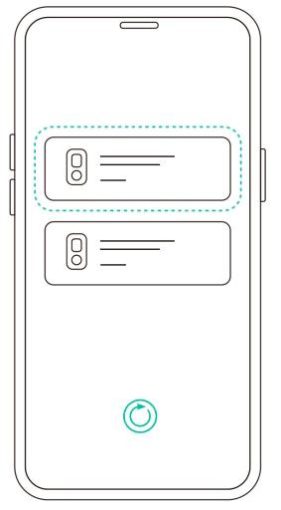
1. Click the “Add Now” button in the VicoHome APP, press and hold the camera switch button for 3 seconds to turn on the camera, and the APP will automatically search for devices that are on and not bound. Select the device you want to connect in the search results for the next step.
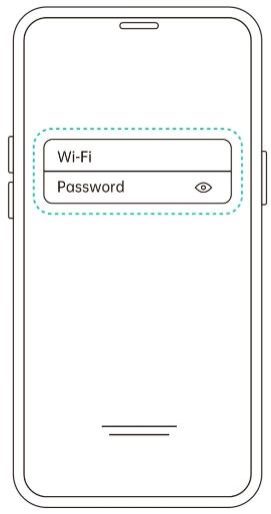
2. Enter the name and password of the Wi-Fi network you want the camera to connect to.
To ensure long-distance connection, the camera only supports 2.4GHz WiFi network with stronger wall penetration capability and does not support Wi-Fi with enterprise level authentication.
Please make sure that the Wi-Fi meets the requirements, click Next after completion, and the app can try to connect the camera to the Wi-Fi.
3. After a while, the camera will play a sound indicating that the connection is successful. At this point, please set a name for the camera on the app and select the location where you want to place the camera. Click Finish to complete the pairing.
Share VicoHome camera
When you need to view the VicoHome camera with other family members or friends, you can use this function.
Only the administrator whose account is bound with the camera for the first time can share and set the camera. Other members can only view the live or playbacks of the camera.
1. Find the camera you want to share on the App homepage or camera setting page. Find the button and enter the sharing page.
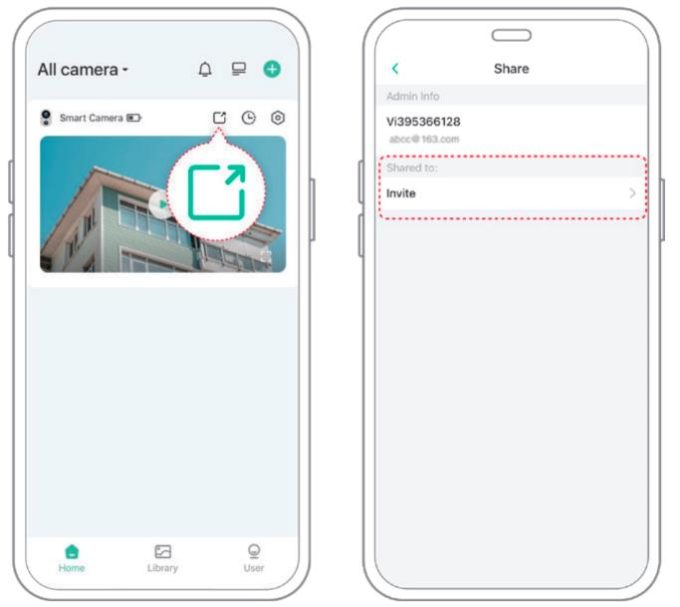
2. Click ‘Invite’ , and a QR Code will be generated for sharing
3. For the members you need to share, find ted orients camera’ in the “User” page to enter the scanning page.
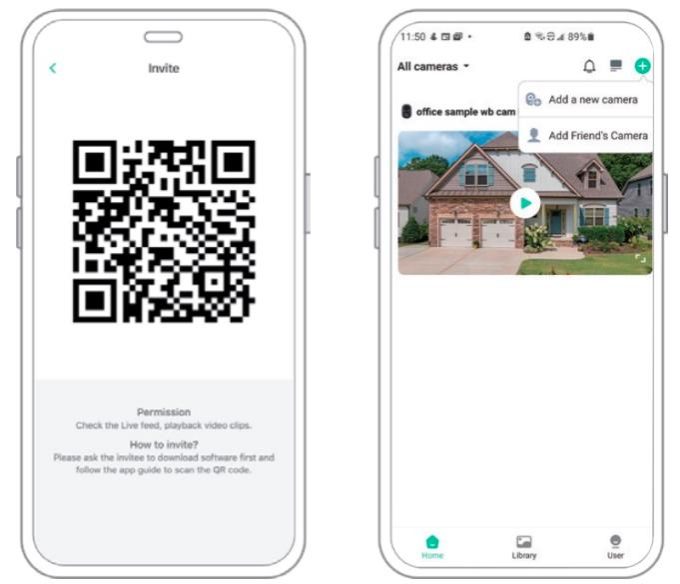
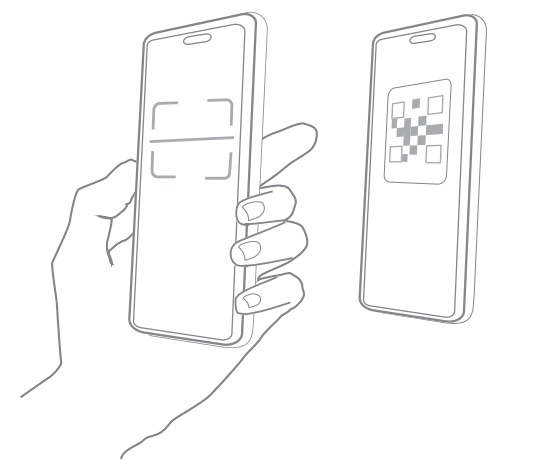
4. Scan the QR code on your mobile phone, and you will receive the confirmation notification after success. The sharing will be completed after you agree.
Charge the VicoHome camera
App will remind you to charge your camera when the battery is low.
Please use the Type-C cable to plug into the 5V/1.5A charging adapter to charge the camera. During charging, the camera’s indicator light is solid yellow, and when the camera is fully charged, the indicator light will turn into solid green. It will take 8 hours to fully charge the camera.
.
How to Fix 4G Camera Setup Failure?
If you’re experiencing issues with your 4G camera’s connection or binding process, this guide is here to help. We address a range of frequent issues and provide detailed solutions to ensure your surveillance system is operational and efficient.
Troubleshooting Tips for 4G Camera Setup
No SIM card in the device
SIM card can’t connect to the internet
Weak cellular signal near the device
Connect device failed
Device already connected to VicoHome account
Server connection timeout
Please check whether the device is emitting a beeping sound. If silent, double-click the power button or restart the device to enter pairing mode and try again.
Methods to Improve the SIM Card Network Signal
If you encounter poor network signals with your SIM card resulting in an inability to connect to the internet, you can try the following methods to improve the signal:
By following these steps, you can enjoy a seamless network connection experience with your 4G camera. If you encounter more specific issues, you can submit feedback on the app to get further technical assistance.
.
FAQ
How to invite family and friends to use my VicoHome camera together?
Open the App and select your VicoHome camera on the home page. Click the share button on the home page or the “Share” in the camera settings to enter the sharing page, and then click “Invite ” to generate a QR code.
Your friends can now get some of the access rights by scanning the QR code in your phone.
Why doesn’t the Wi-Fi name appear when I connect to Wi-Fi?
On Apple devices with iOS13 and above, you need to turn on the
“location permission” for the app in the system settings and change it to “allow when using.”
Will the camera show red lights when night vision is activated?
The built-in infrared lamp beads make the camera only show some dim red lights when night vision is activated, but the image quality is still clear under no light environment.
What are the requirements for Wi-Fi?
Please use a 2.4GHz wireless network. The device does not support the 5GHz wireless network. Meanwhile, please set the WiFi authentication method to WPA2-PSK or other lower level of the security method. A password is required.
How far should the camera be placed from the router?
After testing, the WiFi connection distance can normally reach up to 150 meters in the open area. However, the actual situation depends on the strength of WiFi and its surrounding environment (thick walls, electromagnetic devices, large metal objects will all cause interference to the WiFi signals).
If the camera connection signal is weak or unstable, please place the camera as close to the router as possible.
What is the maximum length of recording time?
VicoHome Awareness subscribed users: Maximum recording time up to 3 minutes if you set duration to ” Auto”.
Unsubscribed users: The maximum recording time is 20 seconds.
How to quickly view videos by category?
Click the icon in the upper left corner of the “Library” page to start filtering videos by category. Select the category you want to see and then click “Save” to view the video playbacks.
What should I do when the VicoHome camera is in malfunction?
Long press the power button for 3 seconds to restart it.If there is no response, you can remove the rubber plug at the bottom of the camera. Press the reboot button to restart the camera while charging.
Add & Share Device
How to Create Separate 2.4GHz and 5GHz WiFi SSIDs on Your Router
How to distinguish 2.4GHz Wi-Fi and 5GHz Wi-Fi?
Why Most Cameras Only Support 2.4GHz Wi-Fi and Not 5GHz or Enterprise Wi-Fi
Can I watch the camera on my computer or tablet?
What are the permissions of shared users?
How to remove users or stop sharing?
Can two or multiple people be logged in?
What should I do if the camera reports an error?
Camera reports “Retrieve IP timed out”
Camera reports “Authentication error”
Camera reports “WiFi SSID not found”
Camera reports “Cloud service connection fail”
Camera reports “WiFi password error”
Can’t find the admin QR code?
Why is the connection unsuccessful after scanning?
Cannot find the QR code on the camera body?
How to add users or share vicohome camera with another person?
Live View
Introduction to Features in the Live View
How to do if I can’t hear the live sound?
How to do if the image is upside down?
Why does the image/screen look blurry?
How to adjust the resolution of the live screen?
How to use Pan and Tilt feature?
How to adjust the video time?
How to view live stream?
How to use two way talk feature?
How to change the WiFi network for your camera?
How to improve wifi connection?
Why can’t I access the live stream?
What can I do if the camera is offline?
Motion Detection (Notifications & Recordings)
How to save cloud videos?
Can the videos only be stored in the Micro SD card?
What should I do if cloud videos can’t play?
Why are notifications delayed?
How do I know if my camera supports Motion Tracking?
Can the camera be installed behind a window/glass?
Why are the cloud videos deleted?
Why are there so many false notifications?
Can the notification sound be changed?
Where is the cloud video storage?
Can the deleted videos be recovered?
How to enable motion detection?
Can the camera record continuously?
What is Cool Down Time?
How to Set the Recording Duration?
How to delete cloud videos?
What should I do if the camera is not recording/detecting motions?
How to set sleep mode?
How to resolve the issue of not receiving notifications?
Why are there so many videos with no movements?
Charge Camera/Battery
What do different colors of the indicator light mean?
Will Wi-Fi environment affect the camera battery?
How can I extend the battery life?
How long does it take to fully charge the camera?
How to charge the camera?
Can the camera be used with a solar panel?
How to connect the Solar Panel to your Pan & Tilt Camera?
Why doesn’t the battery last long?
Why can’t the camera be charged?
Subscriptions/Awareness Service
Vehicle Mark Instructions
Guide to Package Alerts
Activity Zones: Setup & Use
How to Cancel a Subscription Plan
How to Request a Subscription Refund
How to Subscribe to the Awareness Service?
Learn About Premium Features with Awareness Service
How to Improve Bird Recognition Accuracy
What to Do If Your Subscription Payment Fails
A Comprehensive Guide for Bird AI
Micro SD Card
How to view videos on the Micro SD card?
How to record/save videos on a Micro SD card?
How to format a Micro SD card?
Remember Wi-Fi name and password after successful connection
Why is a log-in prompt message indicating no account has been registered, although the account has been registered?
How to reset the password?
Remember the password when logging in
Can the device volume be adjusted?
How to Turn on the Flashlight or Audible Alarm on Your Camera?
How to adjust the sensitivity of night vision?
How to enable night vision?
Introduction to MagicPix
Others
Is the camera waterproof?
How to find the serial number of camera?
What should I do if the camera malfunctions?
What should I do if the battery camera cannot be turned on?
Streaming Interconnection
What is Interconnect Streaming and High-Performance Encoding?
Why does my camera keep showing “Interconnecting…please wait”?
How to check if my camera is connected successfully?
Why is it saying “No camera currently supports Alexa”?
How to add Alexa Skills?
4G Battery Camera
How to Fix 4G Camera Setup Failure?
How to obtain APN information?
Introduction to 4G Battery Camera
4G Camera Unlimited Data Plan Guide
Troubleshooting Weak Signals in 4G Cameras
Troubleshooting 4G Camera Offline Issues
4G Camera SIM Card Guide
How to configure the APN information on the 4G Camera?
Can 4G Camera Be Connected to WiFi?
VicoHome Beta Testing Program
VicoHome Beta Tester Recruitment
.