
The Tuya SmartLife app and Tuya app provided by Tuya are known as the all-in-one app and are available to users from all walks of life. This app boasts features of being free, ready-to-use, easy control, diversified scenarios, useful functions, and world readiness.
My device needs to be configured for the network. How do I reset the device?
The reset operations for different devices may vary, but common methods include:
Methods to determine if the device has successfully entered network configuration mode:
Note:During the first use, devices typically enter network configuration mode automatically, except for locks, control panels, and speaker products.
.
If the device indicator light keeps flashing, how to troubleshoot potential issues?
Operation Confirmation:Confirm if the device has been removed or frequently turned on/off, or if the device’s switch button has been accidentally triggered. When the indicator light keeps flashing, it usually indicates that the device is in pairing mode.
Reconfiguration:Attempt to reconfigure the device network. If the indicator light continues to flash even after successful reconfiguration, it may be due to a hardware malfunction. It is recommended to contact the seller immediately for after-sales support.
The Indicator light changed from flashing to regular,but it still fails to connect?
If the device’s indicator light changes from flashing to solid during the network configuration process but ultimately fails to connect successfully, please troubleshoot using the following steps:
For most of Routers)How to configure separate Wi-Fi SSIDs for 2.4 GHz and 5 GHz bands?
If your router supports both the 2.4 GHz and 5 GHz bands, but only one Wi-Fi name is displayed on the Wi-Fi search page of your mobile phone, perform these steps:
When the preceding settings are complete, the new Wi-Fi names will Appear on the Wi-Fi settings page of your mobile phone.
Note:After the Wi-Fi names are changed, you need to reconnect the devices that use this wireless router. The password remains the same if it has not been changed.
The following files describe how to configure the routers of some popular brands.
What should I do when my device fails to connect to the network?
Please read the product manual carefully before setting up the network, and confirm that the app is the one recommended in the manual.
Check if the device is powered on and functioning properly, and ensure that the router is connected to the external network, so that the device is in the correct state for network setup.
If all the above conditions are met, please follow the communication protocol below for troubleshooting:
What should I do if the device is offline after a power outage or network disconnection, but cannot automatically reconnect to the network after network recovery or restore power?
Please check in the following ways:
Whether there are too many devices in your home that need to be connected to the Internet, beyond the range that the router can load (ordinary home routers can only load less than 10 devices), so your devices cannot connect to the network;
Whether the network quality is unstable, so the device fails to connect to the network in time after the incoming call;
If the device cannot automatically reconnect to the network after being offline, you can try to restart the device;
If it still fails, you need to reset the device configuration network;
If your problem still exists, you can submit your problem in App-My-FAQ and Feedback-My Feedback-+New Feedback (selecting the corresponding device when submitting feedback will locate your problem faster), thank you support.
What are the limits (maximum) on the features and usage of the app?
Tuya developer platform features the following requirements(If the upper limit is exceeded, it cannot guarantee the user experience.)
Tuya & SmartLife Apps
| Item | Description | Upper limit |
|---|---|---|
| Number of schedules | Maximum number of schedules that can be created for a device | Local timer: 30, cloud timer: 200 |
| Number of home devices | Maximum number of devices that can be added for a home | 200 (Version 6.9.0 and later: 1000) |
| Number of tap-to-runs | Maximum number of scenes that can be created for a home | 200 (Version 6.9.0 and later: 200) |
| Number of automations | Maximum number of automations that can be created for a home | 200 |
| Number of tap-to-run actions | Maximum number of actions that can be created in a scene | 200 |
| Number of automation actions | Maximum number of actions that can be created in an automation scene | 200 |
| Number of automation conditions | Maximum number of conditions that can be created in an automation scene | 10 |
| Number of simultaneous logins | Maximum number of mobile devices supported by a single account for simultaneous login | 200 |
| Number of homes | Maximum number of homes that an account can create | 20 |
| Number of home members | Maximum number of members that can be added to a home | 20 |
| Number of rooms | Maximum number of rooms that can be created for a home | 20 |
| Number of room devices | Maximum number of devices that can be added for a room | 50 |
| Number of devices in device group | Maximum number of devices that can be added to a device group | 100 |
| Number of home device groups | Maximum number of device groups that can be created for a home | 20 |
| Number of users in device group sharing | Maximum number of users that a single device group can be shared with | 20 |
| Number of users in device sharing | Maximum number of users that a single device can be shared with | 20 |
| Number of joined homes | Maximum number of homes that an account can join in | 20 |
Other:
| Item | Description | Upper limit |
|---|---|---|
| Number of products | Maximum number of products that can be created on Tuya Developer Platform | 500 |
| MQTT message length | Maximum length of an MQTT message. MQTT messages exceeding this length will be directly discarded. | 64 KB |
Trigger mechanism:
The quantity limits of the mentioned items are interrelated. It is possible that the upper limit of item B is triggered before the upper limit of item A is reached. Therefore, the principle of the first trigger will be applied to all limits.
Scope of Quantity Limitations:
The quantity restrictions apply to the Tuya App, SmartLife App, OEM App, and App SDK.
Note: Items such as number of homes, number of home members, number of rooms, number of room devices, number of device group devices, number of home device groups, number of users in device group sharing, number of users in device sharing, number of joined homes, and MQTT message length are still in the gray release phase and may be subject to elastic adjustment. Tuya reserves the right to interpret these requirements.
I have a device whose old schedule (ghost schedule) is active?
Dear user, you can try to reset a new timing to refresh the cloud settings. Or you can try to “Restore factory defaults” your device (note: this will make the device disAppear from the list) and add it again. If your problem persists, please contact us again and let us know the specific time and device ID for further investigation.Thank you for your support and understanding.
How do I restore a faulty device to factory settings?
Dear user, we are sorry for your inconvenience. If you do so:
Note: If you just click Disconnect, the App will only remove the device from the App, and will not delete any data on the device, nor will the device enter the pairing mode (some devices have their own logic to automatically enter pairing mode after disconnection).
Why can’t my phone receive App push, incoming call, device alarm and door bell ring?
Dear user, we are sorry for your inconvenience. If you do so:
Note: If your device is a smart doorbell or smart camera, and you cannot receive the incoming call. This is caused by the restrictions imposed by the mobile phone on our App. You only need to open the App, and you will receive the incoming call normally.
The power saving function of some Android phones will close the background process of the App, which is also the reason why you cannot receive the App push:
What if my phone doesn’t receive a doorbell notification or call notification after the app is closed?
In Android 14 and later, full-screen notification permissions have been restricted. For apps like doorbells, full-screen notification permission is required to display a call notification.
If message pushing is enabled for the message center and your mobile phone but you still do not receive any messages, provide us with your device ID and the messages that you are supposed to have received. We will arrange for technical support engineers to troubleshoot this issue.
The following is the specific setting process of some common mobile phone brands.
What should I do when a smart task (Tap-To-Run or automation) runs incorrectly?
Dear user, we are sorry for your inconvenience.
If the issue persists, provide us with your device ID and the specific time when the task failed (the configured validity period, time when the task failed to run, or time when the task ran but at an unexpected time). We will arrange for technical support engineers to troubleshoot this issue.
What should I do when a timed task is not performed correctly?
Dear user, we are sorry for your inconvenience. Please check in the following ways:
If the issue persists, provide us with your device ID and the specific time when the task failed (the configured validity period, time when the task failed to run, or time when the task ran but at an unexpected time). We will arrange for technical support engineers to troubleshoot this issue.
What should I do when a firmware upgrade fails?
If the firmware upgrade fails, you can follow the troubleshooting steps below to resolve the issue:
Network stability assurance: Firmware upgrades can sometimes fail due to unstable internet connections. We recommend trying to change to a more stable network environment or using a mobile hotspot to attempt the upgrade again. This will provide a more reliable network connection to ensure a smooth firmware upgrade process.
Bluetooth device firmware upgrade considerations: For firmware upgrades involving Bluetooth devices, it is important to keep the relevant app in the foreground throughout the upgrade process. Exiting the app during the upgrade can potentially lead to firmware upgrade failures. Therefore, please ensure that you do not exit the app while the firmware upgrade is in progress to ensure a successful completion.
If the above troubleshooting methods still cannot resolve the issue, we suggest contacting our customer support for further assistance. We are here to provide you with additional help and support. Thank you for your understanding and support.
Unable to share devices to my Home/others user?
Dear user. If you do so:
Mesh devices/Zigbee devices/Infrared devices/Bluetooth devices/Gateway devices are currently not supported for sharing. For a regular home member, it is recommended that you share all the devices with him/her by adding home members. If you want all family members to use the shared Bluetooth device normally, we recommend that you purchase a Bluetooth gateway and use it together, otherwise the Bluetooth device can only be connected to one mobile phone for one person to use at the same time. Once someone connects successfully, the Bluetooth device in other people’s App will be displayed as offline. Only after the user disconnects the Bluetooth device, other people can use it normally. There is no such restriction when using the Bluetooth gateway.
How to configure Tap-to-Run and Automation?
Tap-to-Run
There are three types of Tap-to-Run in the App. You can quickly start smart devices in your home by setting up Tap-to-Run, eliminating the setting step one by one.
Operating device: Add the smart device you want to execute the Tap-to-Run.
For example: you can enable all devices in your home without going to enable the device one by one.

Select smart: Add the automation you want to perform with Tap-to-Run(The existing automation is required in advance).
For example: you can use Tap-to-Run to open your setting automation without triggering any conditions of automation.
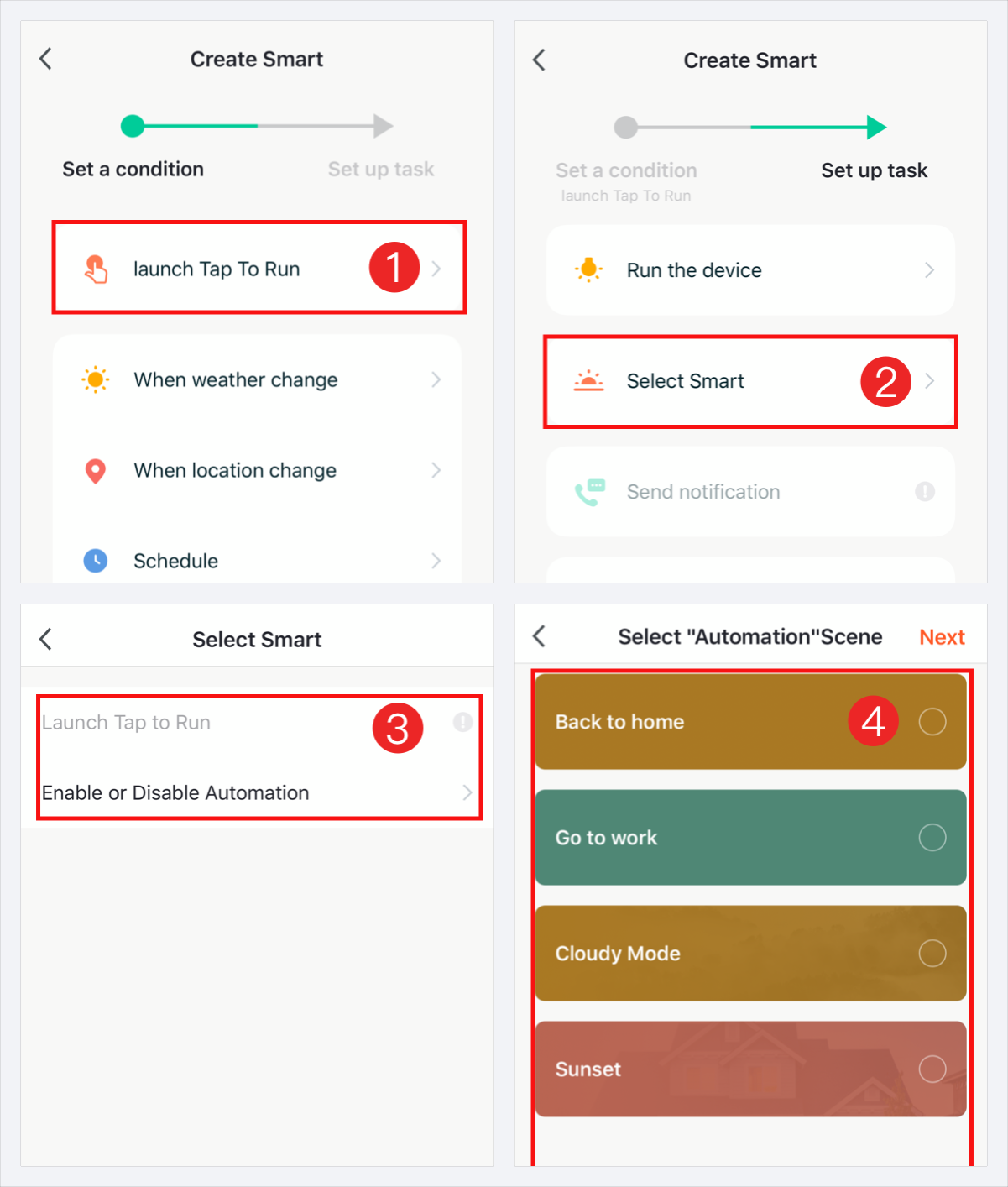
Delay: add a delayed task.
For example: you can add a delay task in Tap-to-Run between two devices actions.

Automation
There are four main types of automation are supported in the App. You can set up automation to fully use the home devices and start your SmartLife.
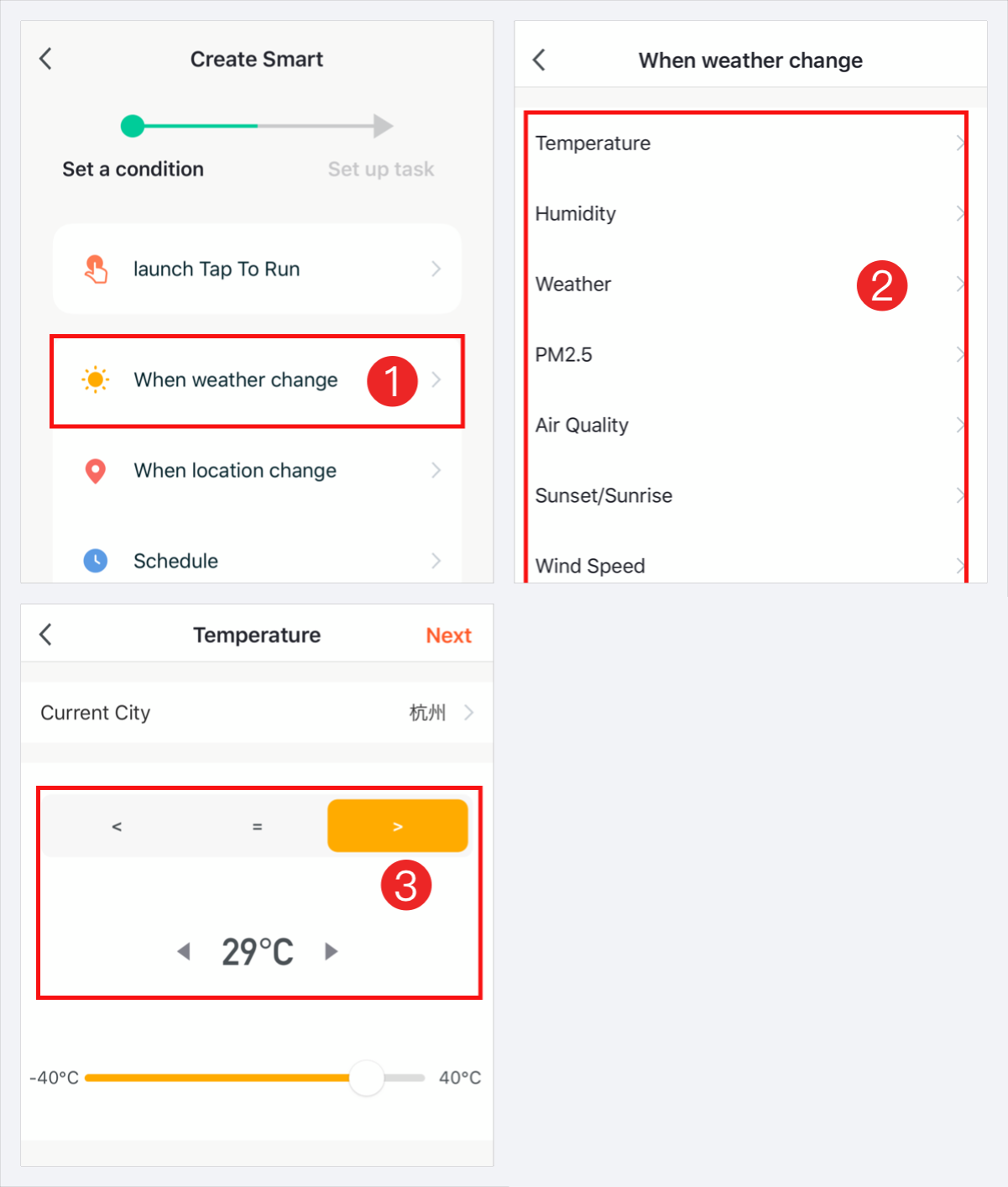
When the weather changes: The linkage between external environment conditions and the smart devices, the following external environment conditions can be selected.
For example, you can set ‘when the temperature is higher than 29℃, turn on the air conditioner.’
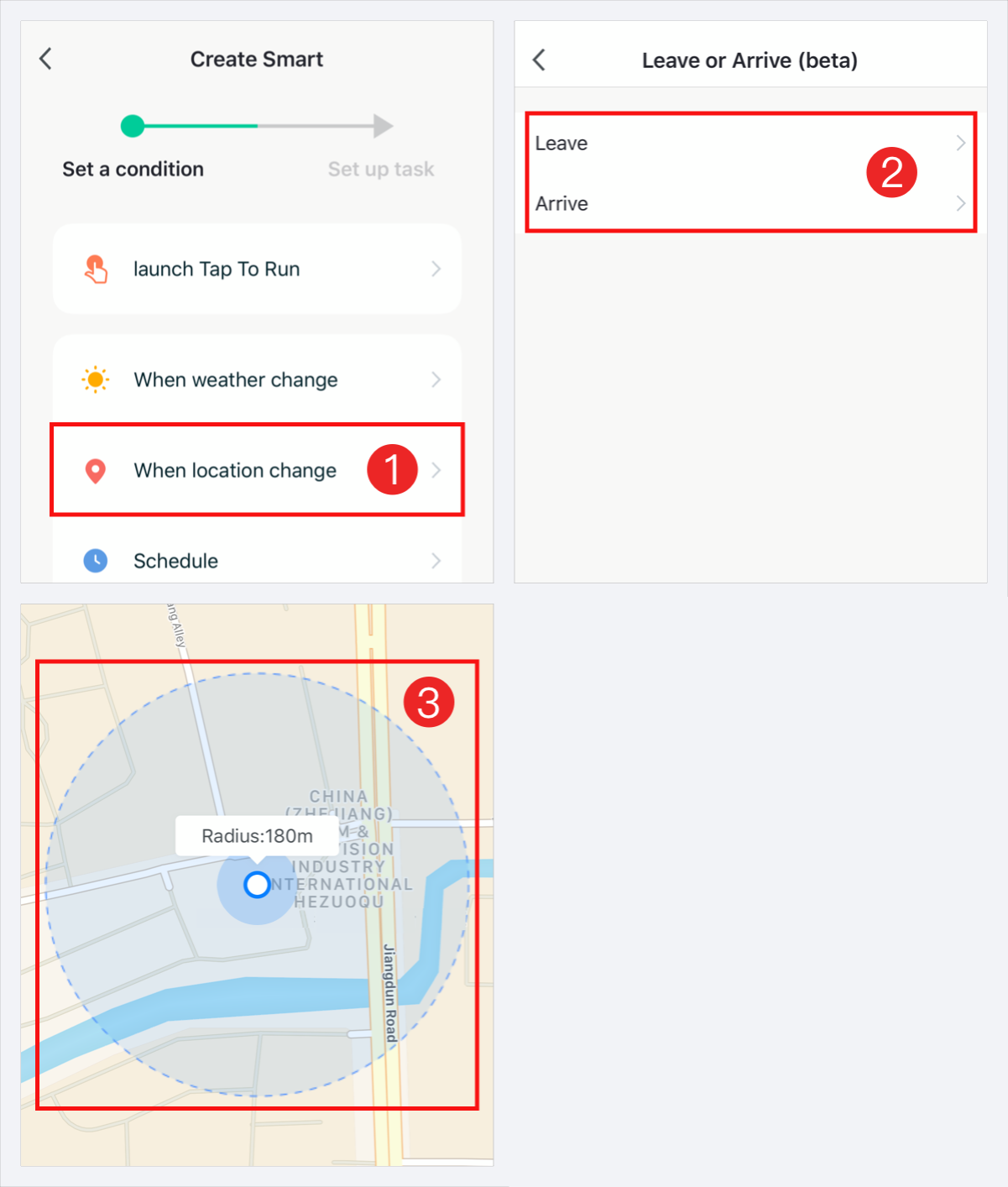
When the location changes: The linkage between the geographic location and the device.
For example, you can set ‘turn on the air conditioner and water heater automatically when you are near the house, or turn off all home Appliances and turn on motion detection function of the camera when you leave the house.’
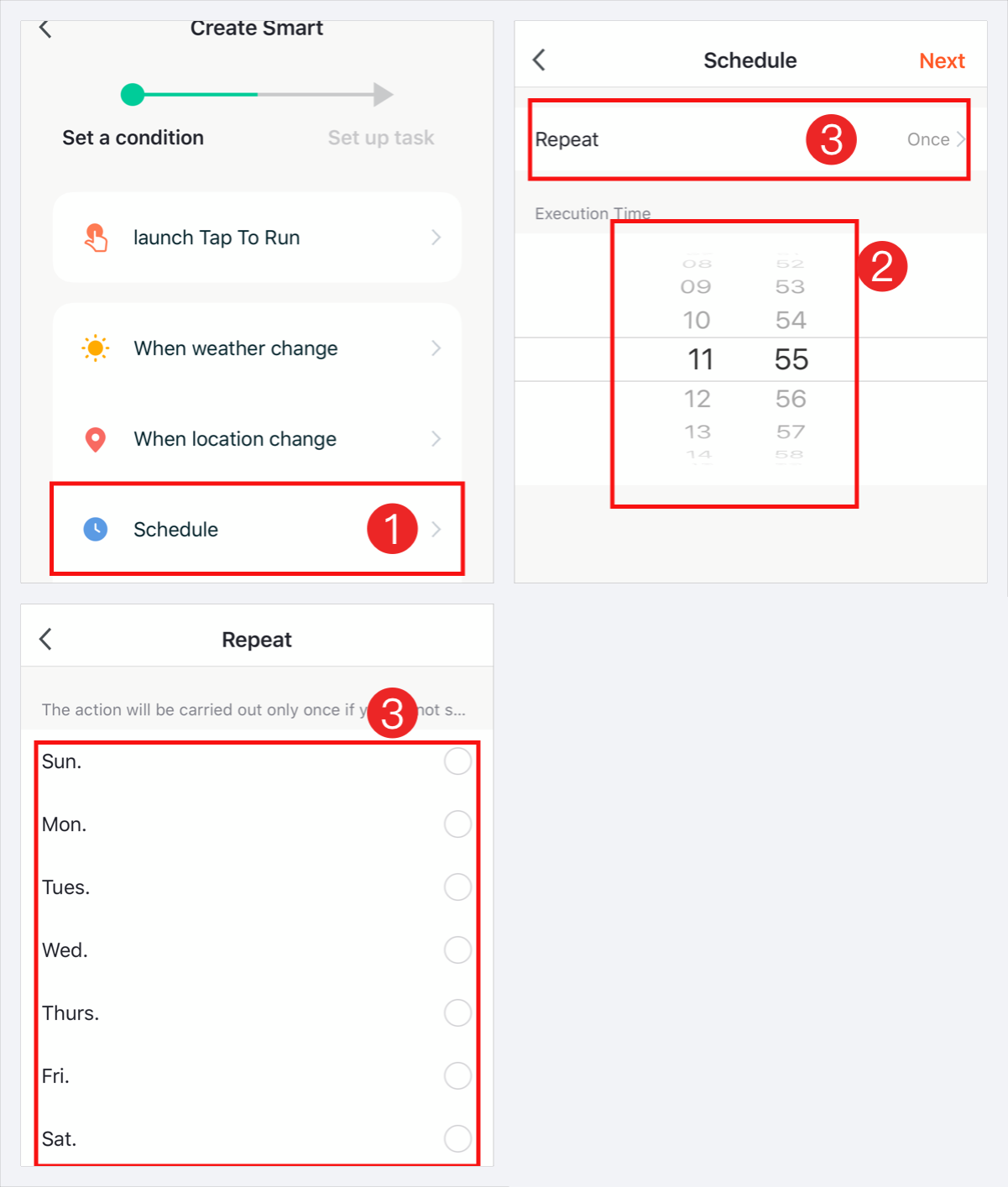
Schedule: The linkage between schedule function and the devices.
For example, you can set ‘open the curtain at 8am on working days.’
When the device status changes: The linkage between the device status change and the devices.
For example, you can set ’when the air conditioner is on, the aroma diffuser and air purifier will be automatically turned on, or when the door sensor is on, the alarm will be triggered.’
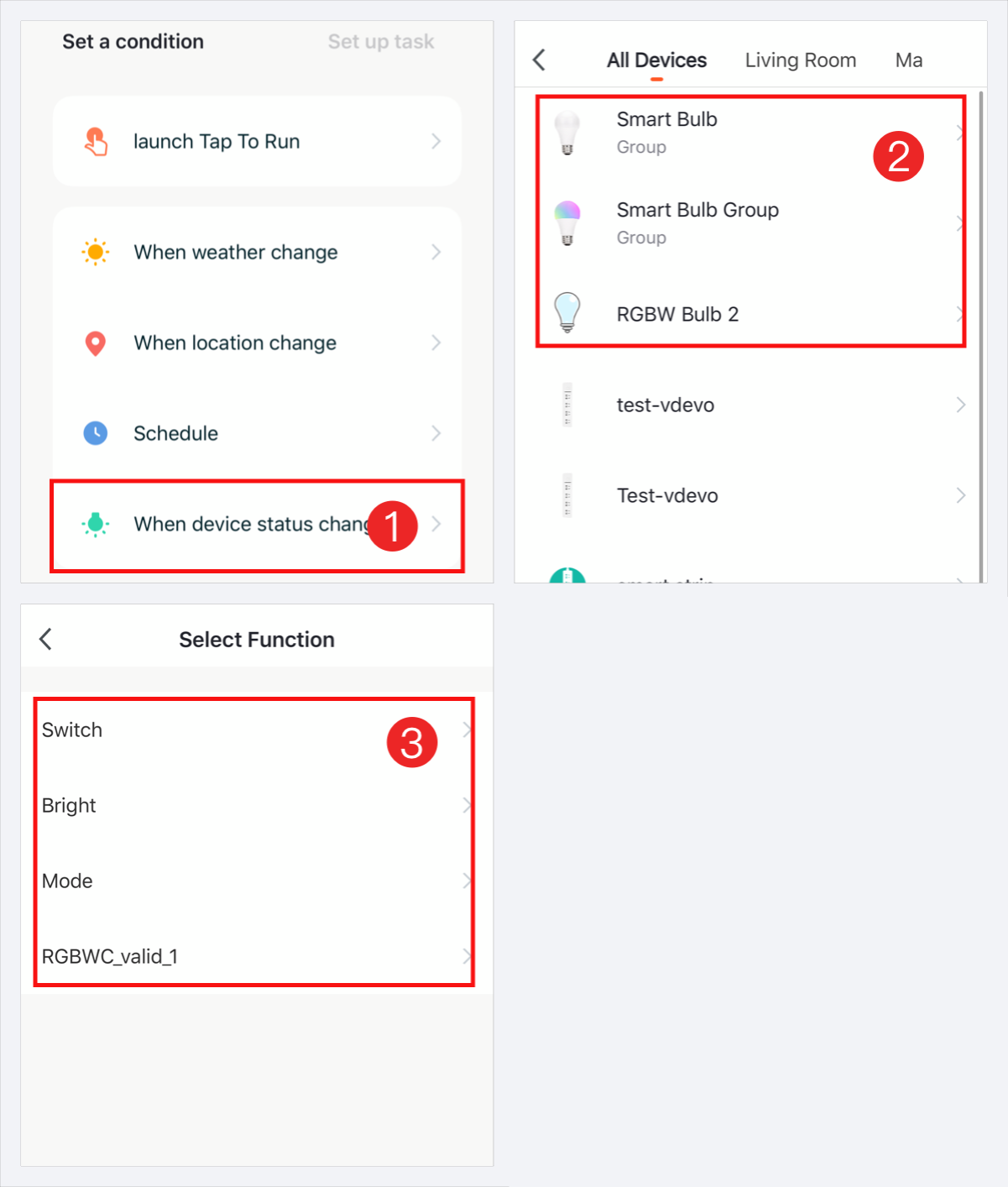
App can control the device, but it failed to use the Third-party voice control?
Dear user, we are sorry for your inconvenience. First, you need to make sure that the device supports the third-party control:
Check that the device has been discovered and joined to the third-party control App:
If the problem still exists after performing the checks above, use the Report Issue feature in the App Help Center to let us know about the problem. Be sure to include your App account user name and the ID of the affected device.
What kind of voice commands does Alexa Echo support?
【Trigger scene】
First set the scene in the App, then discover devices; the settings in the App will Appear in the Alexa App’s Scene list.
Alexa, turn on scene name ————————– trigger scene
Different types of devices can operate different voice commands. The common ones are as follows:
【switch SoCket】
(Slots, multi-switch products support sub-control, after each custom name on the App, each jack will be displayed on the Alexa App.
【Lighting】 (Control command and lamp type):
【Air conditioners and heaters】 (temperature control equipment):
(The set temperature refers to the temperature scale with different degrees Celsius and degrees Celsius. When the voice is controlled, the temperature scale set by the current Alexa Audio shall prevail.)
【Fan】
Note: Some fan’s wind speed adjustment methods are different. They are divided into the following two categories in voice control.
【Door lock / magnetic door】
【Electric curtain】
(Alexa itself does not support the category of curtains. We treat the curtains as a switch type device. Open the curtains to turn on and close the curtains.Should turn off; so curtains only support opening and closing, do not support pause; the expression of turn on/off curtain is also very different, but only this what to do)
【TV remote control】
【Camera】 (You need to use echo show or echo spot to control)
【Other devices】
Different devices need different control commands, if you need more control commands, please refer to the device manual or ask the seller to obtain them.
What commands does Google Assistant support?
The supporting commands are as follows:
.
Does Zigbee device support voice control?
Dear user, we are sorry for your inconvenience. Zigbee devices need to be equipped with a Zigbee gateway to achieve voice control.
Does the group created in this App support Alexa voice control?
Dear user, we are sorry for your inconvenience. Alexa does not support the voice control of Wi-Fi groups created in this App (Bluetooth groups are supported, but it needs to be used with a Bluetooth gateway). It only supports the voice control of groups created by itself in the Alexa App. After synchronizing all Wi-Fi devices to Alexa App, you can create a group of Wi-Fi devices in Alexa App, so that you can use Alexa to control the voice. Thank you for your understanding and support.
After I add a tap-to-run scene to Siri and delete it, I add another tap-to-run scene with the same name to Siri. Why does the system inform me that the name is in use?
Dear user, we are sorry for your inconvenience. Siri shortcuts are managed on an iPhone, and you cannot delete Siri shortcuts in the App. To delete Siri shortcuts that are no longer needed, use either of the following methods:
Thank you for your support and understanding.
Can I directly connect my devices to a third-party smart speaker?
Dear user, we are sorry for your inconvenience. Since each third-party smart speaker is a closed platform, and therefore can not be directly connected, and the need to achieve connection by way of binding skills.
Why doesn’t a smart speaker respond when I use it to control devices or scenes?
.
Dear user, we are sorry for your inconvenience. The smart speaker may fail to accurately identify or understand your command. You can change the device or scene name to a simple one such as bedroom light or living room light and use the new name to control the device or scene. If the problem persists, contact our customer service personnel.
Why does “Incorrect username or password” display when I register an account and bind a skill/action?
Dear user, you can use our latest binding method. If the login still fails,It may be that your account is in an incorrect region. Please check whether the account region you selected when binding skills is correct.
Note:
1. One Alexa Echo/Google Home skill/action can only be bound to one app account, an error will be reported if the binding is repeated.
2. Users who login to the App through a third-party login method need to E-mail first, and then modify the login password (there is no initial password for third-party login) and use this E-mail to login to the App account when binding a third-party smart speaker.